
Customer inbox
The customer inbox brings the people who write to your company into Freesbe. Every customer gets their own thread in a channel you pick, so the whole team can see it, answer it, or talk it over first.
- Web chat puts a chat button on your website. Visitors write, your team answers from Freesbe, and the visitor sees the answer in the chat.
- A shared email address brings mail to an address like support@ into a channel. Replies go back to the customer by email, in the same email thread.
- SMS brings texts to your Freesbe phone numbers into a channel. For now it runs in test mode, so you can try it before any text goes out.
- WhatsApp brings messages, photos and files sent to your WhatsApp Business number into a channel. Replies go back on WhatsApp, and approved templates let you write first.
- Telegram brings messages to your business on Telegram into a channel, and can share your channels’ posts on your Telegram channels and groups.
- Facebook Messenger and Instagram bring messages to your business’s Facebook Page and its Instagram account into a channel, and replies go back the same way.
- Hand-off shows who’s on each conversation and passes it to someone else in a click.
- Internal notes stay between the team: the customer never sees them.
- Saved replies keep the answers you give again and again one click away.
- Suggest a reply drafts an answer with AI, from the conversation and your saved replies.
- The AI agent answers customers itself, from your website, files, canvases and notes, and hands them to the team when it isn’t sure.
Put a chat on your website
Section titled “Put a chat on your website”Only owners and admins can add one.
- Open Workspace settings → Integrations & apps → Integrations → Customer inbox and click Add web chat.
- Give it a Name your team will recognize, like “Main website”, and pick the channel conversations go to. Everyone in that channel sees new chats and can answer, so a channel like #support works well.
- Set what visitors see: the Title in the chat (usually your company’s name), a Greeting and a Colour for the button.
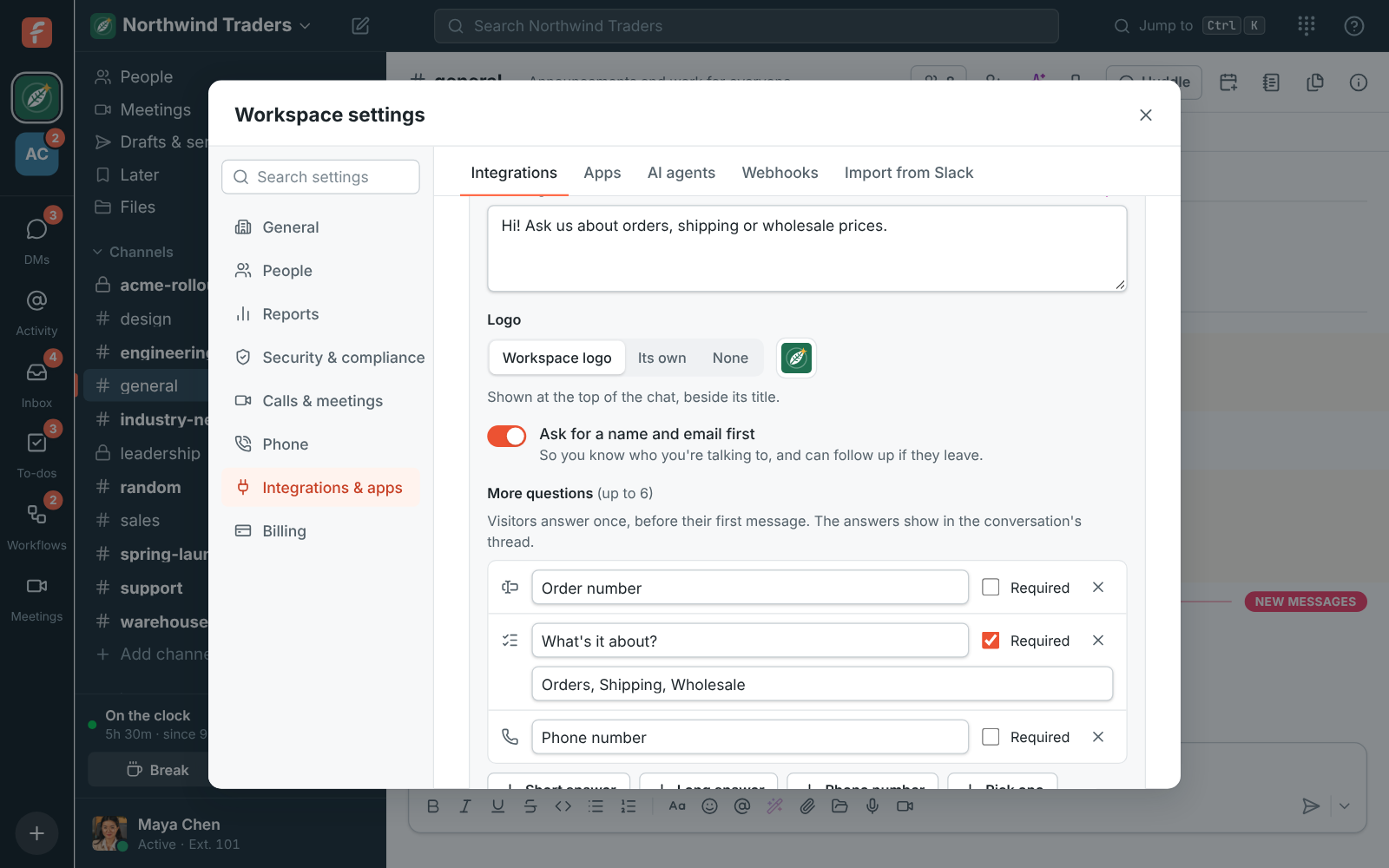
- Under Logo, pick what shows beside the title: your Workspace logo, Its own picture (upload it once the chat is added) or None.
- Leave Ask for a name and email first on to know who you’re talking to and follow up if they leave. Turn it off to let visitors write straight away.
- To ask more before the chat starts, add More questions (up to 6): a Short answer like an order number, a Long answer, a Phone number, or Pick one with your own choices, like Orders, Shipping, Wholesale. Tick Required for the ones visitors must answer.
- Under Websites it can appear on, put your site’s addresses, one per line, like
https://northwind.example. The chat then only works on those sites. Leave it empty to allow any site. - Click Save, then copy the line under Paste this before </body> on your site and add it to every page that should show the chat.
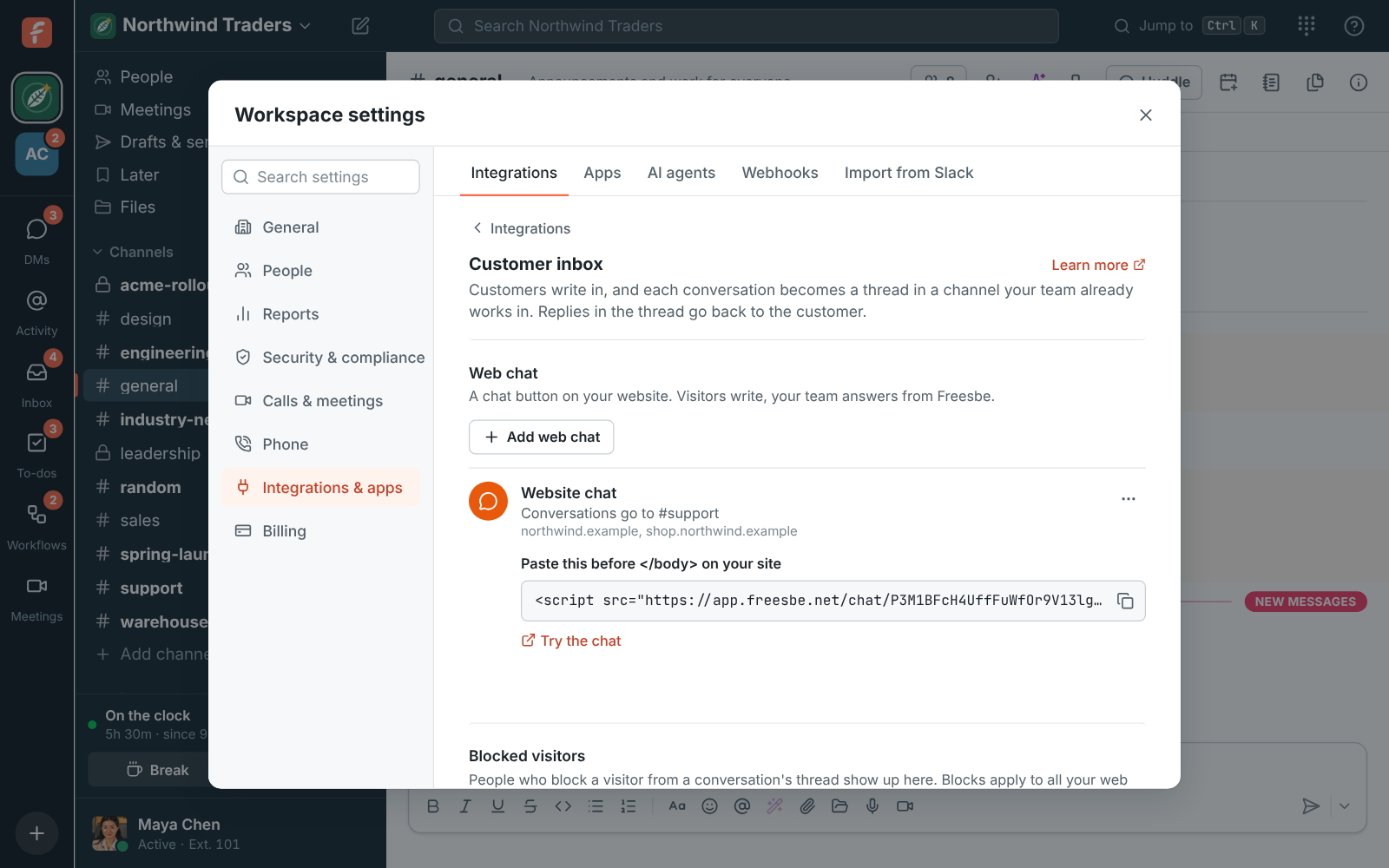
The snippet looks like this:
<script src="https://app.freesbe.net/chat/AbC123.../widget.js" async></script>Click Try the chat to open the chat on its own page and send yourself a test message. To change a web chat later, open its ⋯ menu: Edit, Turn off (the button disappears from your site until you turn it back on) or Delete. Deleting a web chat keeps the conversations already in the channel.
Bring in your support email
Section titled “Bring in your support email”Keep the address your customers already know, like support@northwind.example. Freesbe gives each email inbox its own address, and you forward your address to it. Only owners and admins can add one.
- Open Workspace settings → Integrations & apps → Integrations → Customer inbox and, under Shared email address, click Add email address.
- Give it a Name and pick the channel emails go to.
- Enter Your team’s address, the one customers write to. Replies ask customers to answer it, so their answers come back the same way.
- Check the Name on replies. A reply Sam sends comes from “Sam at Northwind Traders”.
- Click Add email address, then copy the address under Forward your team’s address to this one.
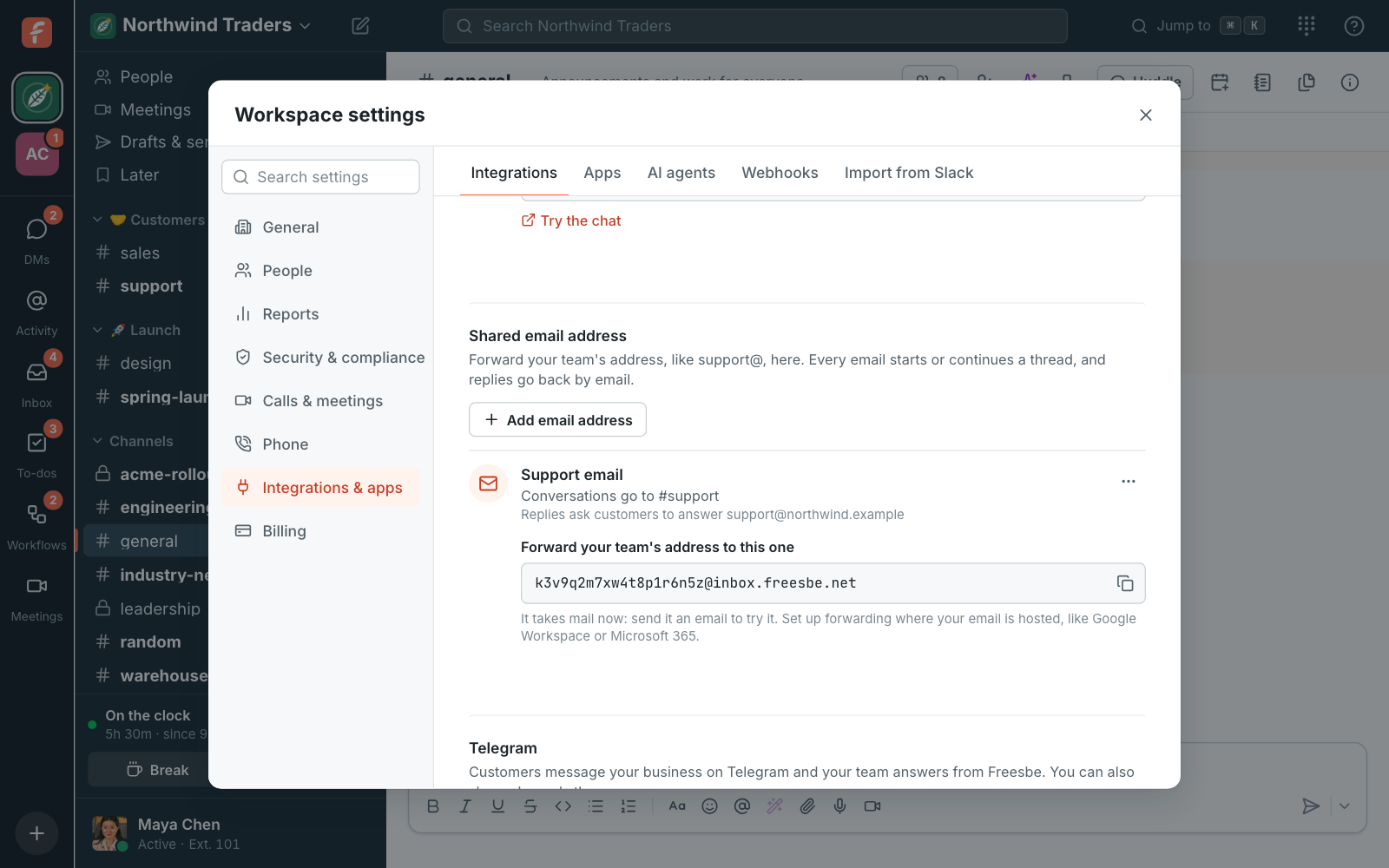
Then set up forwarding where your email is hosted:
- Google Workspace: for a group like support@, add the Freesbe address as a member of the group. For a mailbox, open its Gmail settings → Forwarding and POP/IMAP → Add a forwarding address. Gmail sends a confirmation email to the Freesbe address: it shows up in your channel as a conversation, so open the link in it to confirm.
- Microsoft 365: in the Exchange admin center, open the mailbox → Mail flow settings → Email forwarding, turn it on and enter the Freesbe address. Tick Deliver message to both forwarding address and mailbox to keep a copy. If your company blocks forwarding outside it, ask your Microsoft 365 admin to allow it for this mailbox.
- Anywhere else: look for “forwarding” in your email provider’s settings.
The Freesbe address takes mail as soon as you add it, so you can try it by emailing it yourself.
How email conversations work
Section titled “How email conversations work”- Each email from a new sender starts a conversation, with the email’s subject on the card. Later emails from the same person land in the same thread until you close it.
- Freesbe shows what the customer wrote this time: the quoted earlier emails and their signature are left out.
- Your replies go out with the same subject (Re: …) and as replies to the customer’s email, so the customer sees one email thread.
- Attachments aren’t brought over yet. The message lists their names, so you know to ask for them another way.
- Turning an email inbox off, or deleting it, bounces mail sent to its Freesbe address. Turn off the forwarding first.
Texts to your Freesbe numbers
Section titled “Texts to your Freesbe numbers”Put one of your Freesbe phone numbers in the inbox, and texts to it land in a channel, one thread per customer. Only owners and admins can add one.
- Open the Admin Center, then Phone → Numbers → Messaging, and click Add number.
- Give it a Name, pick the channel texts go to, and pick the Number customers text.
- Click Add number.
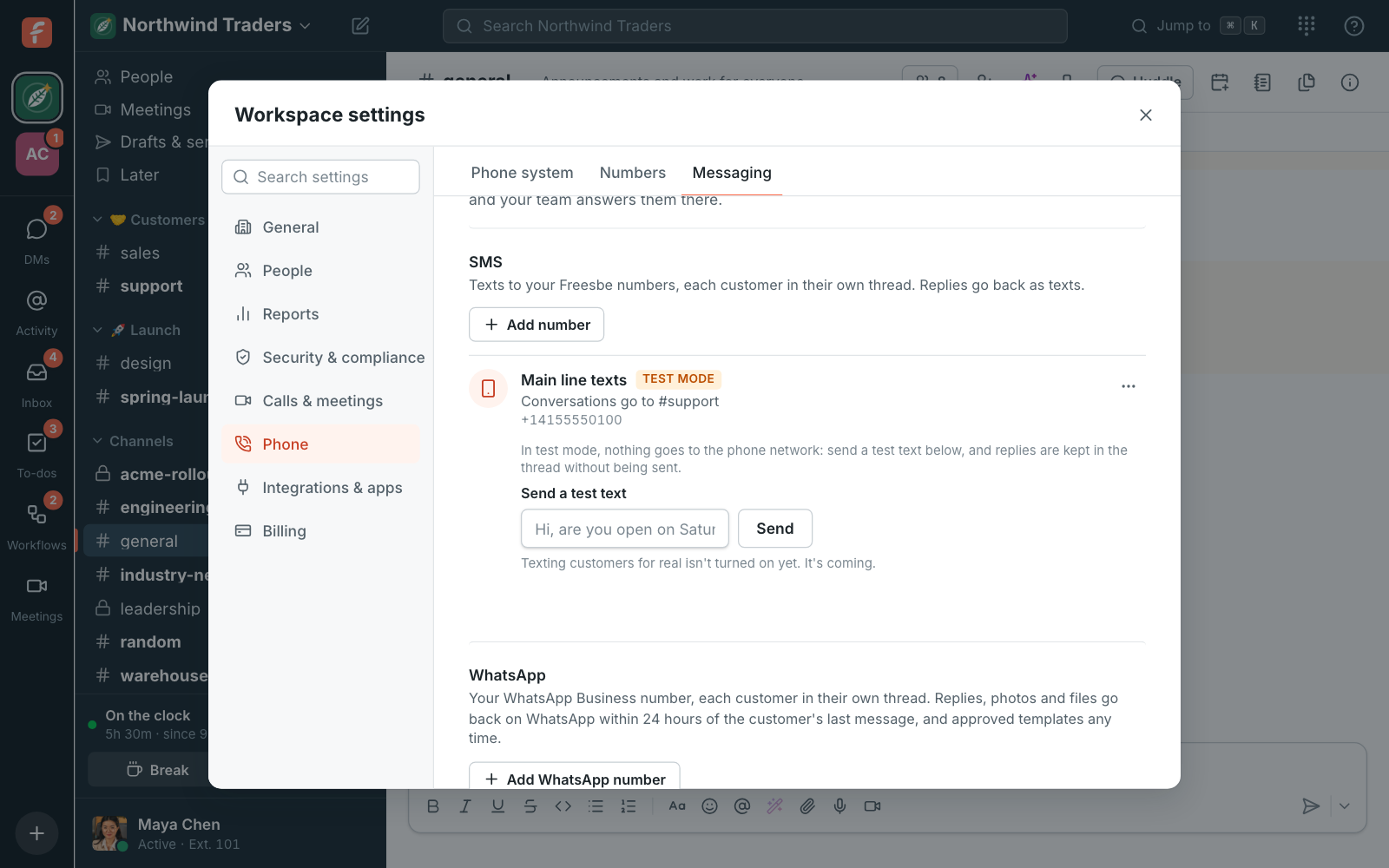
Test mode
Section titled “Test mode”A texting inbox starts in test mode: nothing goes to or comes from the phone network.
- Type a message under Send a test text and click Send. It lands in the channel from a made-up number, like a customer’s text would.
- Reply in the thread as usual. The reply is kept and marked Test mode: not sent, so you can see how working a conversation feels before anyone gets a text.
Going live
Section titled “Going live”When you’re happy with it, click Go live under the number and confirm. From then on:
- Texts customers send to the number land in the channel, one thread per customer. Pictures sent with a text are mentioned in the thread but not shown yet.
- Replies in the thread are texted back from the same number. Under each reply you see whether it was Sent, Delivered or Failed, with the reason when it failed.
- A customer who texts STOP doesn’t get texts from the number any more, and the thread says so. They can text START to get them again.
The number has to be one of your workspace’s own phone numbers. In the US, a number needs its business texting registration (A2P 10DLC) done before it can text customers; replies say so until it is. To stop texting for real, open the number’s ⋯ menu and choose Back to test mode.
Texting for real is opening up gradually. Until it’s on for your workspace, the number stays in test mode and says it’s coming.
Put your company’s WhatsApp Business number in the inbox, and WhatsApp messages to it land in a channel, one thread per customer. WhatsApp comes with the Business plan and up. Only owners and admins can add one.
- Open the Admin Center, then Phone → Numbers → Messaging, and, under WhatsApp, click Add WhatsApp number.
- Give it a Name, pick the channel messages go to, and type your WhatsApp Business number with its country code.
- Click Add number.
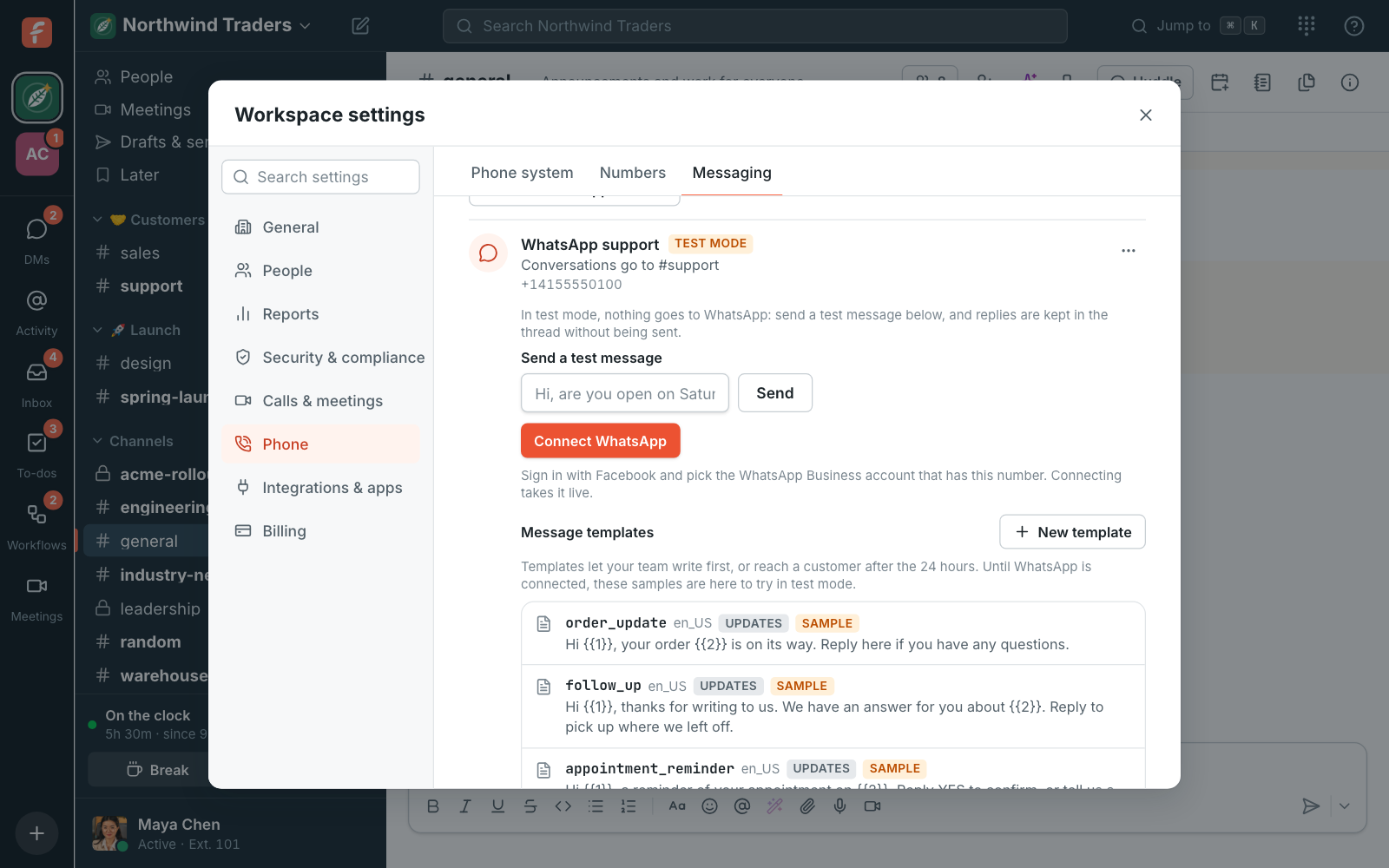
It starts in test mode, like a texting inbox: send a test message under Send a test message, reply in the thread, and nothing goes to WhatsApp.
Connect WhatsApp
Section titled “Connect WhatsApp”- Click Connect WhatsApp under the number.
- Sign in with Facebook in the window that opens, pick your business, and pick (or create) the WhatsApp Business account that has the number. Freesbe only asks to manage that account’s messages.
- You’re back in Phone → Numbers → Messaging, and the inbox is live.
From then on:
- WhatsApp messages to the number land in the channel, one thread per customer, with the name the customer uses on WhatsApp. Photos, videos, voice messages, stickers and files show in the thread like any other file; locations show as an address.
- Replies in the thread go back on WhatsApp from your number. Attach a photo, video, voice recording or file to a reply and it goes too, with your words as its caption. Under each reply you see whether it was Sent, Delivered, Seen or Failed, with the reason when it failed.
- WhatsApp only takes free-form replies within 24 hours of the customer’s last message. After that, the bar over the box says so and offers Send a template.
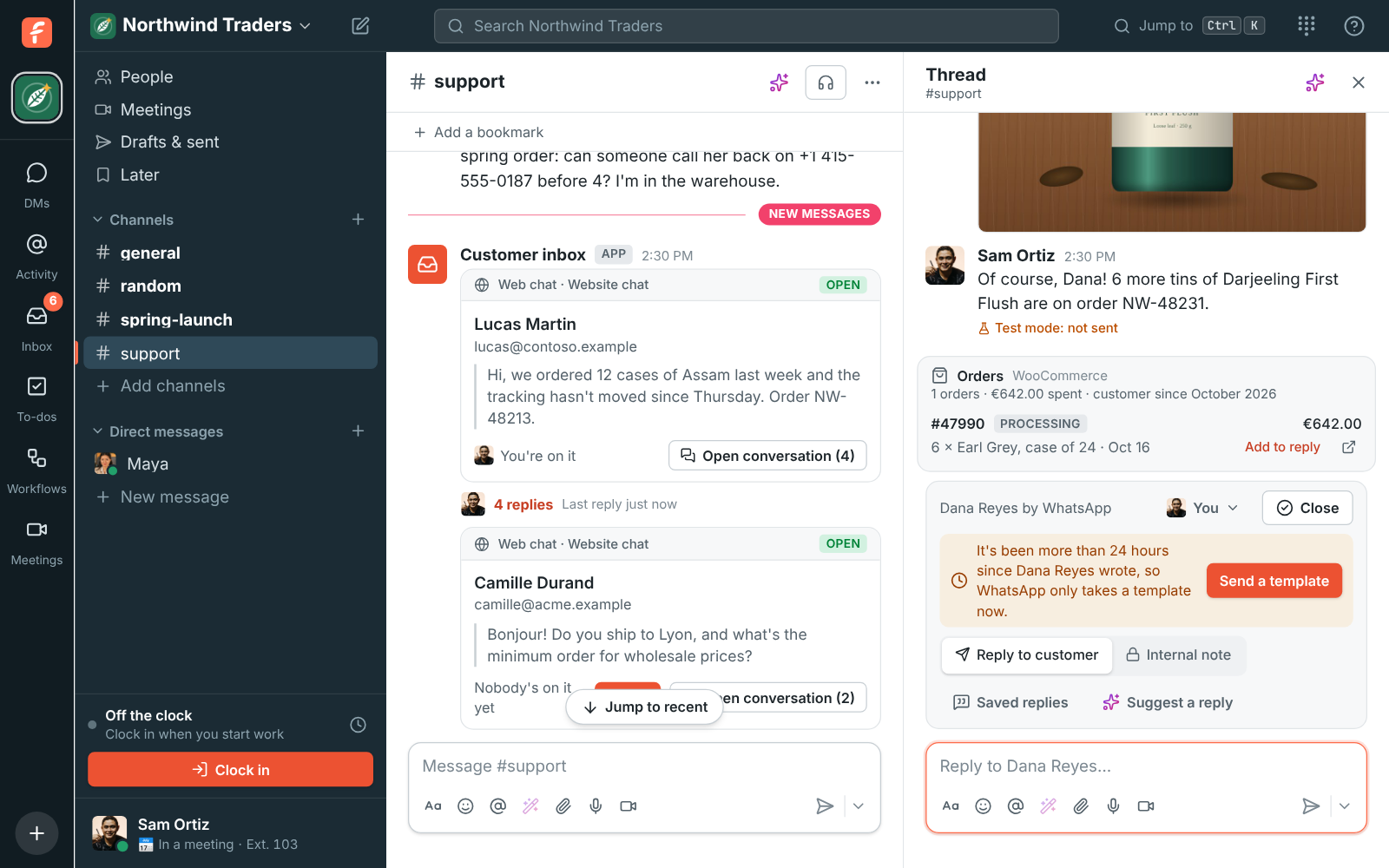
WhatsApp bills your WhatsApp Business account under Meta’s own pricing: the charges come from Meta, not on your Freesbe bill. Replies within 24 hours of a customer’s message are free under Meta’s current pricing; templates are charged per message, and marketing ones cost more than updates.
Templates
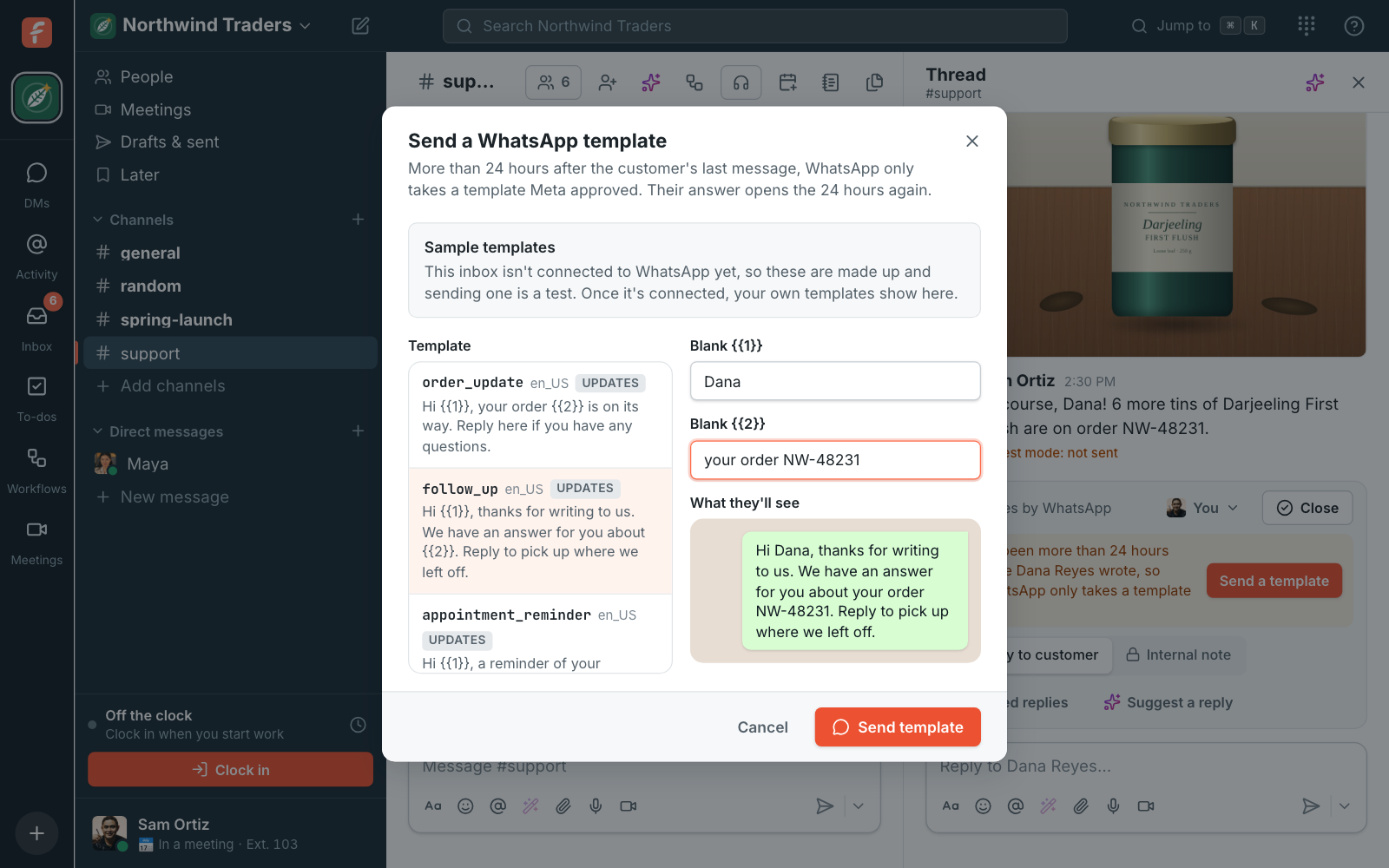
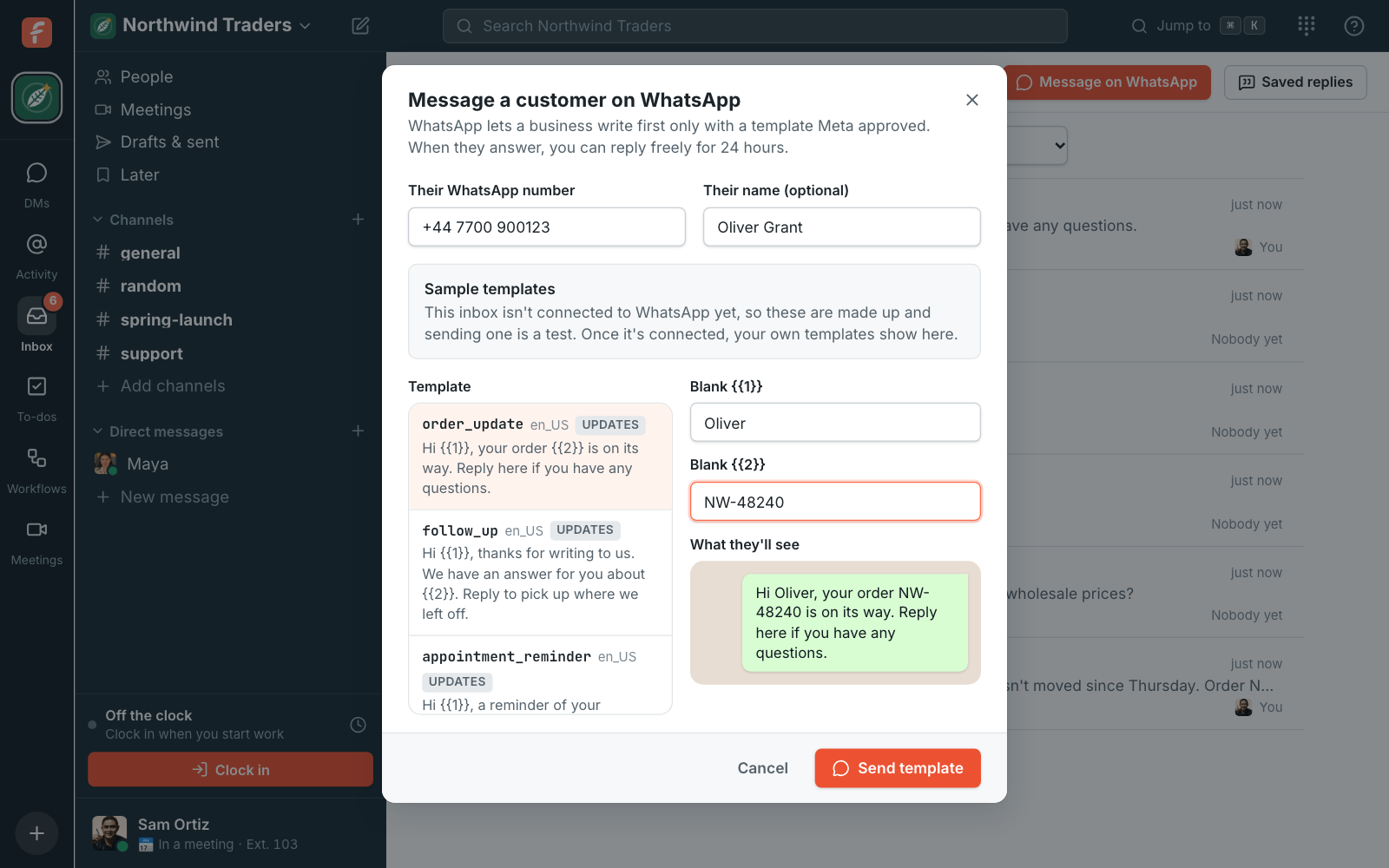
Section titled “Templates”A template is a message Meta approved ahead of time, with blanks like {{1}} for a name or an
order number. WhatsApp takes one any time: it’s how you reach a customer after the 24 hours, and
how you write to someone who hasn’t written to you. When they answer, you can reply freely for 24
hours again.
To send one in a conversation, click Send a template on the bar over the box (or Templates, while the 24 hours are still running). Pick a template, fill in its blanks, check What they’ll see, and click Send template. It shows in the thread as your message.
To write to a customer first, open Inbox and click Message on WhatsApp. Type their number with its country code (and their name, if you like), pick a template and fill it in. Their conversation starts as a new thread in the inbox’s channel, or carries on in the open one if they already have one.
Templates live on your WhatsApp Business account. Owners and admins see them under the number in Phone → Numbers → Messaging, with whether Meta approved, is still reviewing, or turned down each one. To make one there:
- Click New template.
- Give it a Name in lowercase with underscores, like
restock_alert, and pick its Language. - Pick its Kind: Updates for something the customer did or asked for (an order, a booking, a ticket), Marketing for offers and news.
- Write the Message, with
{{1}},{{2}}where something changes each time, and give an example for each so Meta’s reviewers can read it. Add a Footer if you like. - Click Send for review. Meta usually answers within a day; the template can be sent once it’s approved.
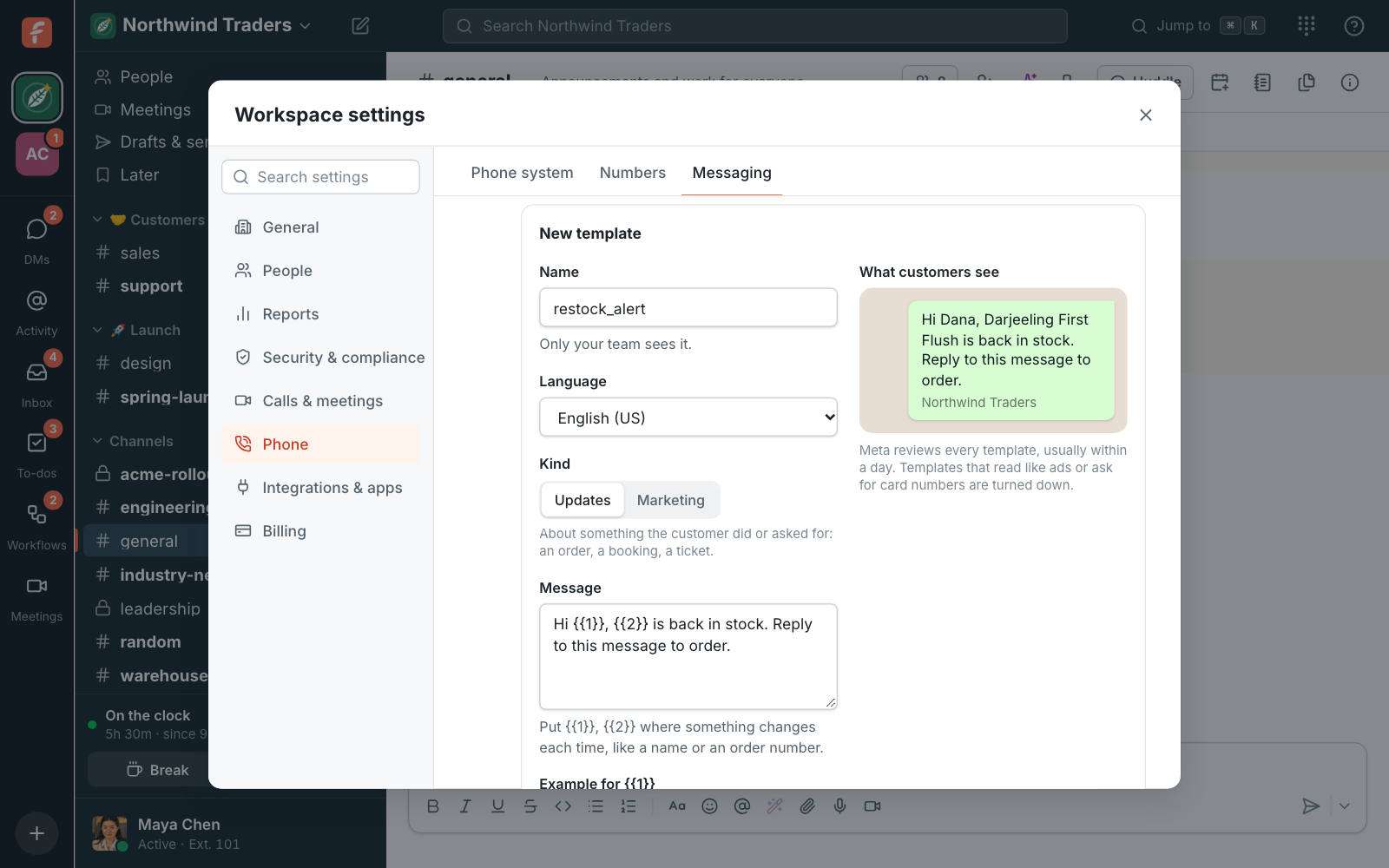
Until the inbox is connected to WhatsApp, three sample templates stand in for yours, so you can try it all in test mode. Templates with a picture header or a link button that changes each time can be made in WhatsApp Manager but not sent from Freesbe yet.
Change or stop
Section titled “Change or stop”A number used in the WhatsApp Business app on a phone moves to the inbox when you connect it. To stop answering on WhatsApp, open the inbox’s ⋯ menu and choose Back to test mode. If replies stop going out (for example, someone removed Freesbe from your business on Facebook), click Connect again.
Telegram
Section titled “Telegram”Customers find your business on Telegram and message it there. Each customer gets their own thread in a channel you pick, and replies, photos and files go back on Telegram. Telegram has no 24-hour limit and no message fees. The same connection can also share your channels on Telegram. Telegram comes with the Business plan and up.
Connect Telegram
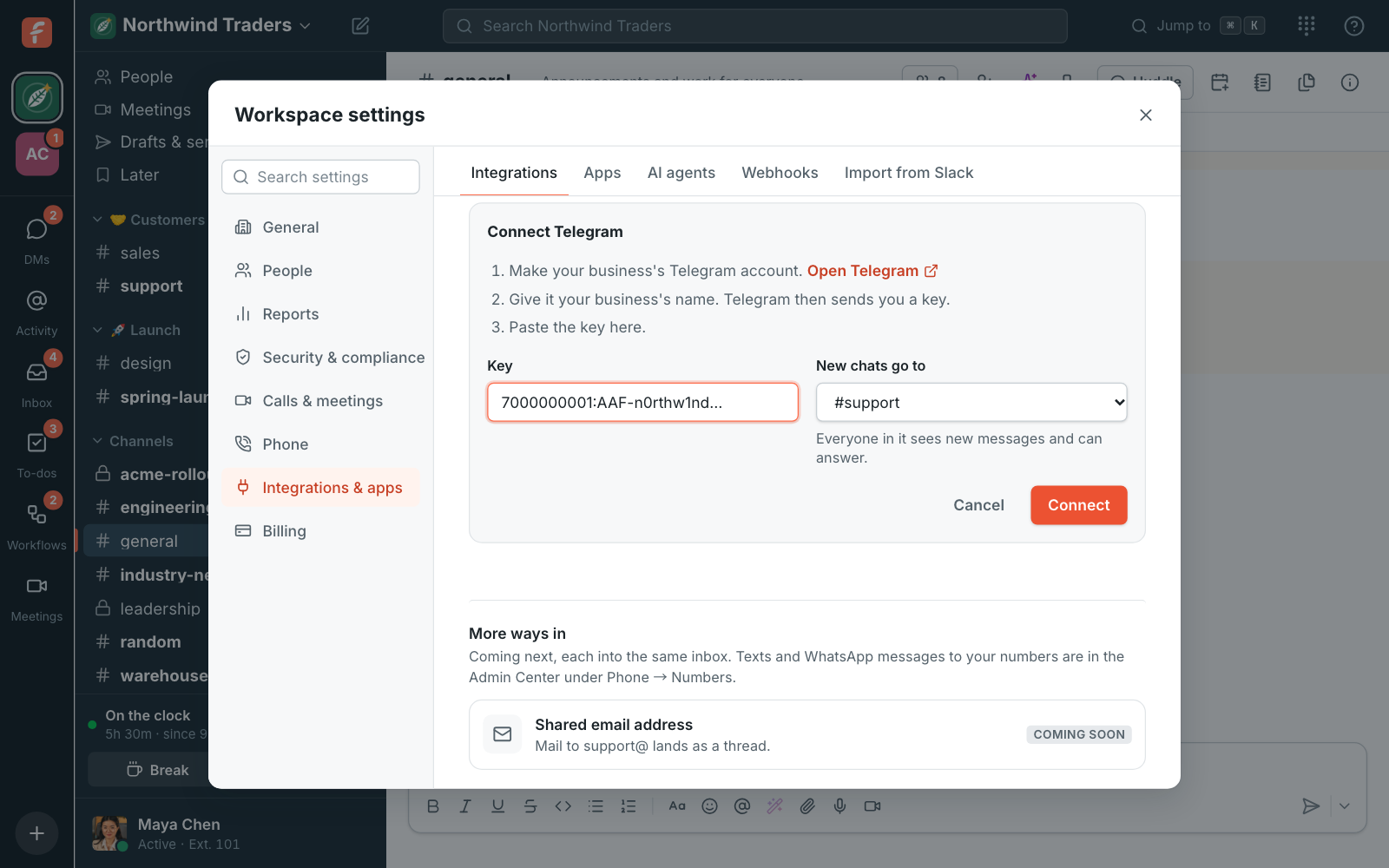
Section titled “Connect Telegram”- Open Workspace settings → Integrations → Customer inbox and, under Telegram, click Connect Telegram.
- Click Open Telegram and make your business’s Telegram account: give it your business’s name, and Telegram sends you a key.
- Paste the key, pick the channel new chats go to, like #support, and click Connect.
Once it’s connected, the settings show the name customers see, and Your Telegram link (t.me/…) to put on your website, in emails and on receipts. A customer who opens it and writes lands in the channel, in their own thread, and anyone there can answer.
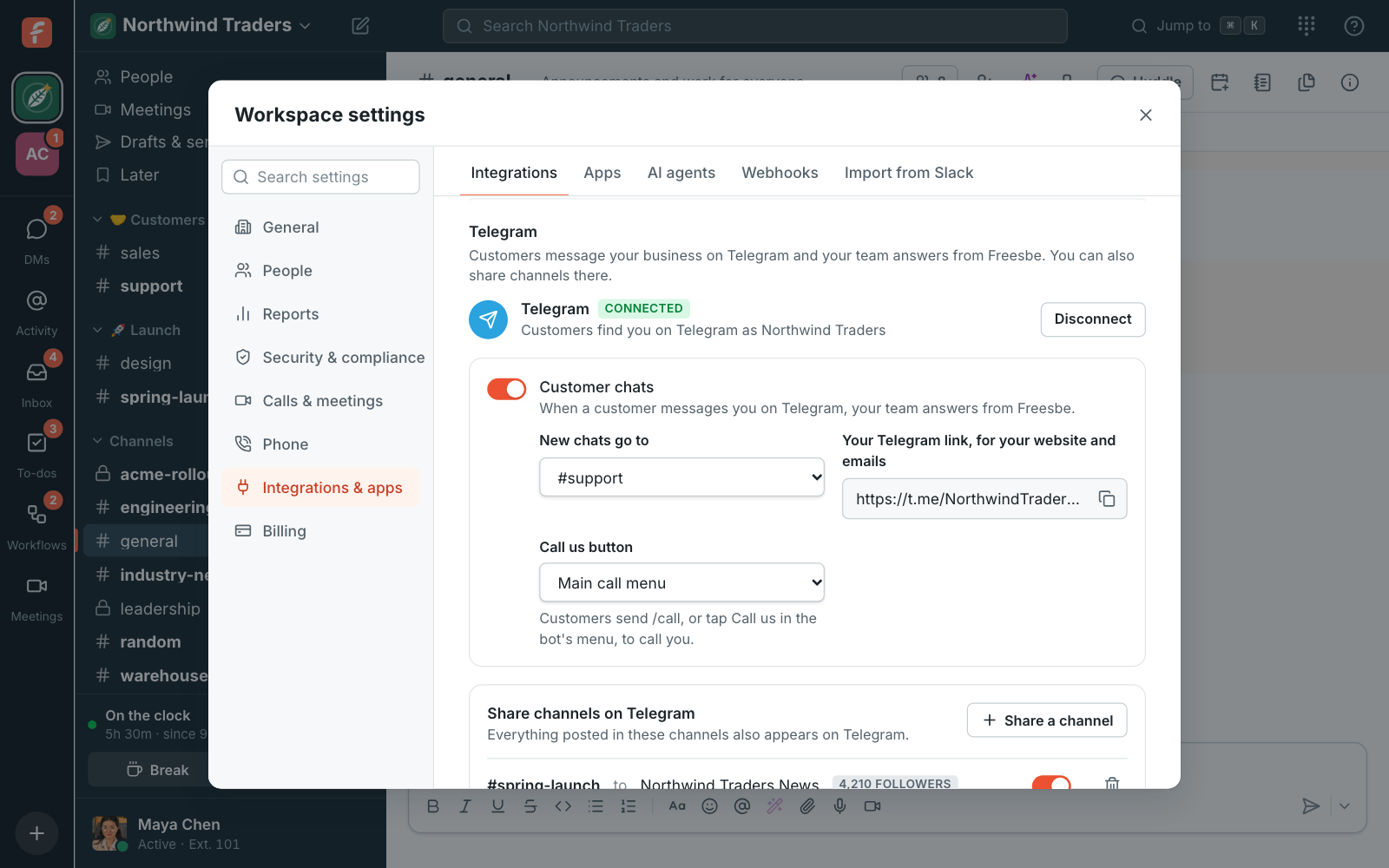
To let customers call you, pick a Call us link as the Call us button. Customers then send /call, or tap Call us in the bot’s menu, and get a button that opens it: they pick who they need and call from their phone’s browser, free.
Turn off Customer chats to use Telegram only for sharing channels.
Share channels on Telegram
Section titled “Share channels on Telegram”Everything posted in a shared channel also appears on Telegram, under the poster’s name: new posts, and edits and deletes after. Use it for announcements to customers who follow your Telegram channel, or to keep a Telegram group with a partner in the loop.
- In Telegram, add your business’s account to your Telegram channel as an admin who can post, or to the group.
- Under Share channels on Telegram, click Share a channel, pick the Freesbe channel and where it appears on Telegram, and click Share.
- For a group, Replies come back brings what people write in the group into the channel, and replies to a post land in its thread. Replies in a thread in Freesbe go to the group as replies, too.
The switch next to a share pauses it, and the bin stops it. What’s already on Telegram stays.
Facebook Messenger and Instagram
Section titled “Facebook Messenger and Instagram”Customers message your business’s Facebook Page on Messenger, or send your Instagram account a direct message, and each one gets their own thread in a channel you pick. Replies, photos and videos go back the same way. Meta charges nothing for these messages. Messenger and Instagram come with the Business plan and up.
Connect your Page
Section titled “Connect your Page”- Open Workspace settings → Integrations → Customer inbox and, under Facebook Messenger and Instagram, click Connect with Facebook.
- Tick Facebook Messenger, Instagram or both, pick the channel new conversations go to, like #support, and click Continue with Facebook.
- In Facebook’s window, sign in with the account that manages your business’s Page, pick the Page, and leave every permission on.
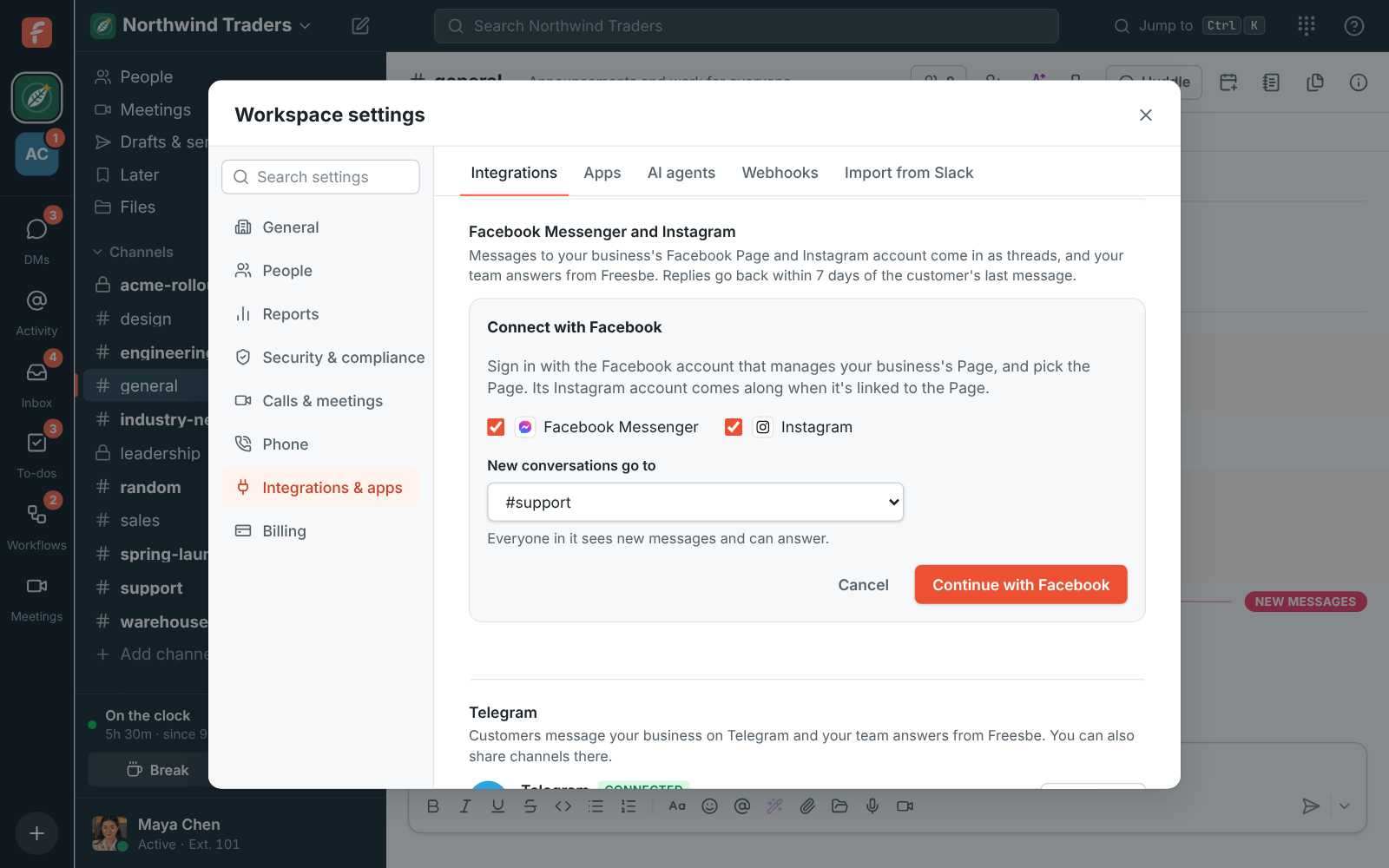
Instagram comes along when your Instagram professional (business or creator) account is linked to the Page. If your Facebook account manages more than one Page, Freesbe asks which one when you come back.
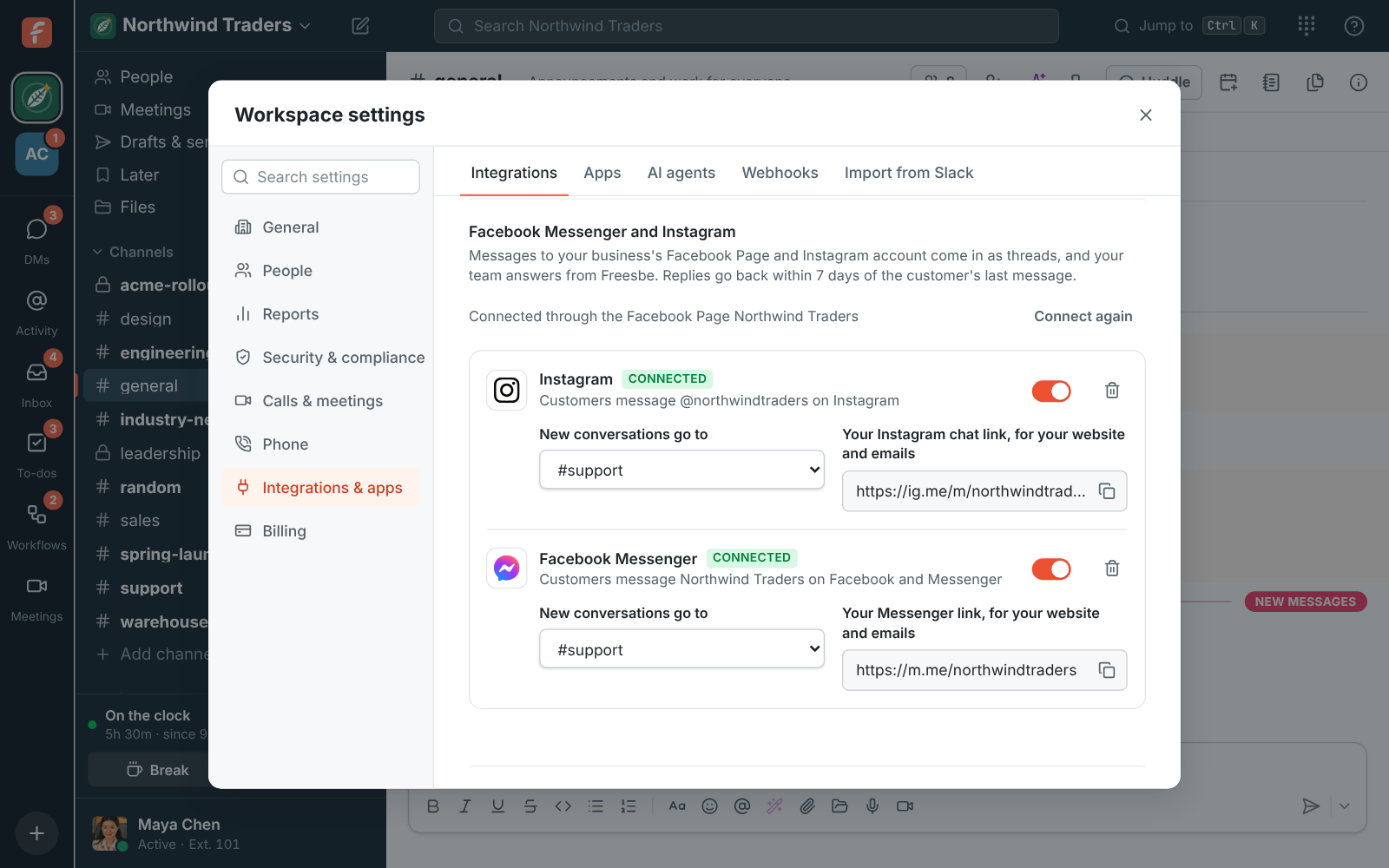
Once it’s connected, each one shows where its conversations go, a switch to stop them for a while, and its link for your website and emails: m.me/… opens a chat with your Page on Messenger, and ig.me/m/… a direct message to your Instagram account.
Answer on Messenger and Instagram
Section titled “Answer on Messenger and Instagram”A customer’s message lands in the channel as a thread with their name, like any other conversation, and anyone there can answer. Photos, videos and voice messages they send show in the thread. On Instagram, a reply to one of your stories or a mention in theirs shows a link to the story, and a message the customer unsends disappears from the thread too.
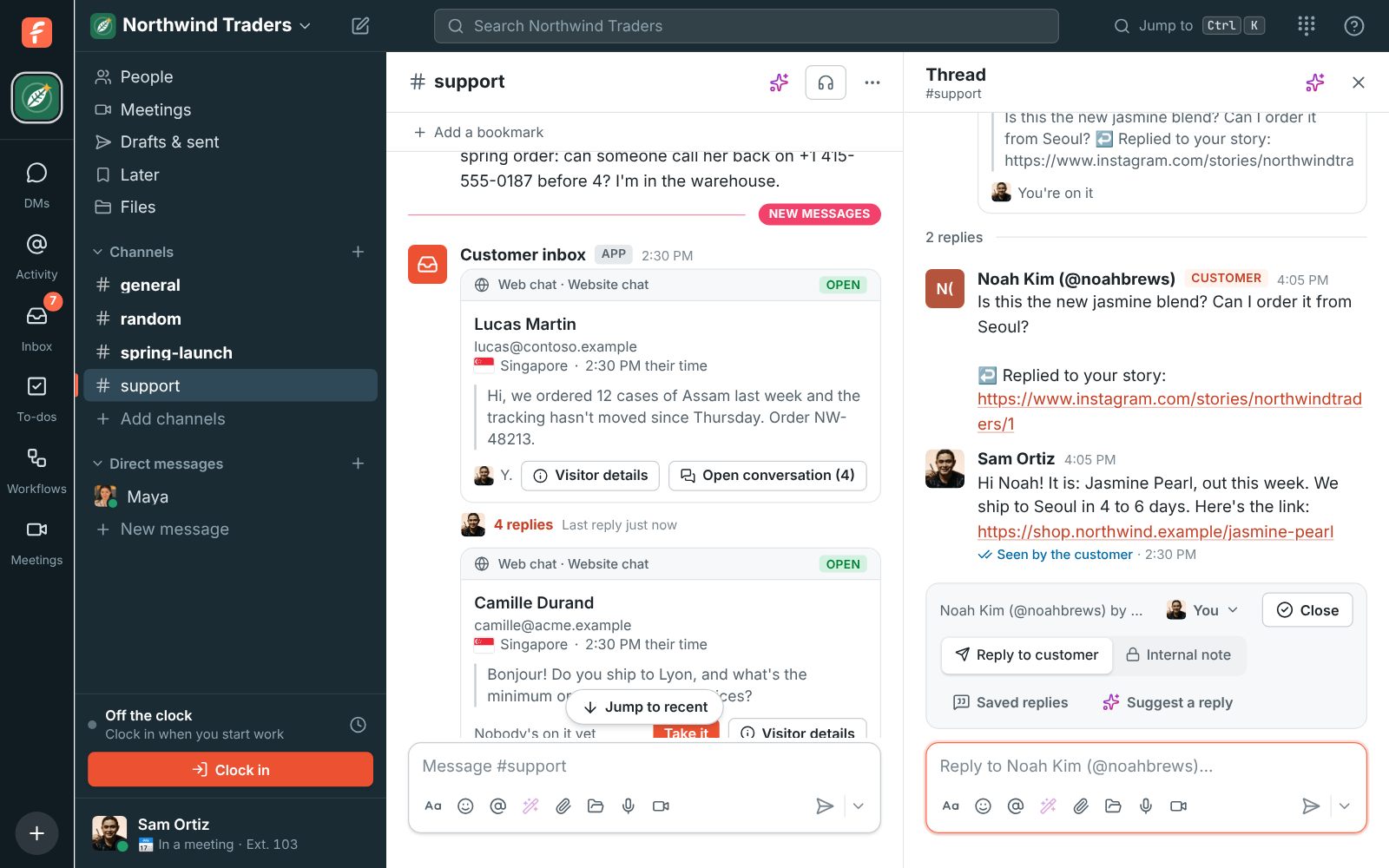
- The 7 days. Meta lets you answer for 24 hours after the customer’s last message. After that a person (not an automation) can still answer for 7 days, and the bar over the reply box says so. After 7 days the reply isn’t sent: the customer has to write again first.
- Answered from Facebook or Instagram. A reply someone sends from Meta Business Suite or the Instagram app shows in the thread too, so the conversation stays complete.
- Seen. When the customer reads your reply, it shows Seen by the customer, the same as for web chat.
- Files. Messenger takes files up to 25 MB. Instagram takes photos up to 8 MB, and videos and voice messages up to 25 MB, but no other files.
If replies stop going out
Section titled “If replies stop going out”If someone changes the Facebook password of the person who connected it, or removes Freesbe in Facebook’s Business integrations settings, Facebook stops letting Freesbe answer. The reply says Not sent with the reason, and the inbox shows Needs reconnecting: click Connect again and sign in with Facebook. The conversations and their threads stay.
To stop Messenger or Instagram, click the bin next to it. Its conversations stay in the channel as threads. A Page can be connected to one Freesbe workspace at a time.
What visitors see
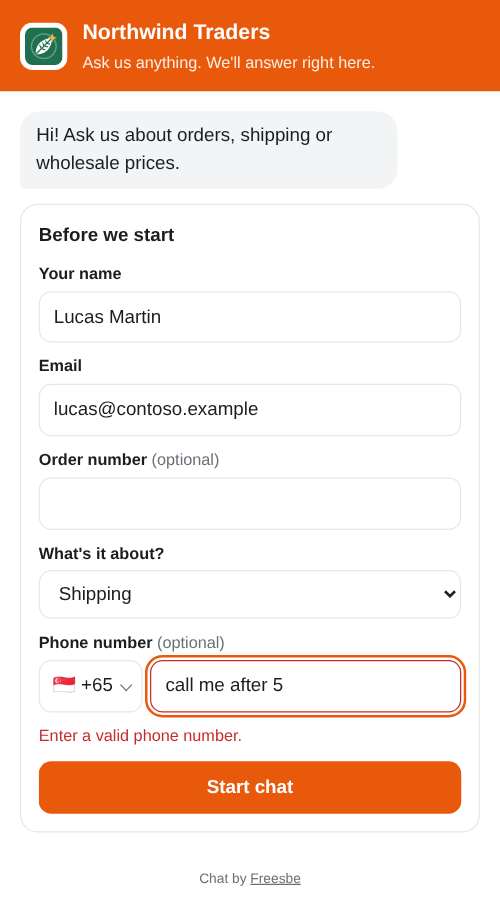
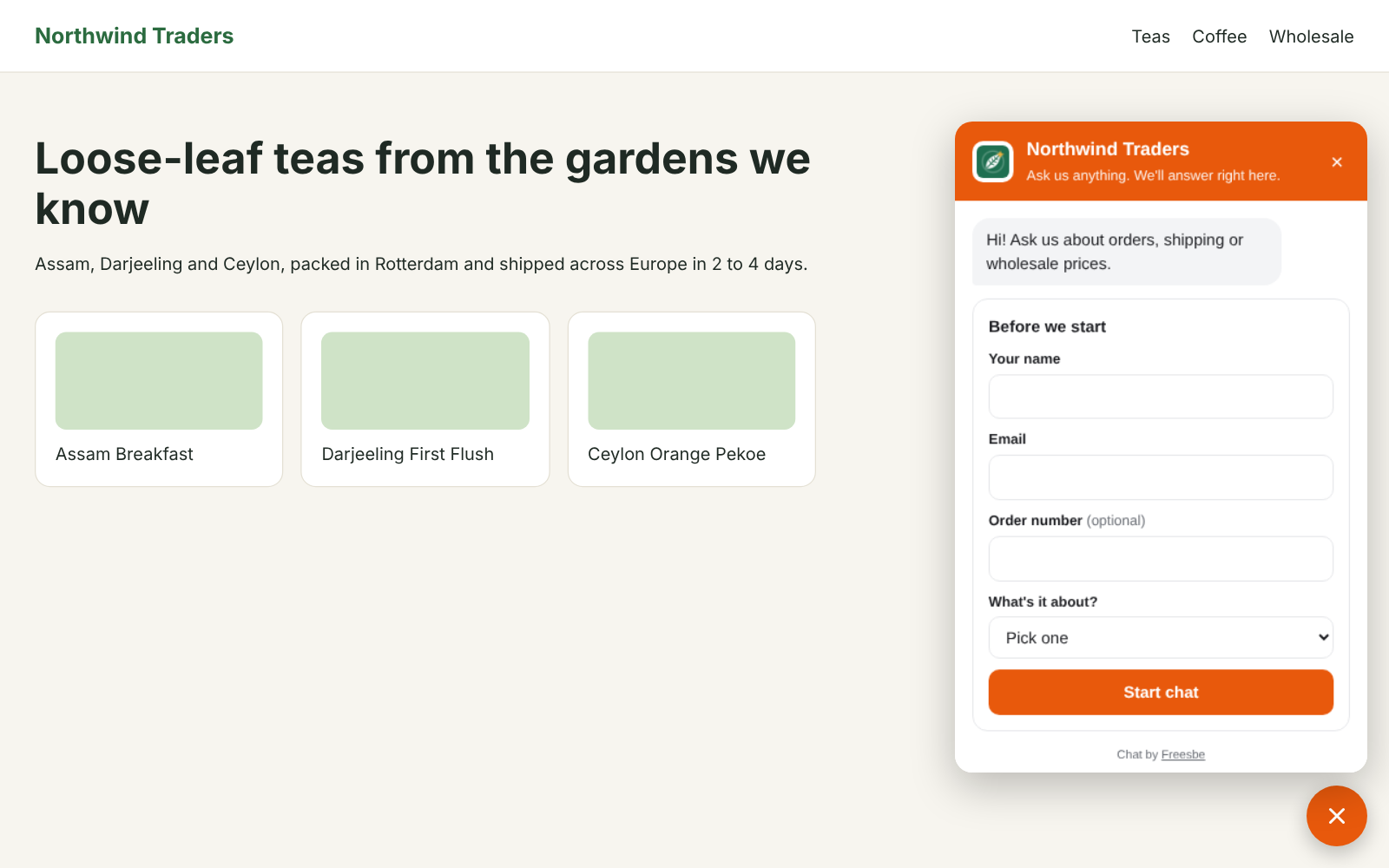
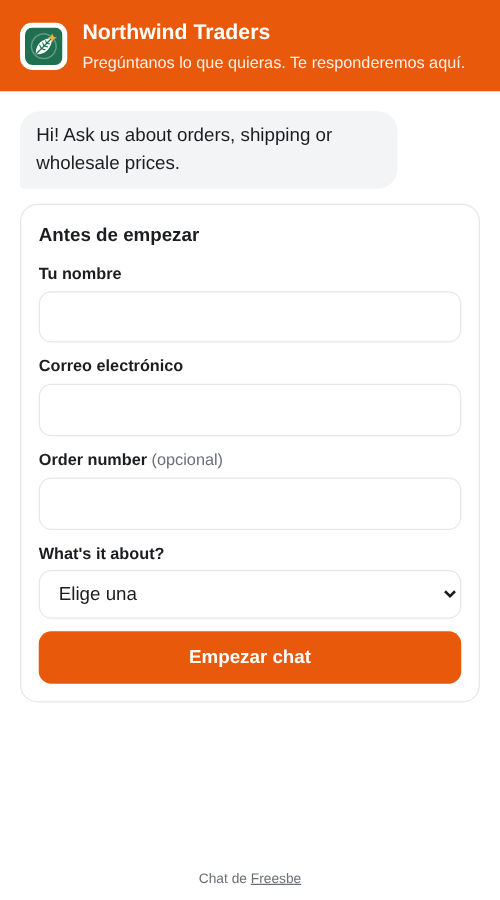
Section titled “What visitors see”A round button sits in the bottom corner of your site. Clicking it opens the chat with your logo, title and greeting. When the chat asks for a name and email or has more questions, a new visitor answers them first under Before we start and clicks Start chat. They’re asked once: after their first message, the chat only shows the conversation and the message box.
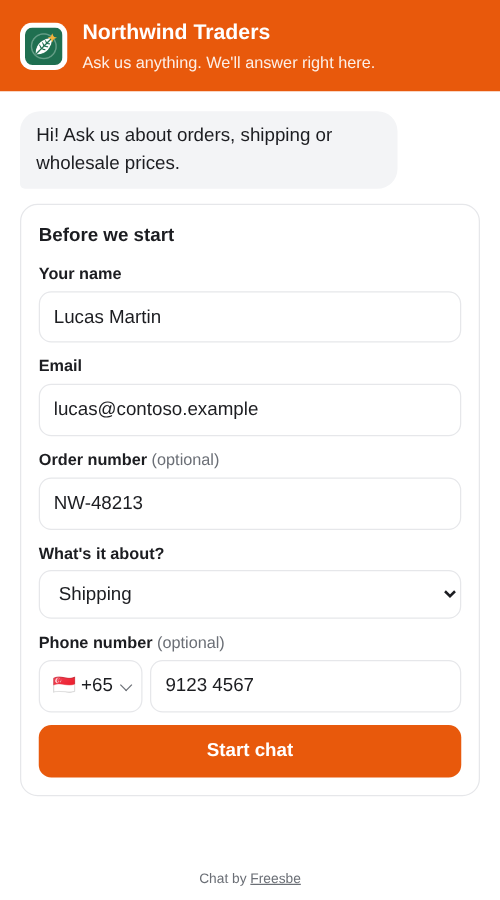
A Phone number question comes with a country picker showing the flag and dialling code. It starts on the country the visitor is in, and the number takes that country’s format as they type it, like 9123 4567 in Singapore. Typing a number with + and its country code picks the country by itself. If what they typed isn’t a real number, the chat says Enter a valid phone number before it starts. Your team gets the number in full international form, like +65 9123 4567, and can click it to call.
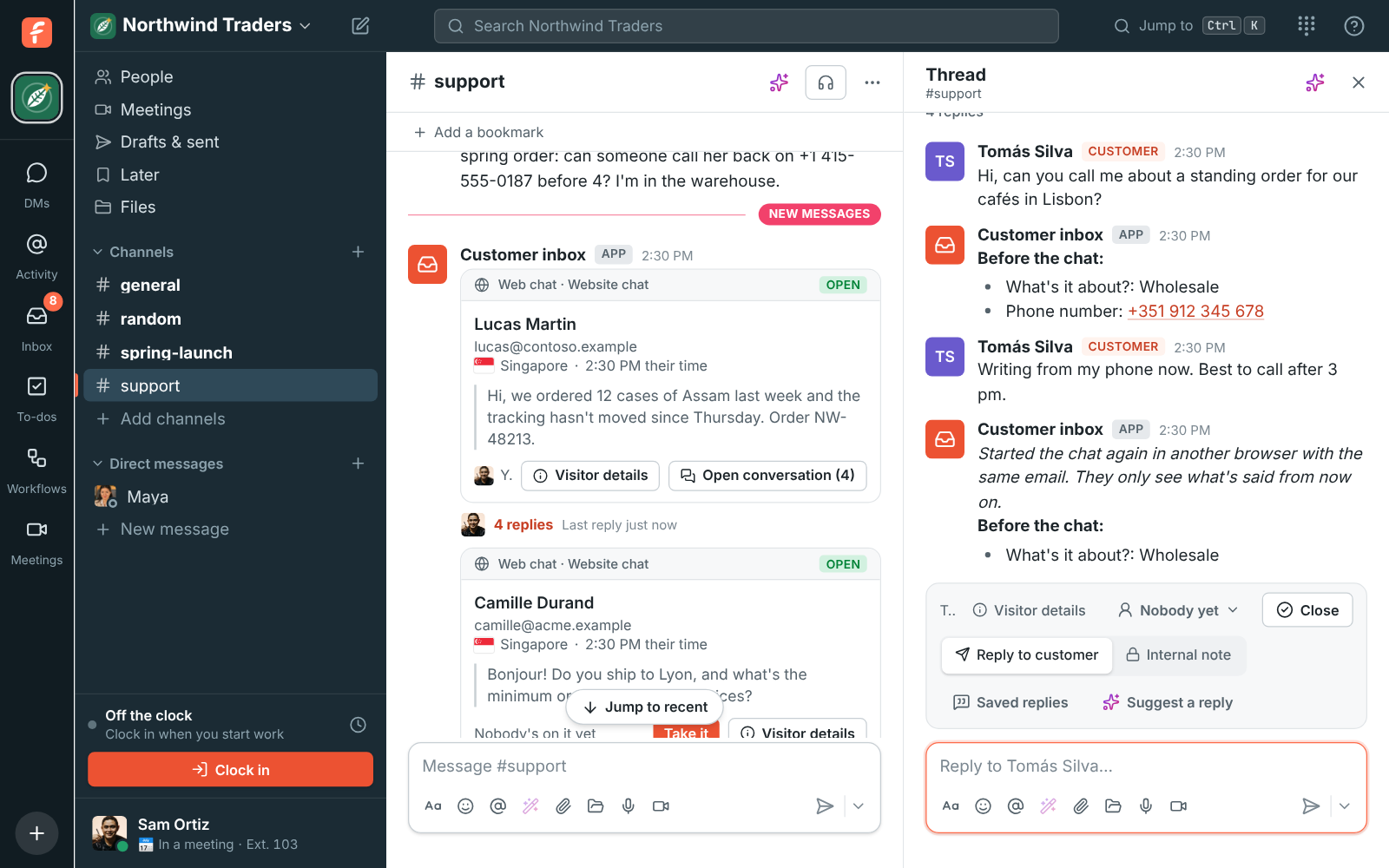
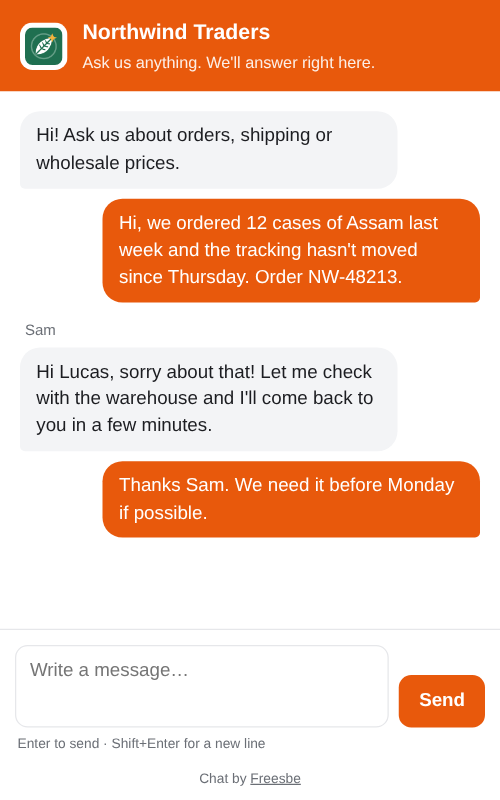
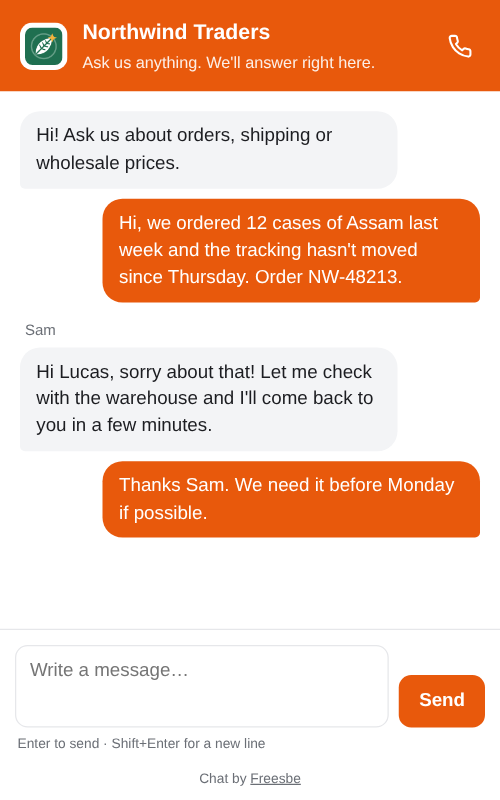
Their first message starts a conversation, and their answers appear in its thread under Before the chat, for the team only. Your team’s answers show up in the chat with the first name of whoever wrote them. The message box grows as they write: Enter sends, and Shift+Enter starts a new line.
If someone starts a chat again with the same email while their earlier conversation is still open (from another browser or their phone, or after clearing their browser), their message goes into that conversation, so your team keeps one thread with a note saying so. The new browser only shows what’s said from then on, never the earlier messages, since anyone could type that email. The first browser stops showing the chat.
Typing
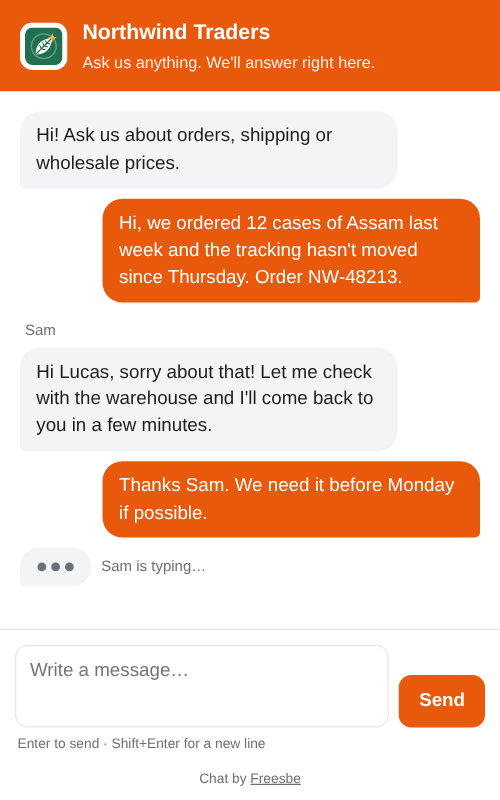
Section titled “Typing”While someone on your team writes a reply, the visitor sees three moving dots under the last message with who it is, like Sam is typing…. Writing an internal note never shows: only replies to the customer do. The dots go away when the reply arrives, or a few seconds after your teammate stops typing.
The chat remembers the visitor in their browser, so they can close the page and come back to the same conversation. When your reply is on their screen with the chat open, your team sees Seen by the customer under it. Visitors never see your channel, internal notes or anyone’s email address.
Remember visitors for in the web chat’s Edit sets how long that lasts, counted from the visitor’s last message: Only this visit (until they close the tab), 1 day, 7 days, 30 days (the default) or 90 days. After that, someone opening the chat on that browser starts a new chat, which matters on shared computers. Your team keeps the old conversation.
When nobody can answer
Section titled “When nobody can answer”A web chat is for people answering people, so it says plainly when nobody can. Set it in the web chat’s Edit, under When nobody can answer.
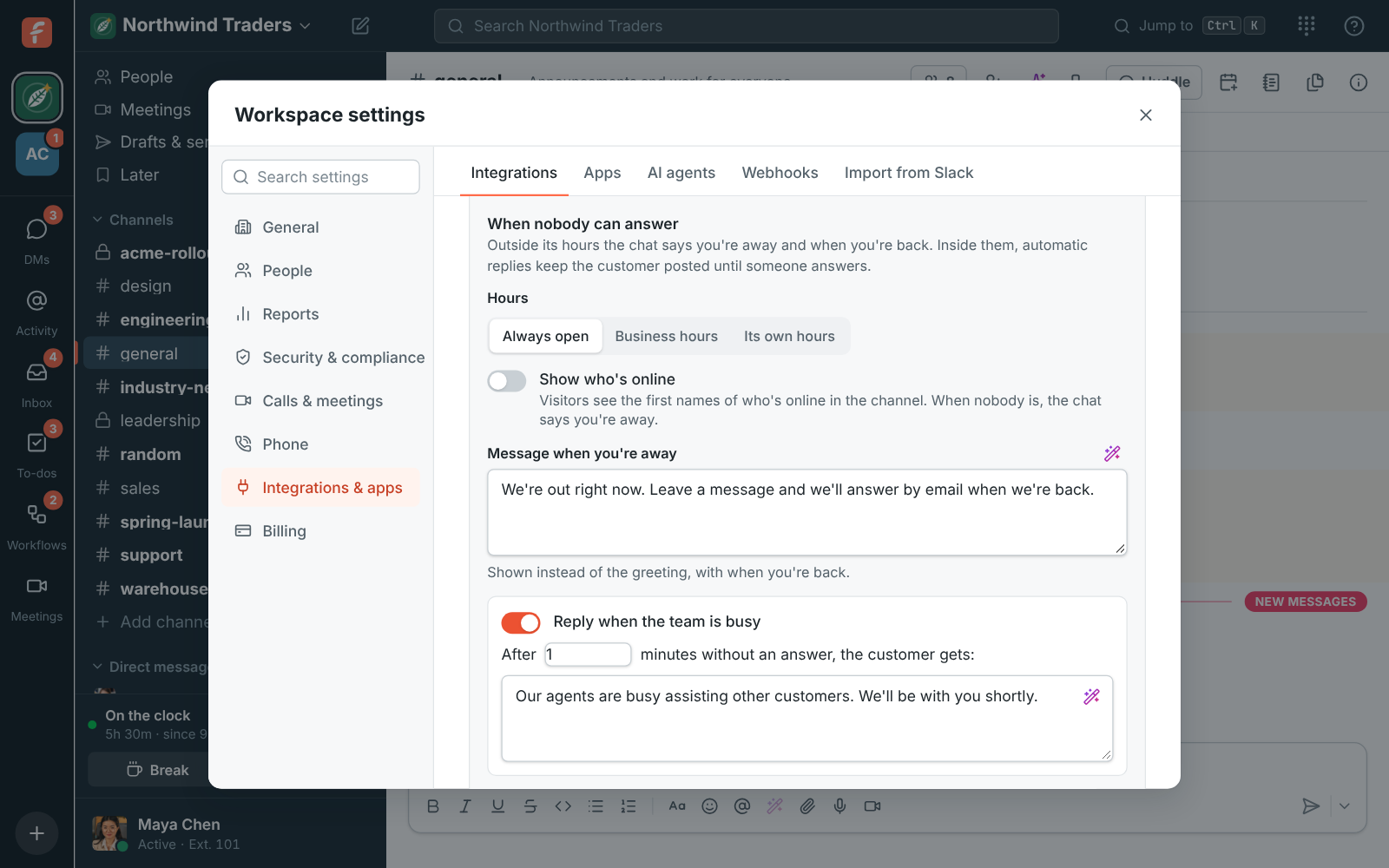
- Hours: Always open, Business hours (your phone system’s business hours and holidays, set in the Admin Center; without a phone system the chat stays open), or Its own hours, a week of days and times in a time zone you pick.
- Show who’s online: the chat’s header shows the first names of who’s online in its channel, leaving out anyone who is away or on Do Not Disturb. When nobody is online, the chat says you’re away. Off by default.
- Message when you’re away: shown instead of the greeting while the chat is away, with when you’re back in the visitor’s own time. Visitors can still write: the conversation comes in as usual, with a note in its thread that it arrived while you were away.
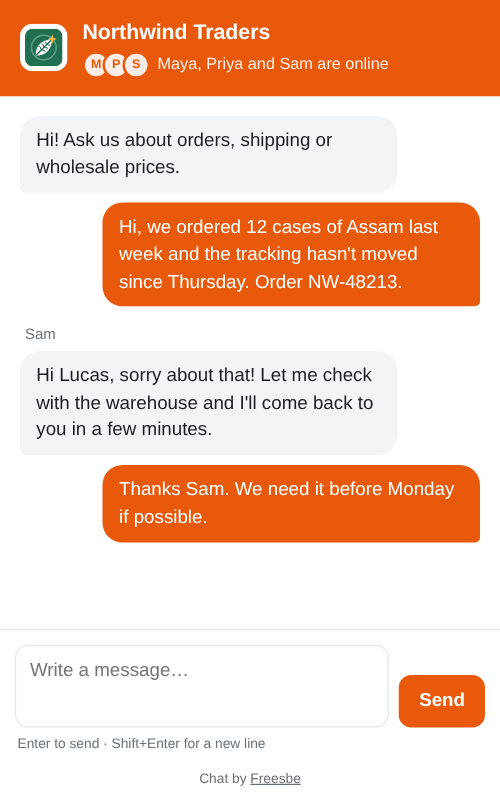
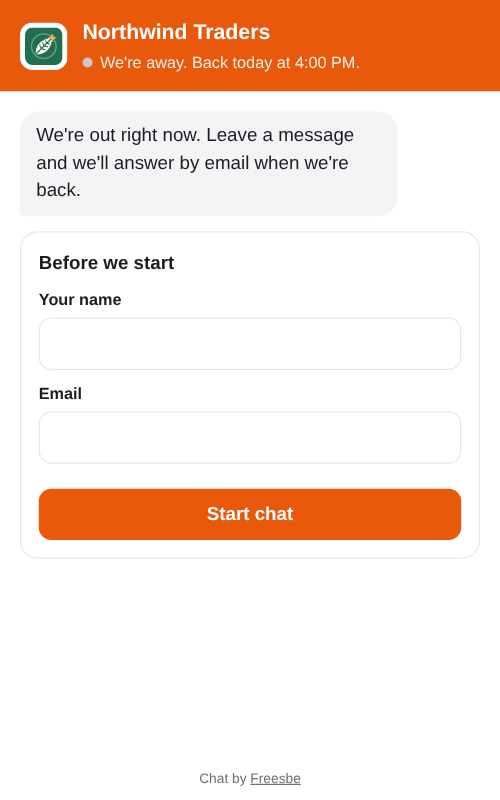
Inside its hours, two automatic replies keep a waiting customer posted. Each goes once per conversation, counted from the customer’s first message nobody has answered yet:
- Reply when the team is busy, after 1 minute: “Our agents are busy assisting other customers. We’ll be with you shortly.”
- Reply when nobody answers, after 5 minutes: “We’re sorry, we couldn’t find an available agent to take your chat. Please leave your details and one of us will get back to you.” If the visitor hasn’t given an email, the chat shows Leave your details under it, so you can answer by email.
Change the wording and the minutes, or turn either one off. The team sees each automatic reply in the conversation’s thread. As soon as someone answers, the replies stop until the customer writes again.
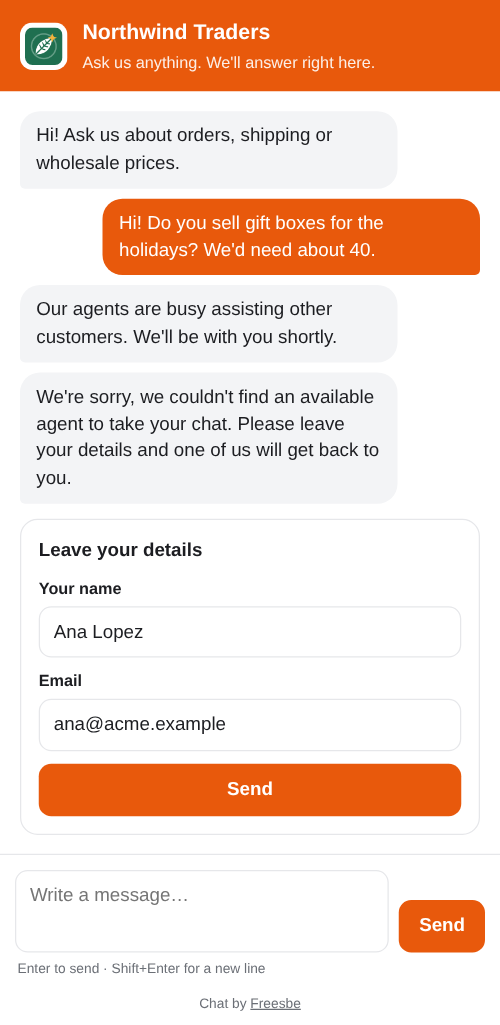
On the Corporate plan, Hide “Chat by Freesbe” leaves out the line under the message box.
Open the chat by itself
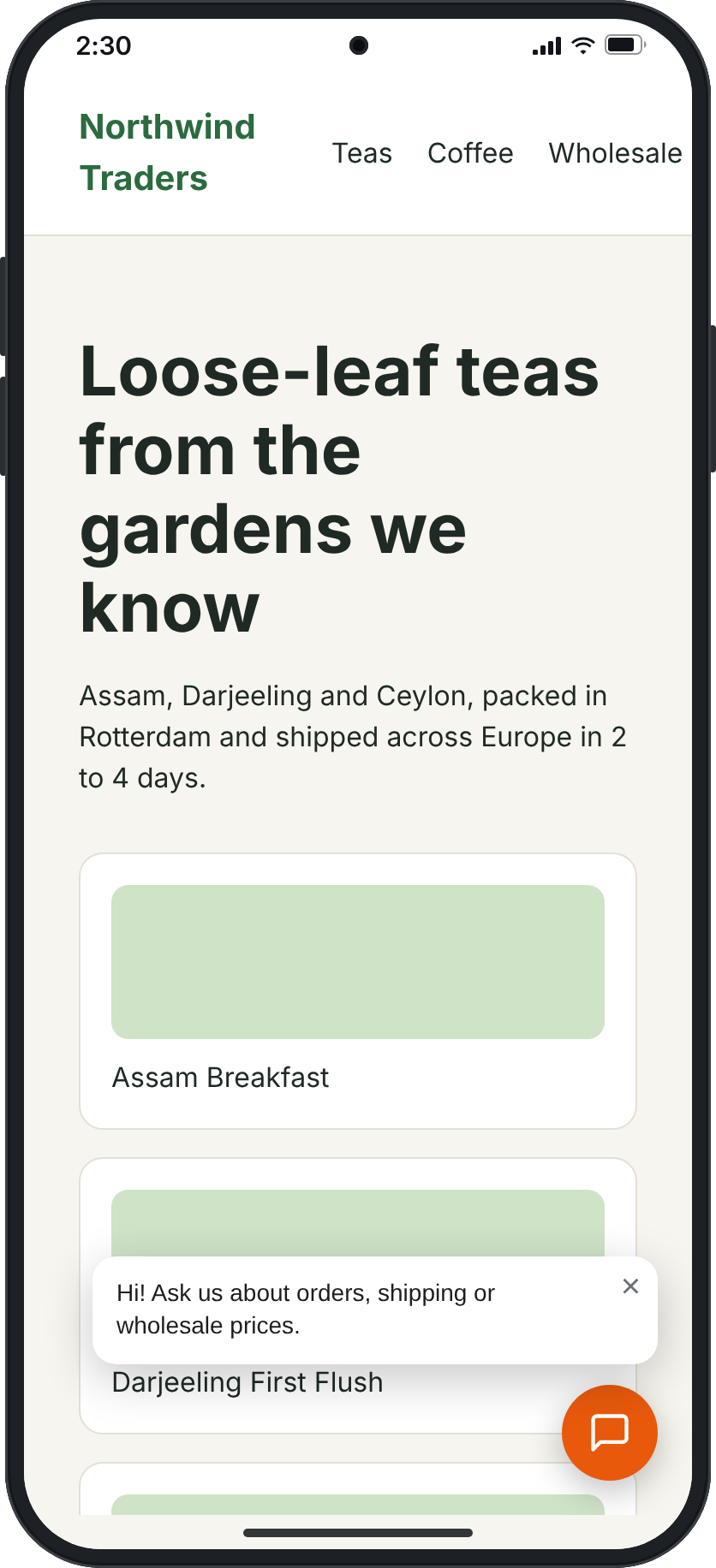
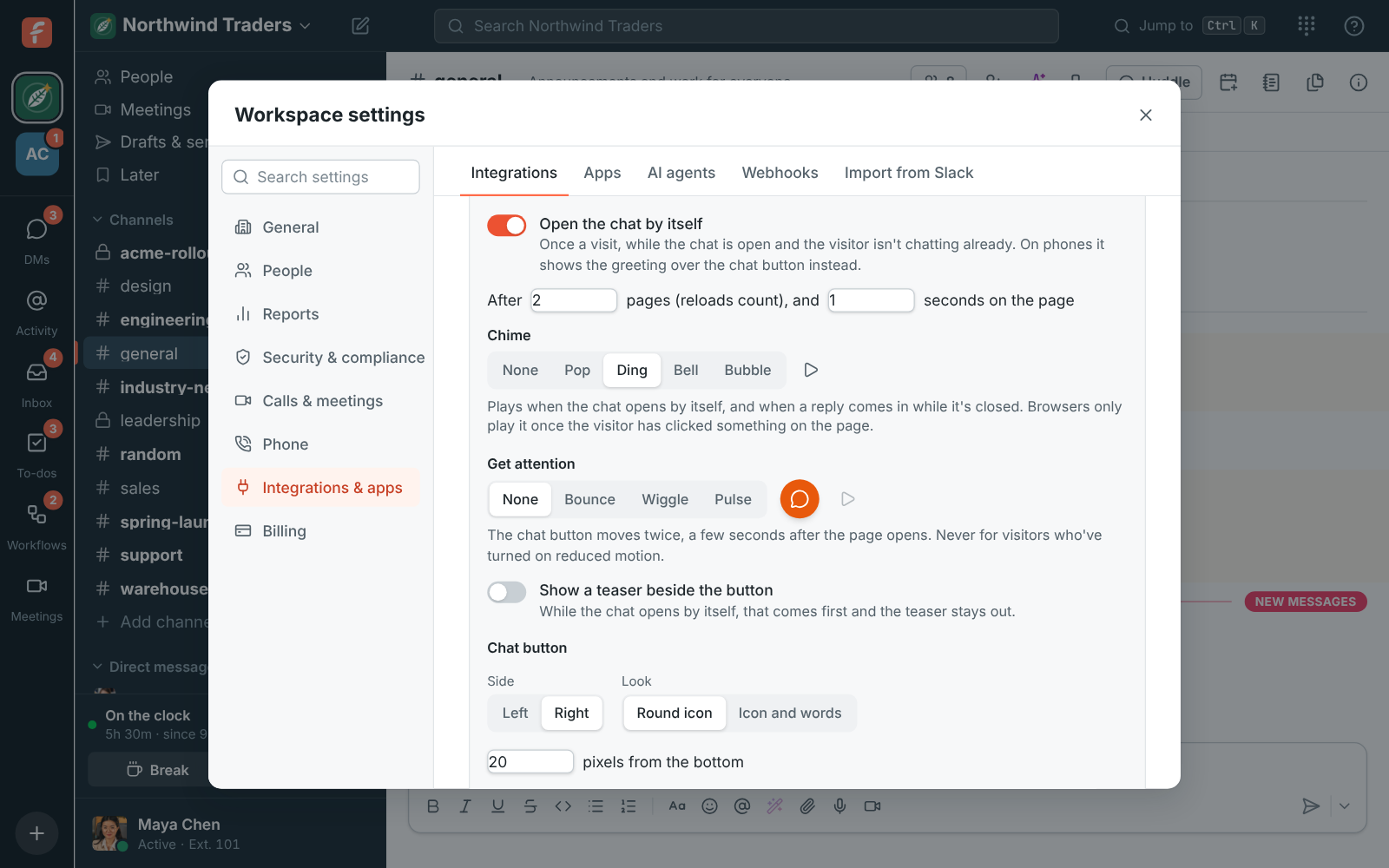
Section titled “Open the chat by itself”Turn on Open the chat by itself in the web chat’s Edit and the chat opens on its own once a visit, after the number of pages you pick (reloads count) and the seconds on that page. It only opens while the chat is open, never for a visitor who is already chatting, and not again in that visit once they close it. A visit lasts until they close the tab. On phones it shows your greeting in a small bubble over the chat button instead, so it doesn’t cover the page: tapping the bubble opens the chat.
Pick its Chime: None, Pop, Ding, Bell or Bubble. Picking one plays it, and ▶ plays it again. It plays when the chat opens by itself and when a reply comes in while the chat is closed. Browsers only play sound once the visitor has clicked or typed something on the page, so before that the chat opens quietly.
Get noticed
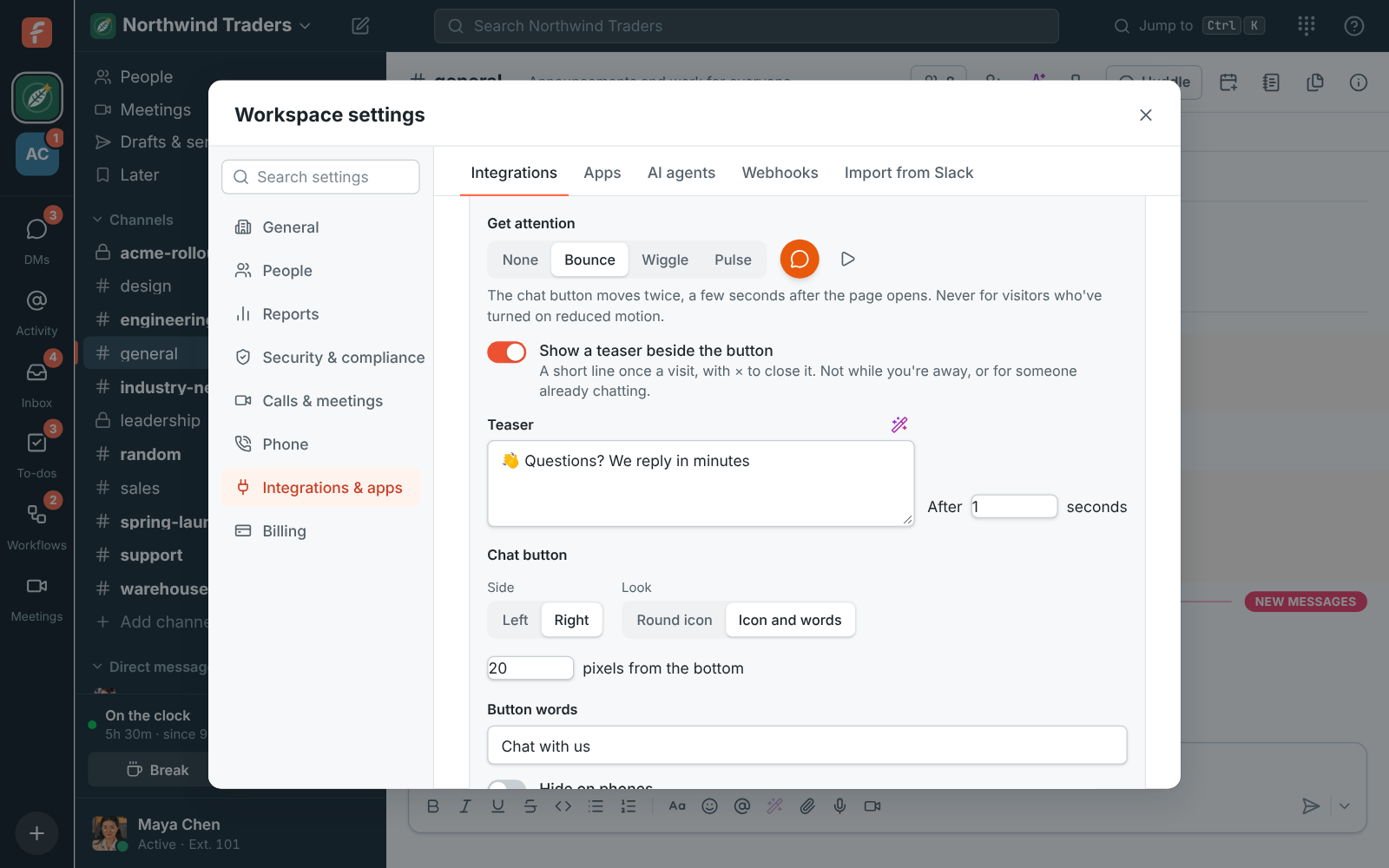
Section titled “Get noticed”Get attention makes the chat button move twice, a few seconds after a page opens: Bounce, Wiggle or Pulse (or None). Picking one plays it on the sample button beside it, and ▶ plays it again. Visitors who’ve turned on reduced motion in their device’s settings never see it move.
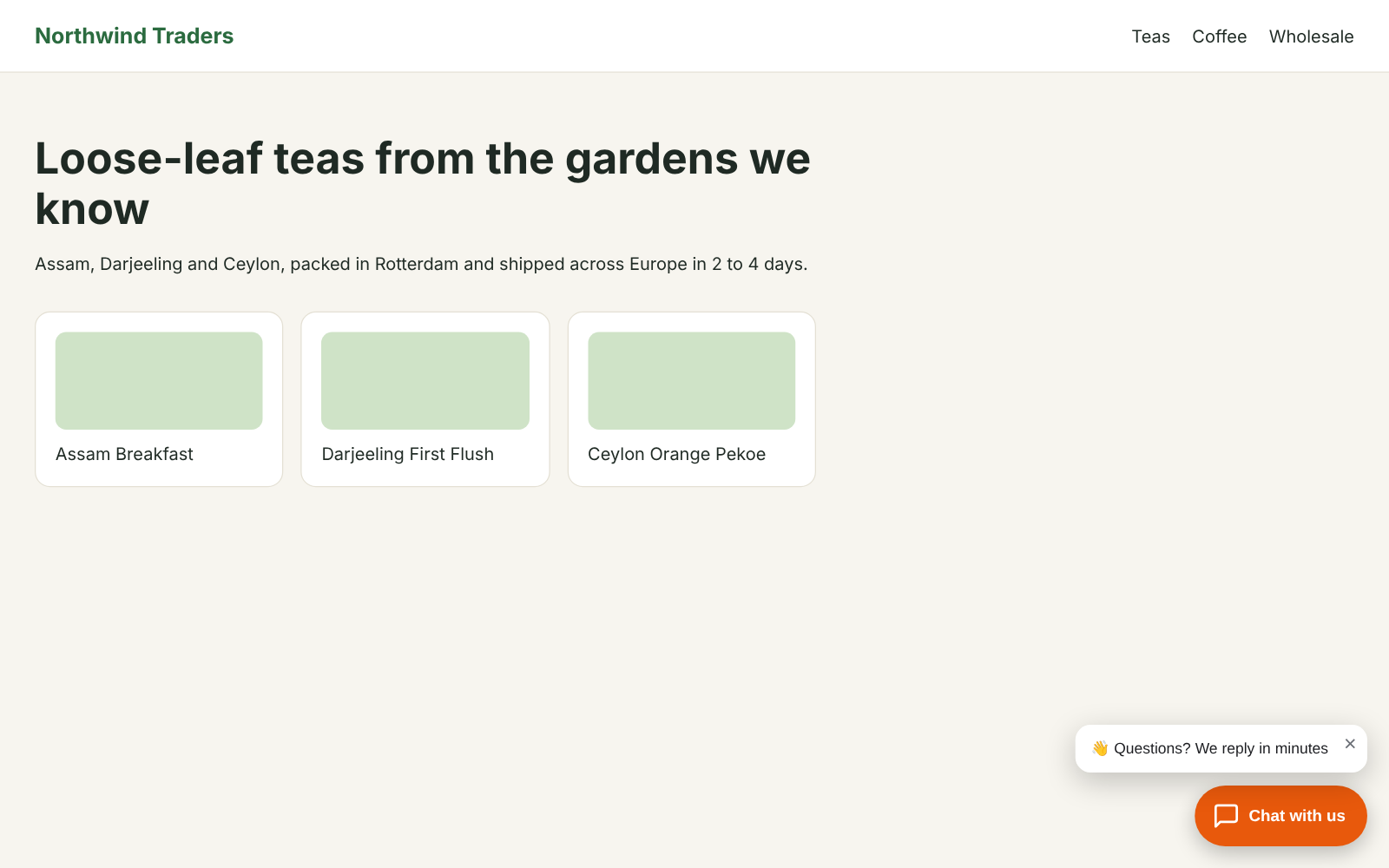
Show a teaser beside the button adds a short line next to it, like “👋 Questions? We reply in minutes”, after the seconds you pick. It shows once a visit, has × to close it, and clicking it opens the chat. It doesn’t show while the chat is away, for a visitor who’s already chatting, or while Open the chat by itself is on: then the chat opening comes first.
The chat button
Section titled “The chat button”Under Chat button, pick the Side of the page (Left or Right), how many pixels from
the bottom it sits (move it up when something else is in that corner), and its Look: a
Round icon, or Icon and words with your own Button words such as “Chat with us”.
Hide on phones leaves the chat off small screens. Hide on pages whose address contains
takes one piece of an address per line, like /checkout: on those pages there’s no button, teaser
or pop-up. A visitor already chatting in another tab can carry on there.
The chat’s language
Section titled “The chat’s language”The chat’s own words (Before we start, Send, We’re away, and so on) follow the visitor’s browser language, in any of Freesbe’s 25 languages, and read right to left in Hebrew and Arabic. A browser in a language Freesbe doesn’t have gets English. To use one language for everyone, pick it under Chat language. What you write yourself, like the title, greeting and questions, stays as you wrote it; a greeting or teaser you left as it came is translated too.
Let visitors call you
Section titled “Let visitors call you”With a phone system, pick one of your Call us links under Call us button. A phone appears in the chat’s header and opens that link in a new tab, where the visitor picks who they need and calls you from the browser. The phone only shows while the link can take calls: not while your phone system is turned off, and not once the link is deleted, which sets the choice back to None.
Write it better with AI
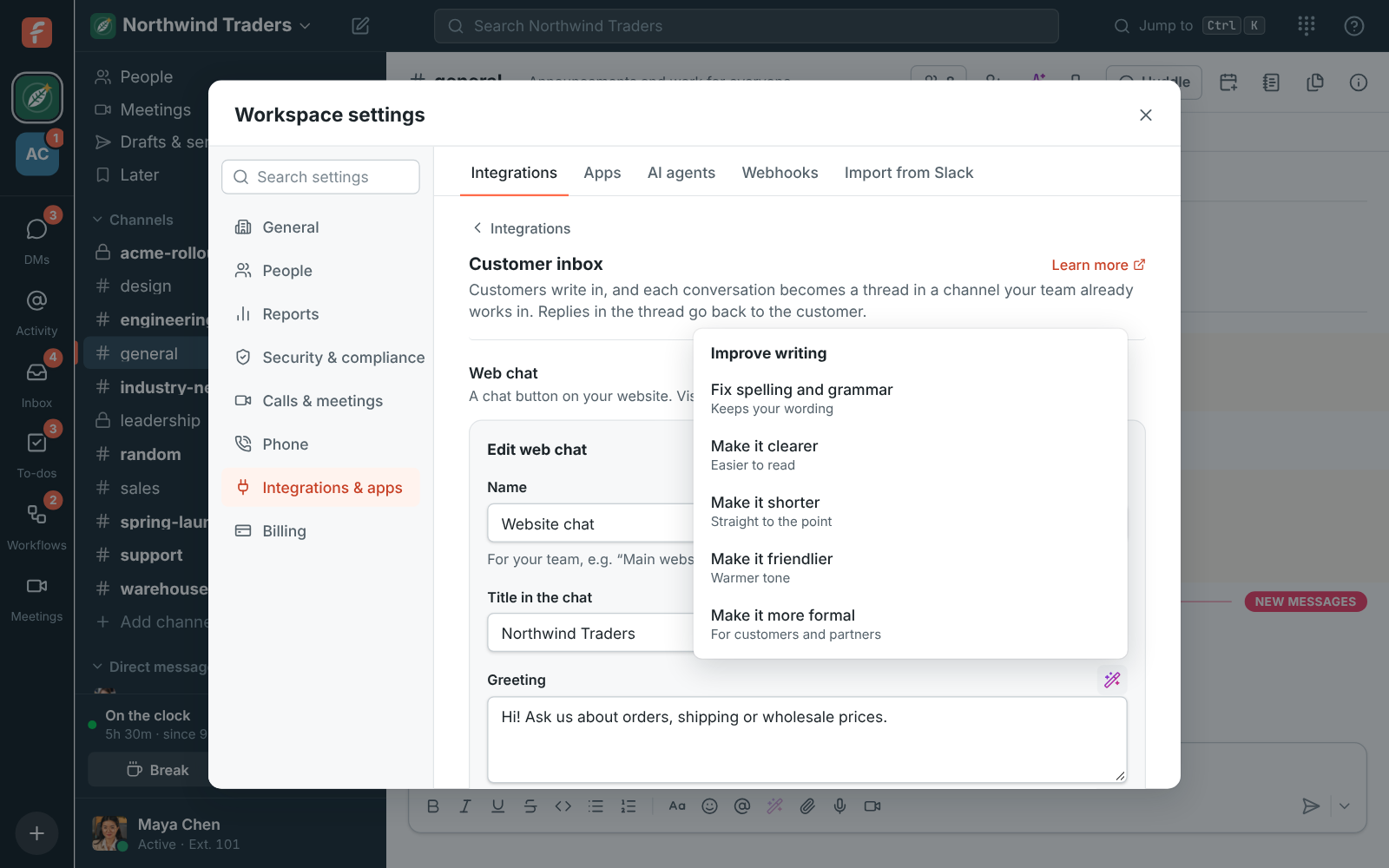
Section titled “Write it better with AI”Improve writing sits beside the greeting, the away message and both automatic replies. Type what you want to say, click it and pick Fix spelling and grammar, Make it clearer, Make it shorter, Make it friendlier or Make it more formal. Check the suggested version, then click Replace to use it.
AI agent
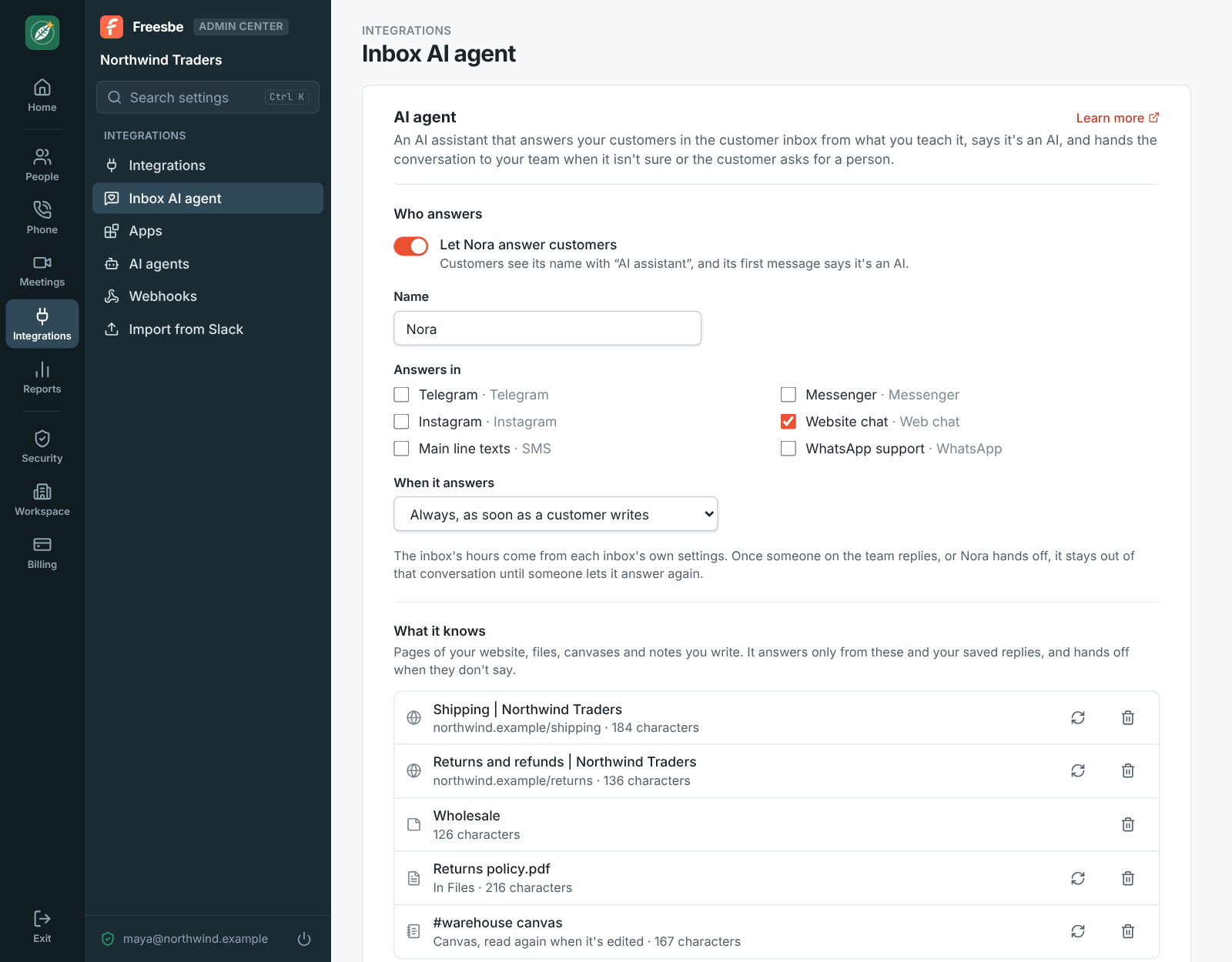
Section titled “AI agent”The AI agent is an assistant with a name you pick, like Nora, that answers customers in the inbox for you: in the web chat, by email, by text, on WhatsApp and on Telegram. It answers only from what you teach it, says it’s an AI, and hands the conversation to your team when it isn’t sure, the customer asks for a person, or the topic is one a person always handles. It’s an add-on for the workspace: $29 a month, with 500 AI conversations included each month. A conversation counts once the agent has read it, even if it then hands it to your team. Past them, every conversation goes to people, and so does every conversation while AI is turned off for the workspace.
Set it up in the Admin Center → Integrations → Inbox AI agent. You need to be an owner or admin.
-
Who answers: its Name, the inboxes it Answers in, and When it answers: always, only outside the inbox’s hours, or when nobody on the team replies within the minutes you pick.
-
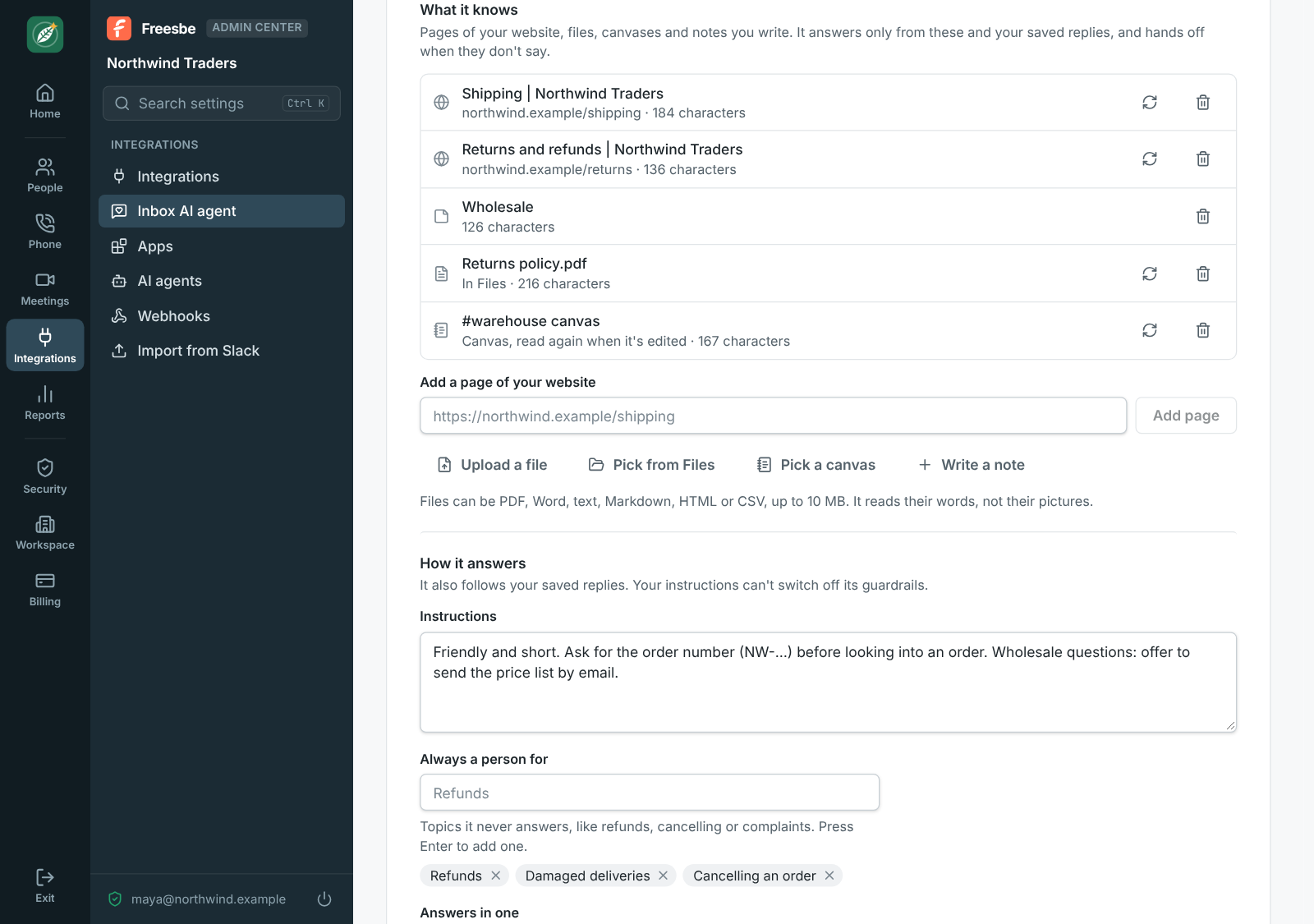
What it knows: add pages of your website (it reads them now; Read again after you change one), files and canvases, and notes you write. Upload a file takes a PDF, Word (.docx), text, Markdown, HTML or CSV file up to 10 MB; Pick from Files uses one already in Files and reads its newest version; Pick a canvas uses a channel’s canvas and reads it again a few minutes after it’s edited. It reads a file’s words, not its pictures, so a scanned page without text says so. Pick only what you’d share with customers: it can tell them anything in it. It also follows your saved replies. It finds the right part by what the question means, so a customer who asks in other words, or in another language, still gets the answer from your page. When none of these say the answer, it hands off rather than guess.
-
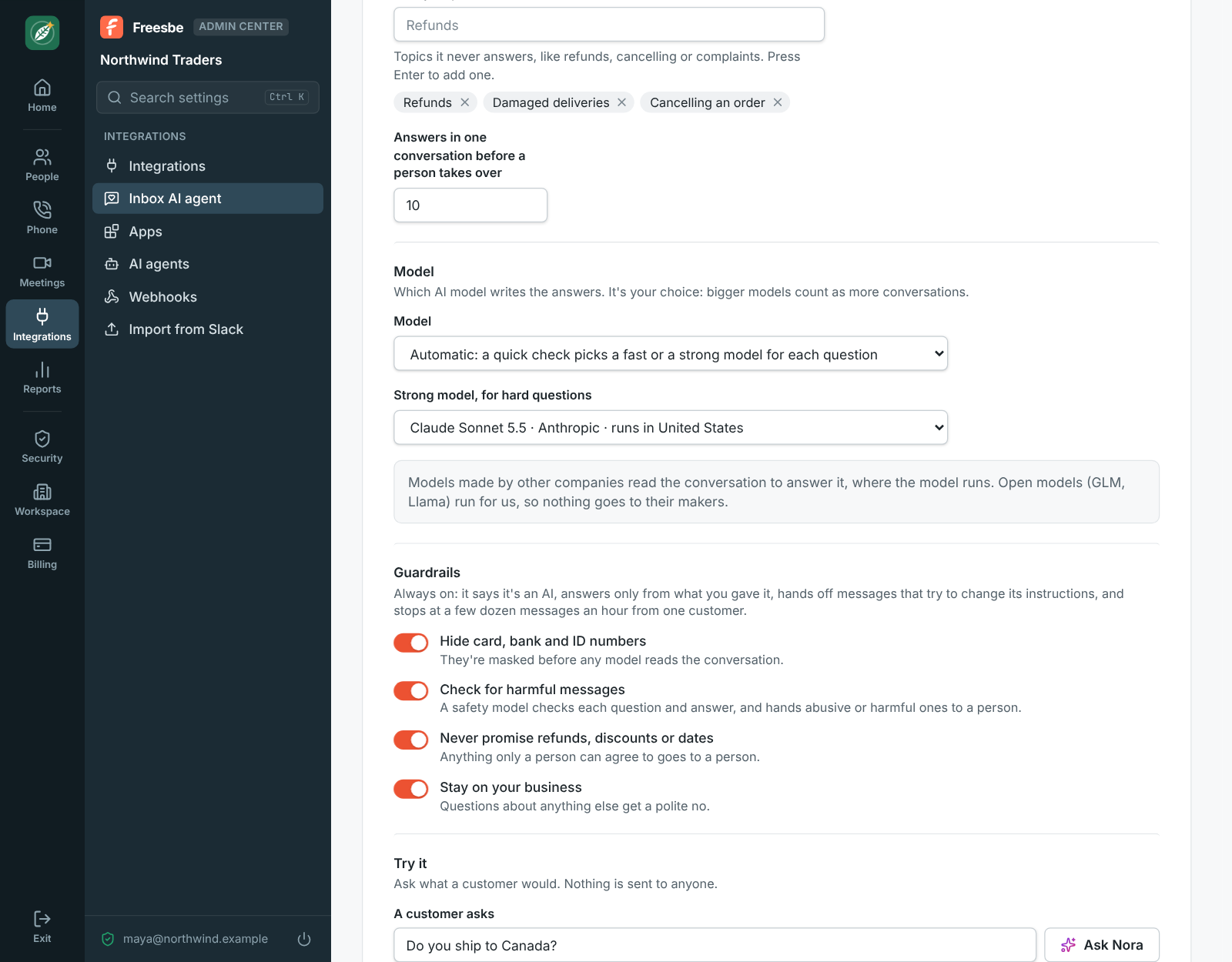
How it answers: your Instructions (tone, what to ask for), the topics it always leaves to a person (Always a person for, like refunds or cancelling), and how many answers it gives in one conversation before a person takes over.
-
Model: which AI model writes the answers, from Anthropic (Claude), OpenAI (GPT), Google (Gemini), xAI (Grok), DeepSeek, and open models (GLM, Llama). Each shows its maker and where it runs. Automatic first gives each question a quick check: easy ones go to a fast model, hard ones to the strong model you pick. Bigger models count as more of your monthly conversations.
-
Guardrails: card, bank and ID numbers are hidden before any model reads the conversation; a safety check hands harmful or abusive messages to a person; it never promises refunds, discounts or dates; and it stays on your business. Always on: it says it’s an AI, answers only from what you gave it, hands off messages that try to change its instructions, and stops after a few dozen messages an hour from one customer.
-
Try it: ask what a customer would and see its answer, the model that wrote it and what it answered from. Nothing is sent to anyone.
-
Activity: the month’s AI conversations, its hand-offs and what the guardrails stopped. It never keeps the customer’s words.
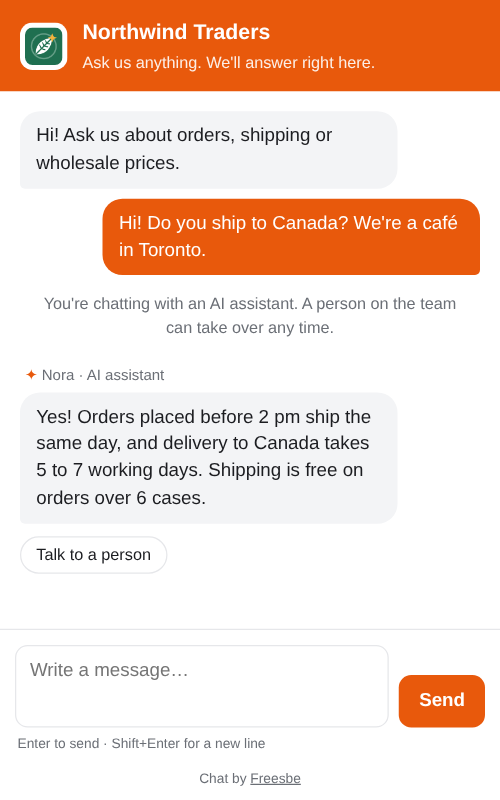
In the web chat, its messages show its name with AI assistant, and the chat says once that the visitor is talking to an AI. Talk to a person under its answer hands the conversation to the team. On the other channels, its first message says it’s an AI.
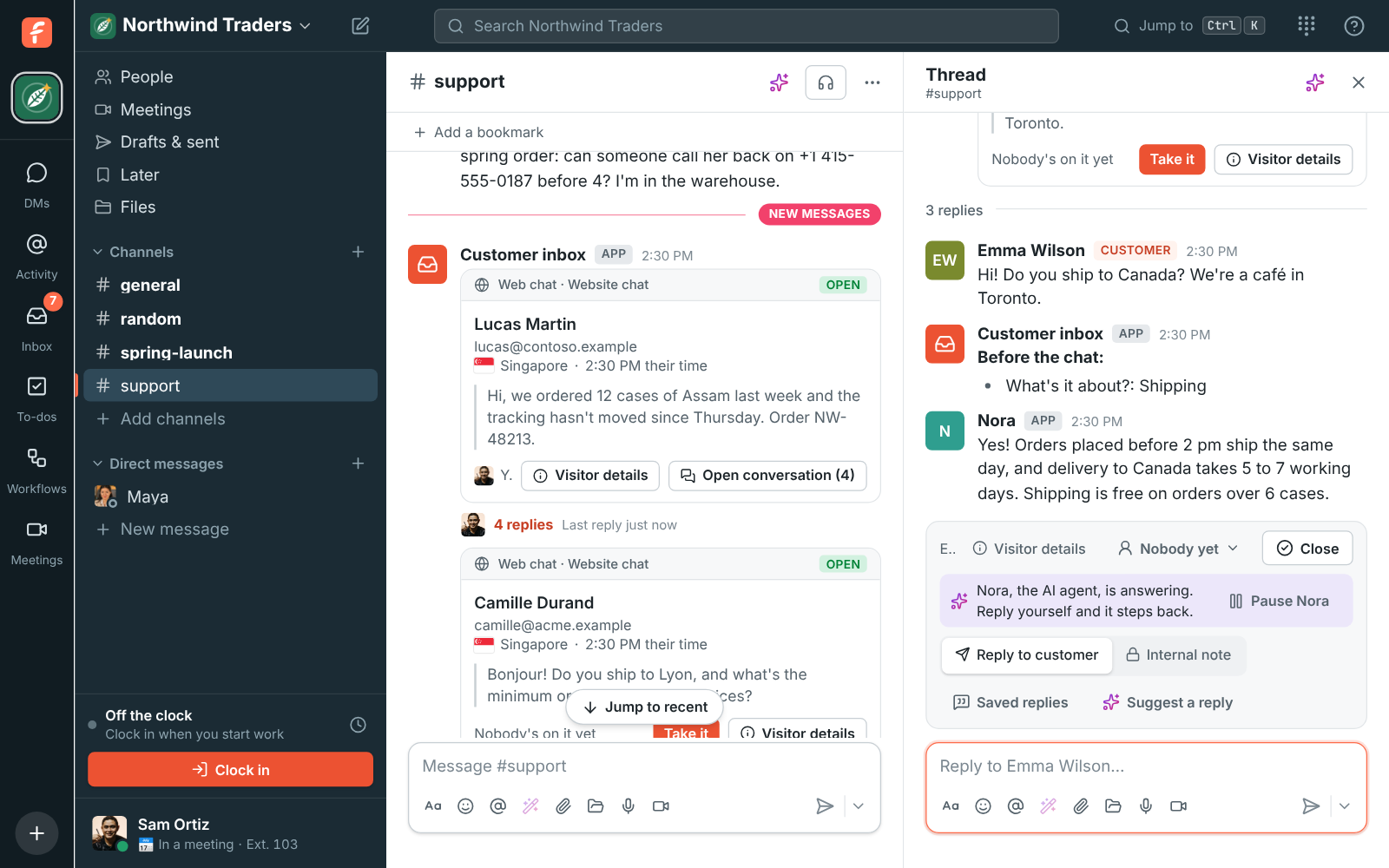
Your team sees every answer in the conversation’s thread. The bar over the box says the agent is answering, with Pause to stop it. As soon as someone on the team replies, it steps back from that conversation. When it hands off, it tells the customer a person will reply, and says why in the thread. Let Nora answer lets it answer again, starting with the customer’s last message.
Answer a customer
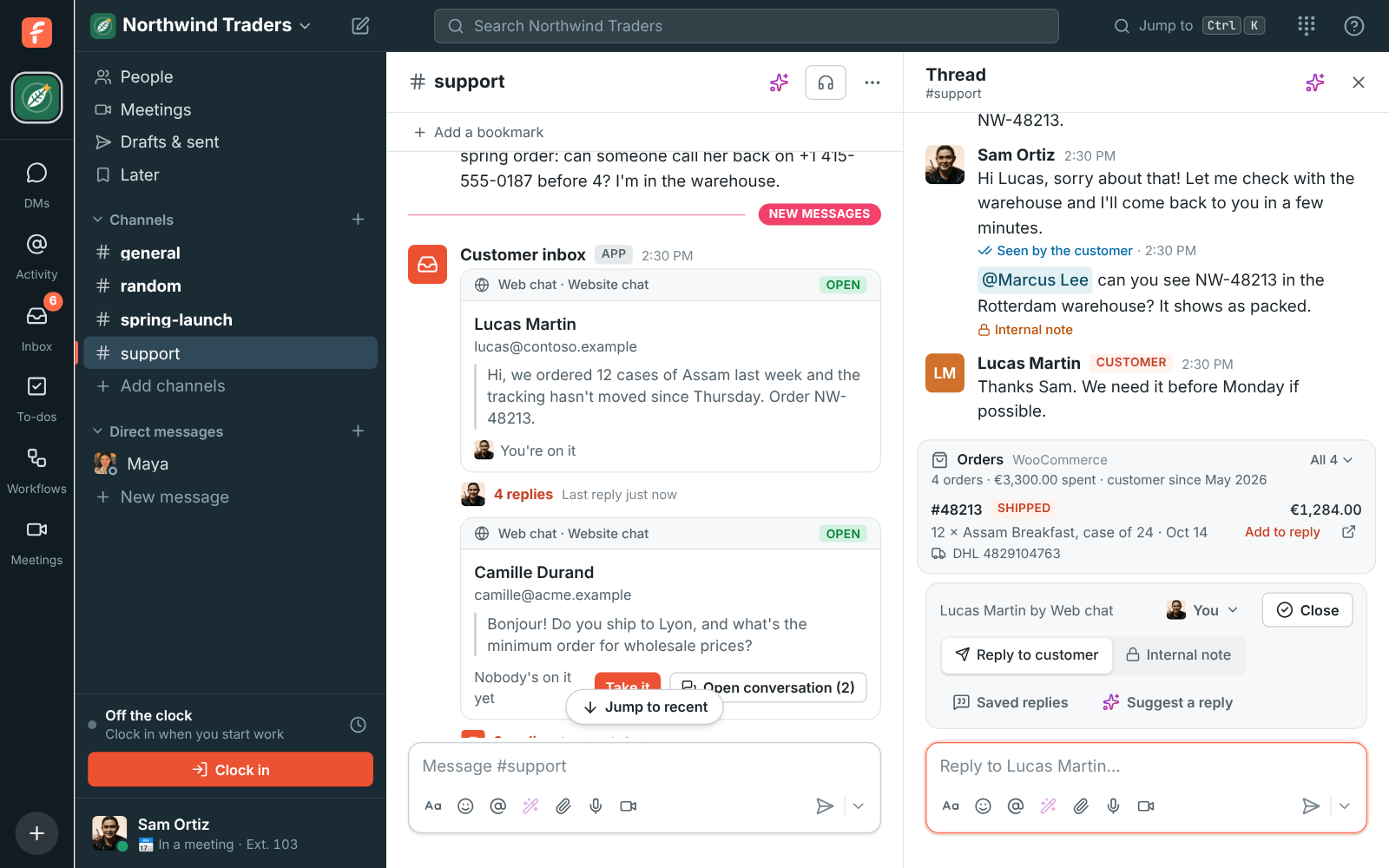
Section titled “Answer a customer”When a customer writes, Customer inbox posts a card in the channel with their name, the inbox they wrote to and who’s on it. Their messages land in the card’s thread. Click Open conversation, or Take it to make it yours.
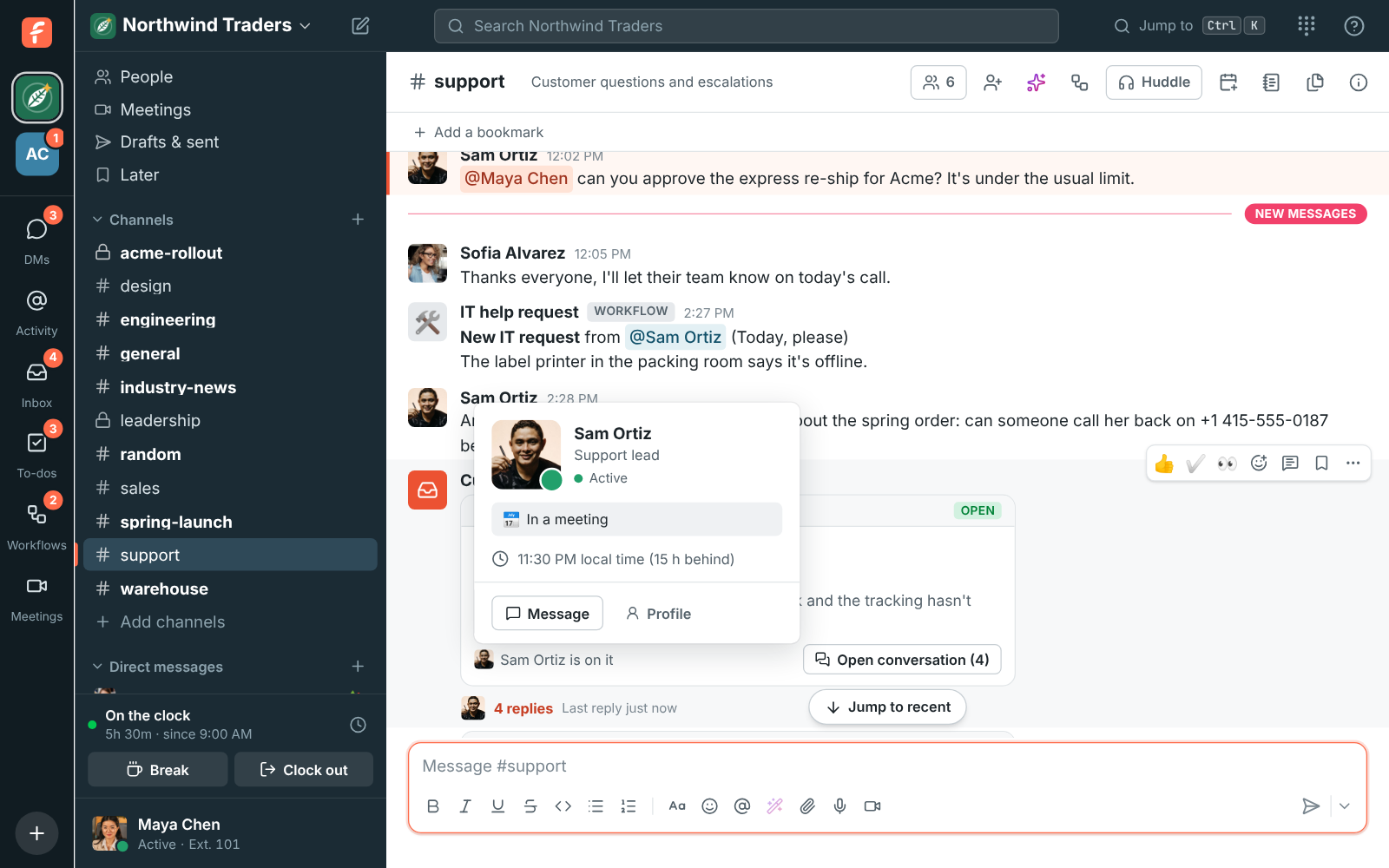
Rest the pointer on the person who’s on it, or on a picture next to the replies, and their card opens, like it does on a name in any conversation. If the customer is someone in your workspace, writing in from the email address they sign in with, their name on the card shows their card too.
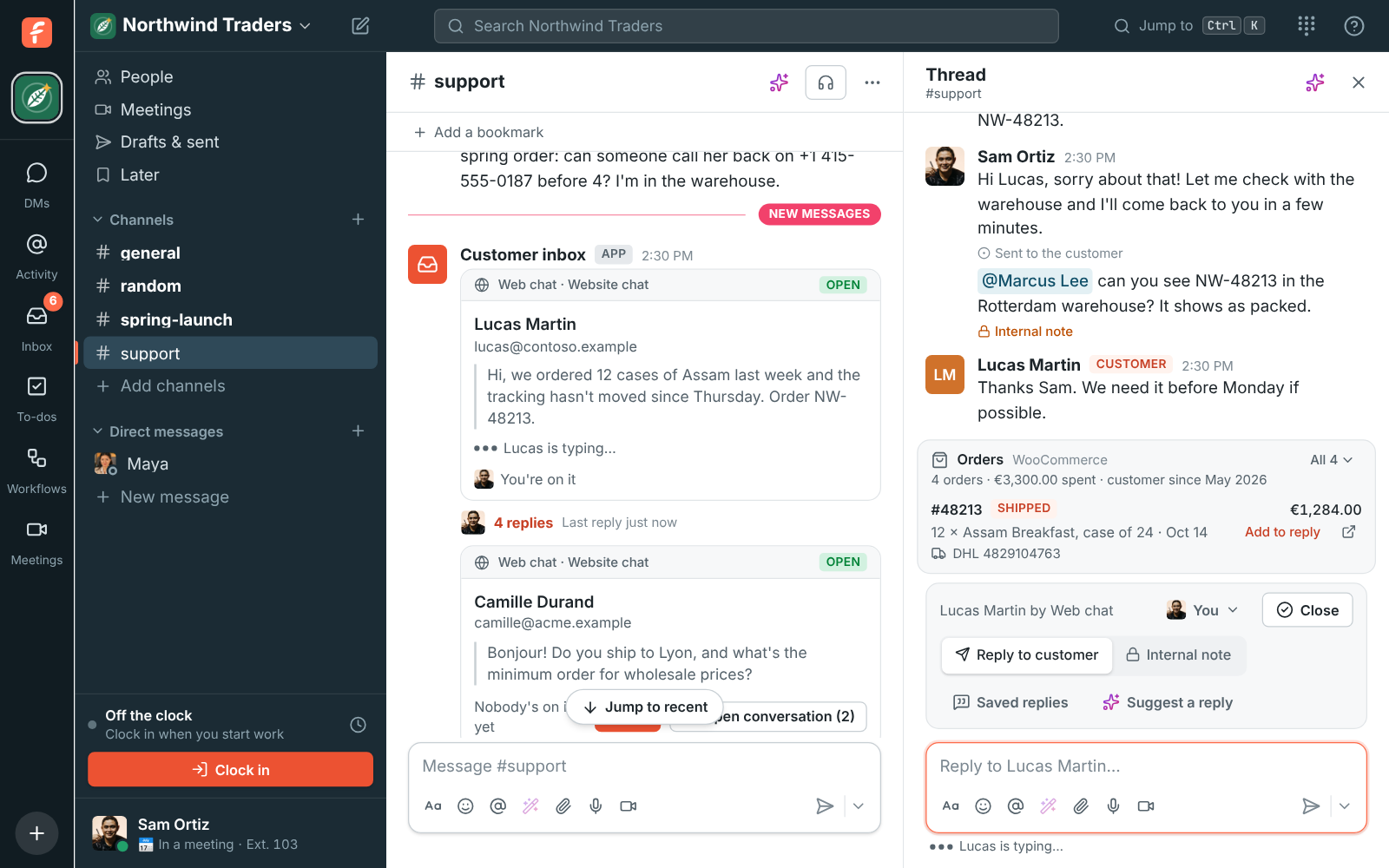
In the thread, a bar over the message box shows who you’re talking to and what you can do:
- Reply to customer sends what you write to the customer. Under each reply, Freesbe shows how far it got, Sent, Delivered or Seen by the customer, or what went wrong if it couldn’t send it. See Did the customer see it?
- Internal note keeps what you write between the team. The box turns amber so you can tell, and
the note is marked Internal note. Mention someone with
@to bring them in. - Saved replies drops one of your team’s saved answers into the box, ready to change before you send it.
- Suggest a reply writes a draft with AI from the conversation and your saved replies. It goes in the box for you to read and change; nothing is sent until you send it.
When you reply and nobody is on the conversation yet, it becomes yours.
When a web chat visitor is typing, you see it in the thread, over the message box, and on the conversation’s card in the channel: three moving dots and Lucas is typing… (or The customer is typing… when they didn’t give a name). You can start on your answer before their message lands.
Changing or deleting a reply after you send it doesn’t change what the customer already got.
Did the customer see it?
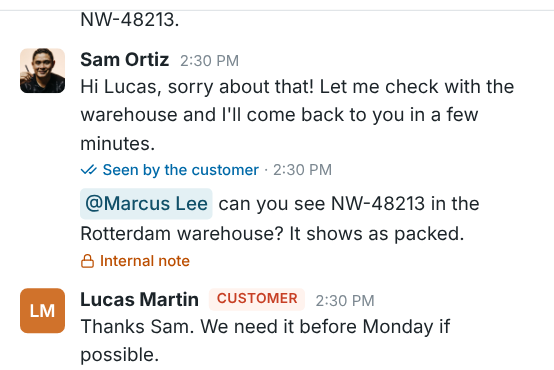
Section titled “Did the customer see it?”Under each reply, a line says how far it got:
- Sent to the customer: it left Freesbe.
- Delivered to the customer: it reached their chat, phone or WhatsApp.
- Seen by the customer, with the time: they looked at it. A reply they’ve seen is marked in blue with two ticks.
How far Freesbe can tell depends on the channel:
| Channel | Delivered | Seen |
|---|---|---|
| Web chat | Their page has the reply, chat open or not | The chat is open on their screen with the reply in it |
| WhatsApp reached their phone | They opened the chat, unless they turned read receipts off in WhatsApp | |
| SMS | When the carrier reports it | Texts can’t tell |
| Email can’t tell | Not tracked: Freesbe doesn’t put tracking pixels in your emails | |
| Telegram | Telegram can’t tell | Telegram doesn’t tell bots |
A reply only moves forward: once it’s seen, it stays seen. A web chat visitor who left your site before you answered sees the reply when they come back and open the chat, and that’s when it turns Seen.
Who’s on your site
Section titled “Who’s on your site”A web chat’s card shows where the visitor is and what they’re looking at: their country’s flag and city, their local time, and the page they’re on now, for example Rotterdam, Netherlands · 3:42 PM their time · Teas. While they browse your site, the page keeps up with them.
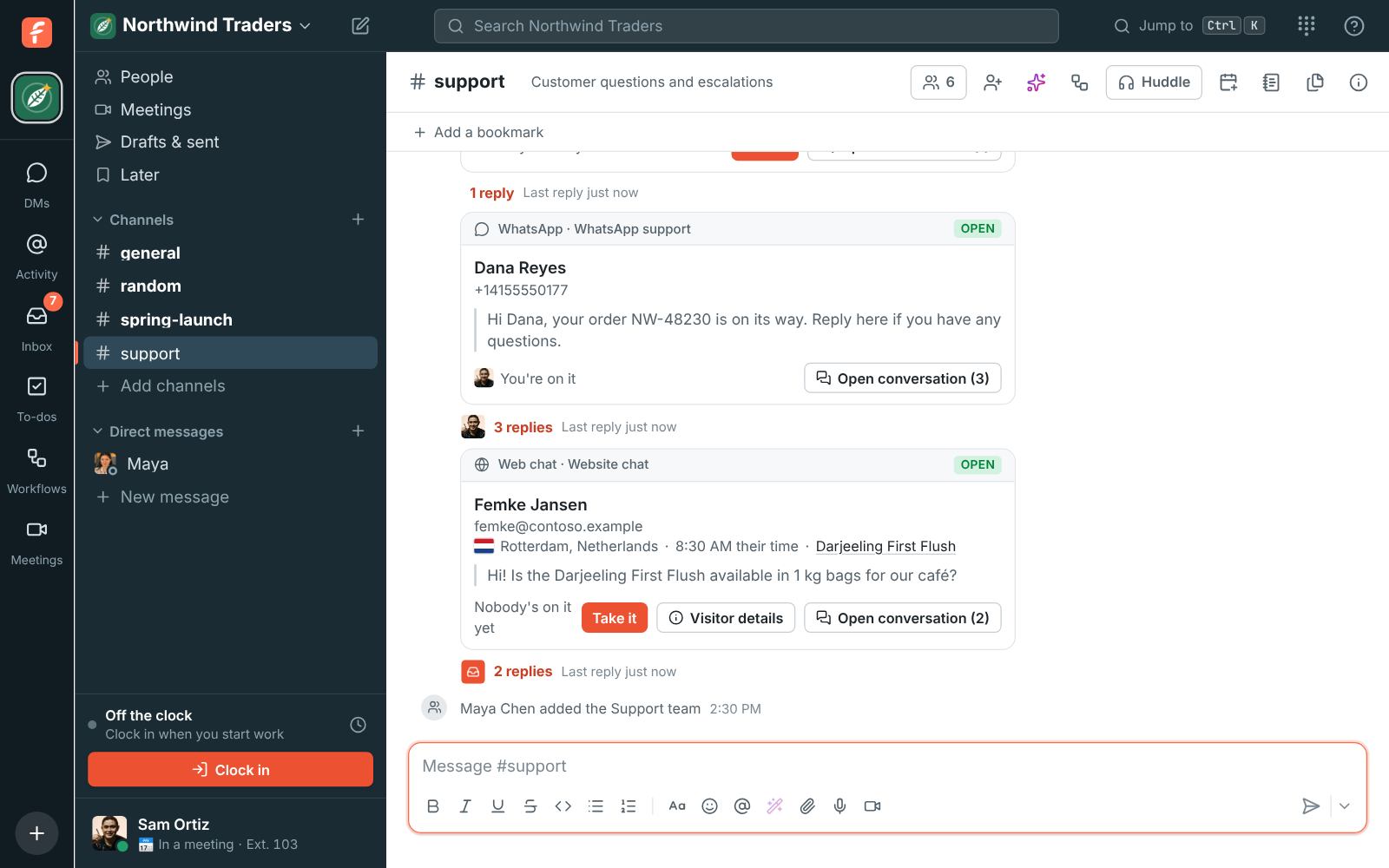
Click Visitor details, on the card or on the bar over the message box, for the rest:
- Page now, and the Pages this visit with the time they opened each one (the last 20). Only pages with the chat on them count, from the first one they opened.
- Came from: the site that sent them, like a search engine, and the campaign tags in the
address they landed on (
utm_source,utm_medium,utm_campaign,utm_term,utm_content). - Chats: whether it’s their first chat or how many they had before, while the chat still remembers them (see Remember visitors for).
- Browser, Language and Screen: for example Chrome on macOS · Computer.
- IP address and Time zone.
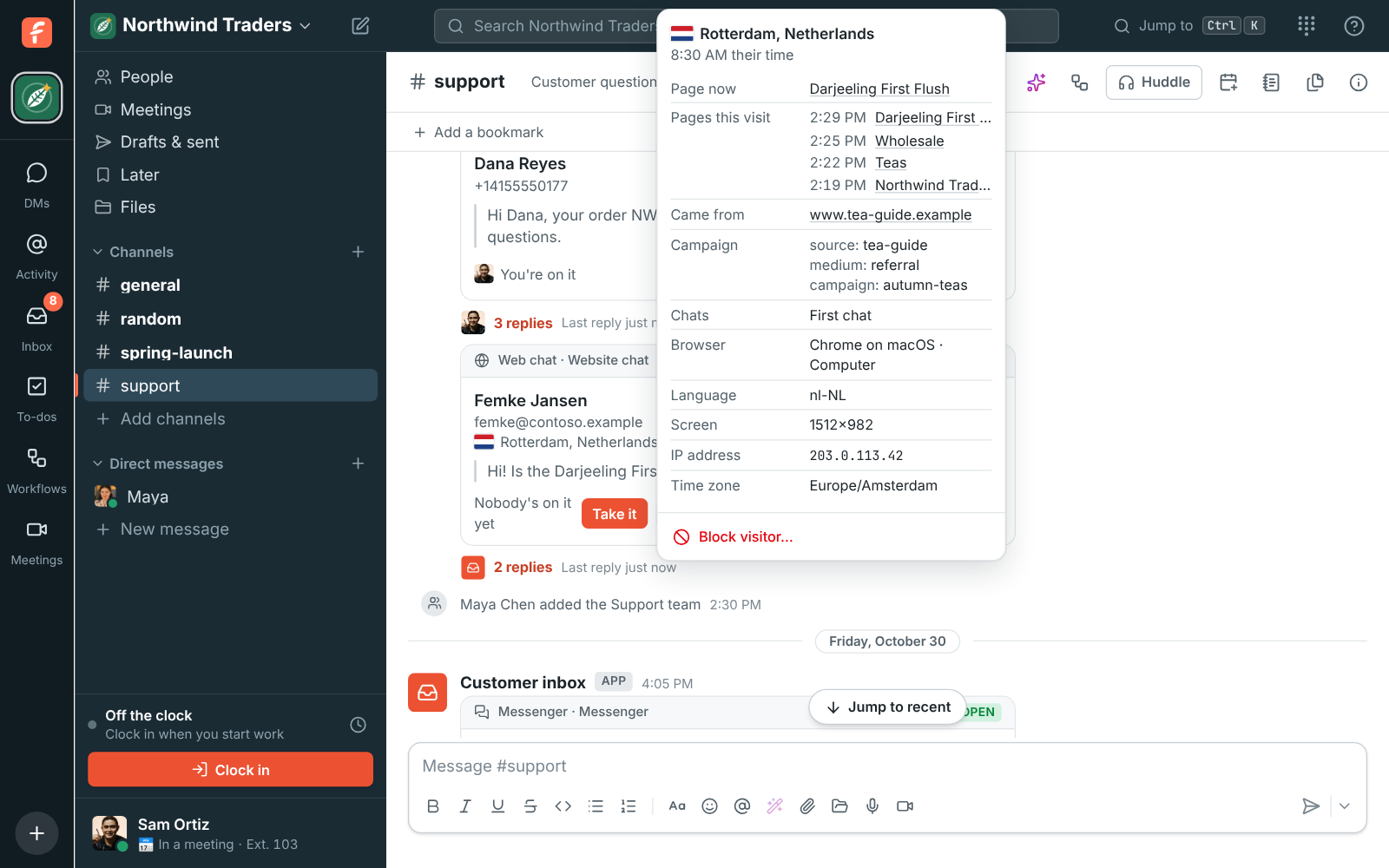
Where they are comes from their internet address, so behind a VPN it may show the VPN’s country,
or Unknown location. Addresses are kept without what comes after ? or #, which can hold
private things like a search or a sign-in link.
Collect visitor details, on by default in the web chat’s settings, turns this on and off. Off, Freesbe keeps only the visitor’s country, and a scrambled form of their IP address that can’t be read back, used only to block them. Visitor details are kept with the conversation and deleted with it. If your site needs visitors’ consent before tracking, mention the chat in your privacy notice, or turn the switch off.
Email, texts, WhatsApp and Telegram have no visitor details.
Block a visitor
Section titled “Block a visitor”When a web chat visitor sends spam or abuse, click Visitor details on their conversation’s card or on the bar over the message box, then Block visitor. Anyone who can reply in the channel can block.
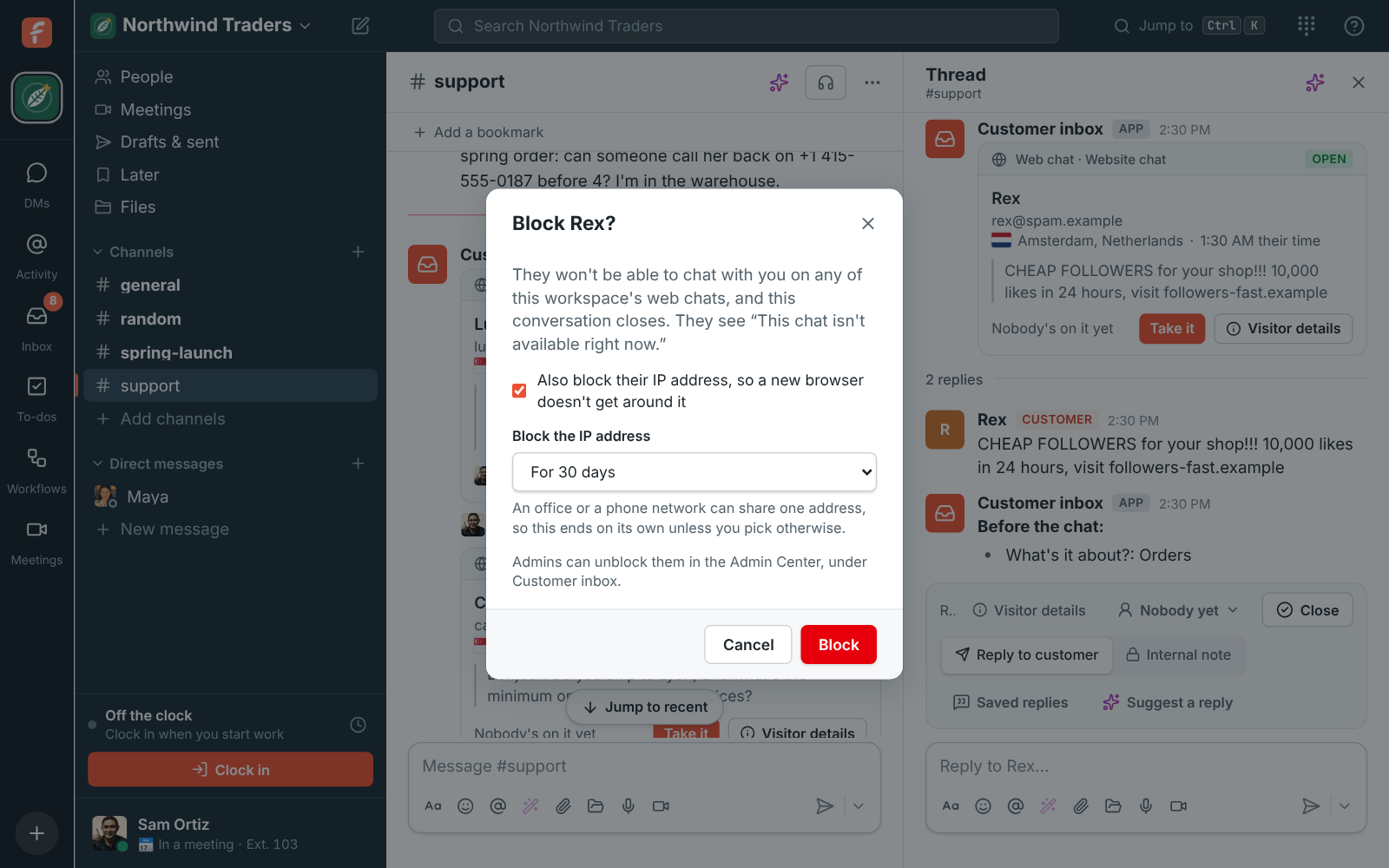
- The conversation closes, and Customer inbox notes it in the thread, like “Sam blocked this visitor and their IP address.”
- The visitor can’t chat on any of your workspace’s web chats. They see This chat isn’t available right now., with no reason.
- Also block their IP address, on at first, stops them coming back from a new browser or a private window. An office or a phone network can share one address, so the IP block ends after 30 days unless you pick a day, a week, or Until someone unblocks it. Someone who moves to another network or a VPN gets through, and you can block them again.
Blocks apply to every web chat in the workspace. Email, texts, WhatsApp and Telegram can’t be blocked from here.
Unblock, and block addresses and countries
Section titled “Unblock, and block addresses and countries”Admins see who’s blocked in the Admin Center under Integrations → Customer inbox → Blocked visitors, with who blocked them, when, and when their IP block ends. Click Unblock to let someone chat again.
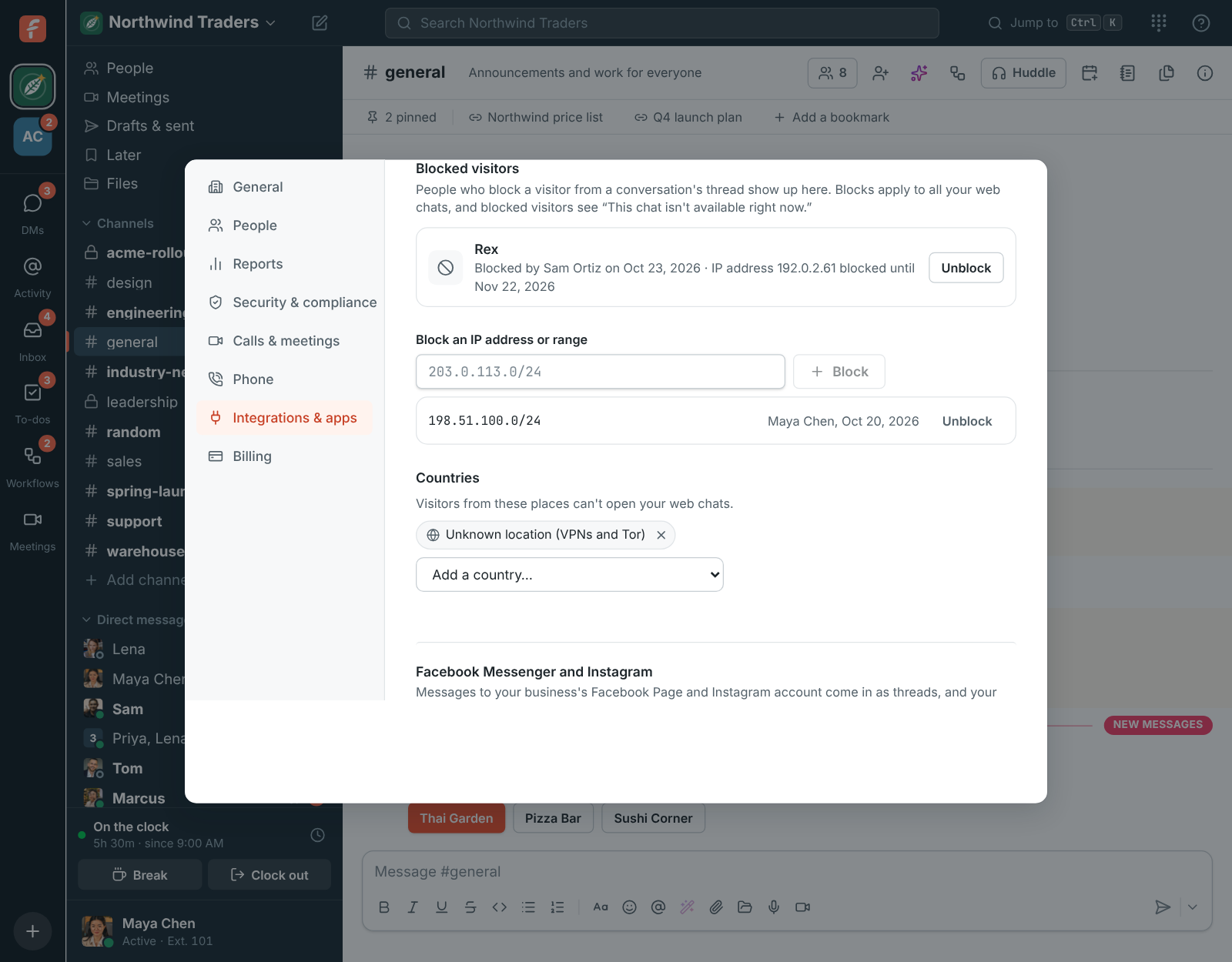
There, admins can also:
- Block an IP address or range, like
203.0.113.7or203.0.113.0/24(IPv6 too), until they unblock it. - Pick Countries where your web chats don’t open. Unknown location covers visitors whose country is hidden, such as by a VPN or Tor.
Protection against spam
Section titled “Protection against spam”Every web chat also has limits of its own, so a script can’t flood your channel:
- Before a chat starts, the visitor’s browser passes a quick check that they’re a person. Most people never see it. Now and then it asks for a click.
- One internet address can start 5 chats every 10 minutes across your web chats.
- Each web chat takes 100 new chats an hour. Past that, new visitors are asked to try again in a few minutes, and Customer inbox tells the chat’s channel once an hour so you can block the visitors behind them.
- A visitor can send 60 messages a minute.
Hand off and close
Section titled “Hand off and close”The name on the bar is who’s on the conversation. Click it to Take it myself, hand it to anyone in the channel, or Unassign it. Customer inbox notes each change in the thread, like “Sam handed this conversation to Marcus”, so everyone can follow along.
Click Close when you’re done. If the customer writes again later, a new conversation starts in a new thread, and the old one stays as it was. Click Reopen to pick a closed one up again.
When someone leaves
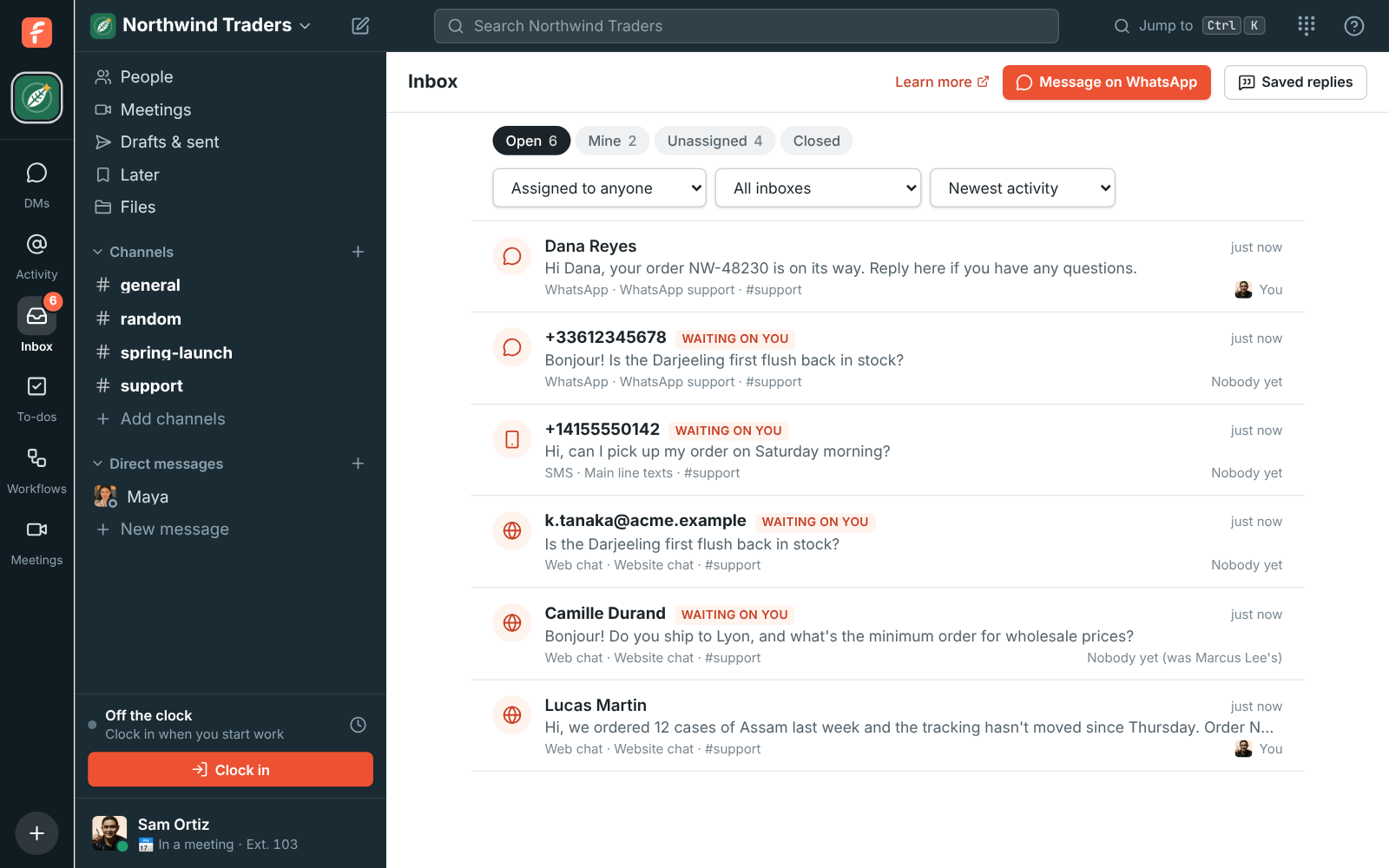
Section titled “When someone leaves”When the person on a conversation leaves the workspace, is removed from it, or leaves the conversation’s channel, their open conversations go back to nobody. They show under Unassigned, the card says Nobody’s on it yet (was Marcus’s) until someone takes it, and Customer inbox says why in the thread, for example “Marcus Lee left the workspace, so nobody’s on this conversation now.” Closed conversations keep their name, so you can see who handled them. A closed one that’s reopened after they left opens with nobody on it. If they come back, their old conversations stay with whoever has them now.
The Inbox page
Section titled “The Inbox page”Inbox on the left, under your workspaces, opens every customer conversation in one list, newest change first. Its number counts the open conversations that are yours or that nobody is on yet.
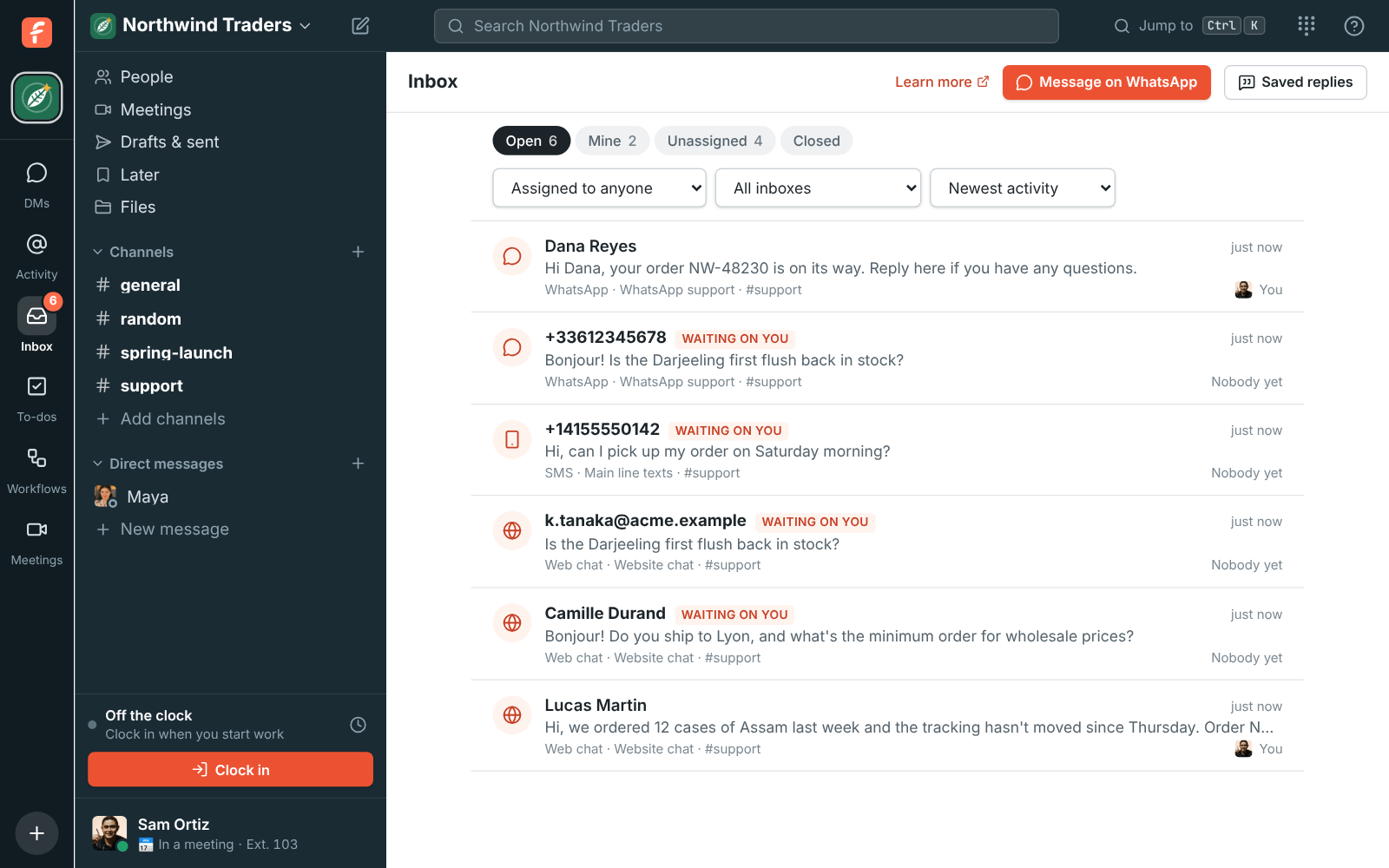
- Open, Mine, Unassigned and Closed filter the list.
- On Open and Closed, Assigned to shows one person’s conversations, for example to see what someone is holding before they go on holiday.
- Sort puts the list in order of Newest activity, Newest opened, Oldest opened, or Longest waiting: the customers who have waited longest for a reply first.
- Waiting on you marks conversations where the customer wrote last.
- With more than one inbox, pick one to see only its conversations.
You see conversations in public channels and in private channels you’re in.
Saved replies
Section titled “Saved replies”Saved replies are answers your team gives again and again, like shipping times, opening hours or how returns work. Open them from Saved replies on the Inbox page or in a conversation, then Manage saved replies.
Anyone on the team can add and change saved replies. Admins and the person who added one can delete it.
Suggest a reply follows your saved replies, so they’re also the place for your policies and facts: the AI uses them instead of guessing.
Message log
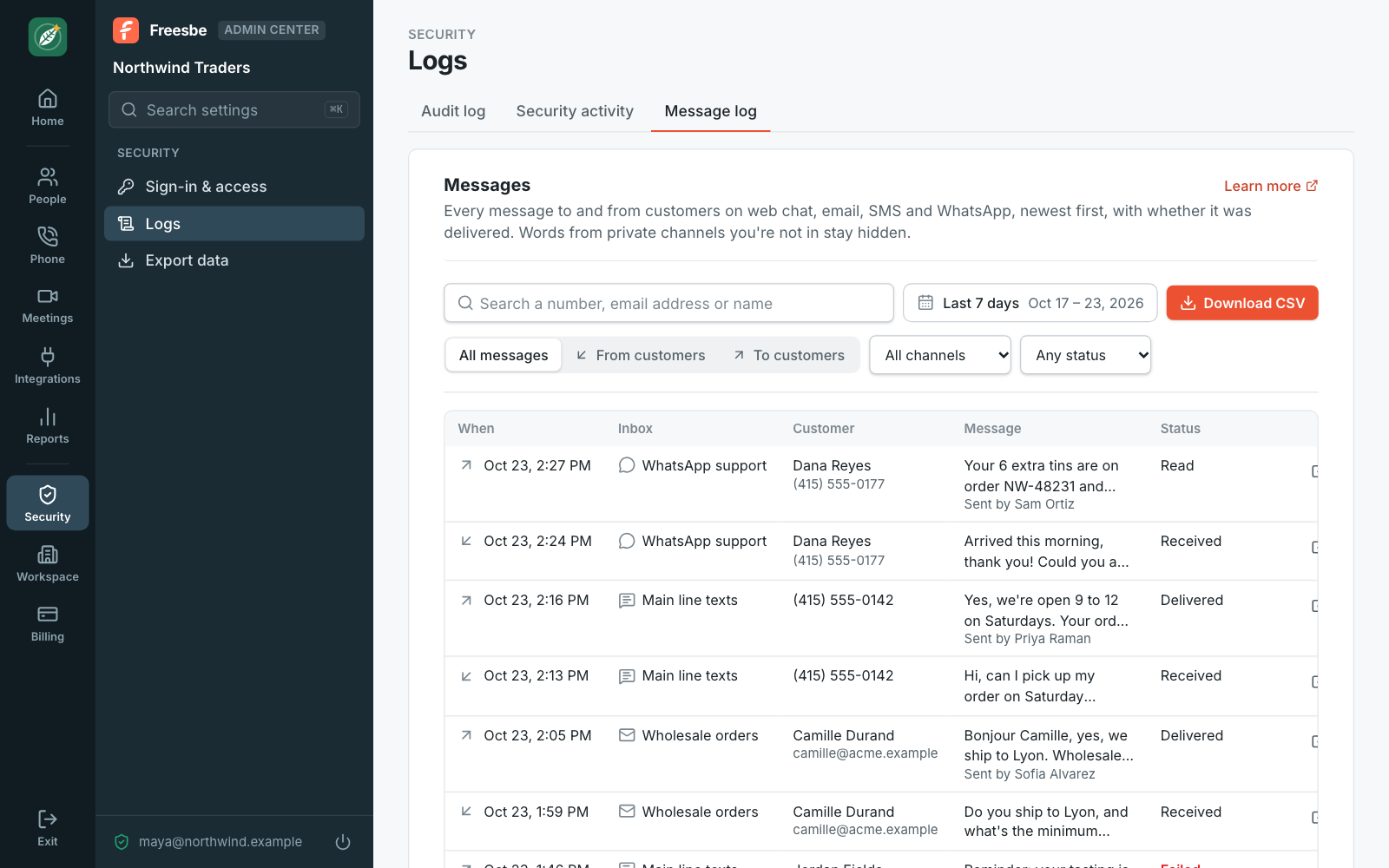
Section titled “Message log”Admins see every message to and from customers in the Admin Center, under Security → Logs → Message log: when it went, which inbox, the customer, the start of the message, who on the team sent it, and whether it was Sent, Delivered, Read or Failed, with the reason a message failed. Messages kept in test mode are marked Test.
- Search a number, email address or name.
- Dates: pick a range on the calendar, or a preset like the last 7 days.
- Direction: messages from customers or to customers. Narrow it to one channel (web chat, email, SMS or WhatsApp) or one status, such as only failed messages.
- The open button takes you to the conversation in Freesbe. Download CSV saves the messages the filters show, up to the newest 5,000, with times in UTC.
What a message says only shows when you can see its channel. A conversation in a private channel you’re not in shows In a private channel instead.
Customers’ orders
Section titled “Customers’ orders”Connect your WooCommerce store and each customer’s orders show over the inbox bar in their conversation, and on their calls. See Customer orders.
Good to know
Section titled “Good to know”- While you’re in another workspace, its icon in the rail counts the conversations waiting for you here, and a new customer message alerts the computer you’re using. See Getting around.
- The inbox isn’t open to apps and the API’s app tokens; conversations can only be answered by people in the channel.
- A workspace can have up to 20 inboxes of every kind together, for example one per website or brand.
- Each number can be in one texting inbox and one WhatsApp inbox.
- A workspace connects one Telegram account, and each one can be connected to one workspace. It can send 5,000 Telegram replies and shared posts a day, and share up to 50 channels.
- Telegram takes photos up to 10 MB and other files up to 50 MB. Customers’ files up to 20 MB come into the thread.
- A workspace can send 1,000 WhatsApp replies and templates a day, and 1,000 Messenger and Instagram replies.
- A workspace connects one Facebook Page, and each Page can be connected to one workspace.
- WhatsApp takes photos up to 5 MB, videos and voice messages up to 16 MB, and other files up to 100 MB.
- Each email inbox takes up to 2,000 emails a day, 100 of them from one sender, and a workspace can send 500 emailed replies a day.
- A customer’s message can be up to 4,000 characters.
- Suggest a reply shows when AI is on for your workspace, like summaries and translations.
Answers come from the Freesbe guides and are written by AI, so check the linked guide before relying on one. Please don't include personal details such as emails or passwords.