
Put a chat on your website
A web chat puts a chat button on your website. Every visitor who writes gets their own thread in a channel you pick, your team answers there, and the visitor sees the answer in the chat. You need to be a Freesbe owner or admin, and able to add a line to your website’s pages.
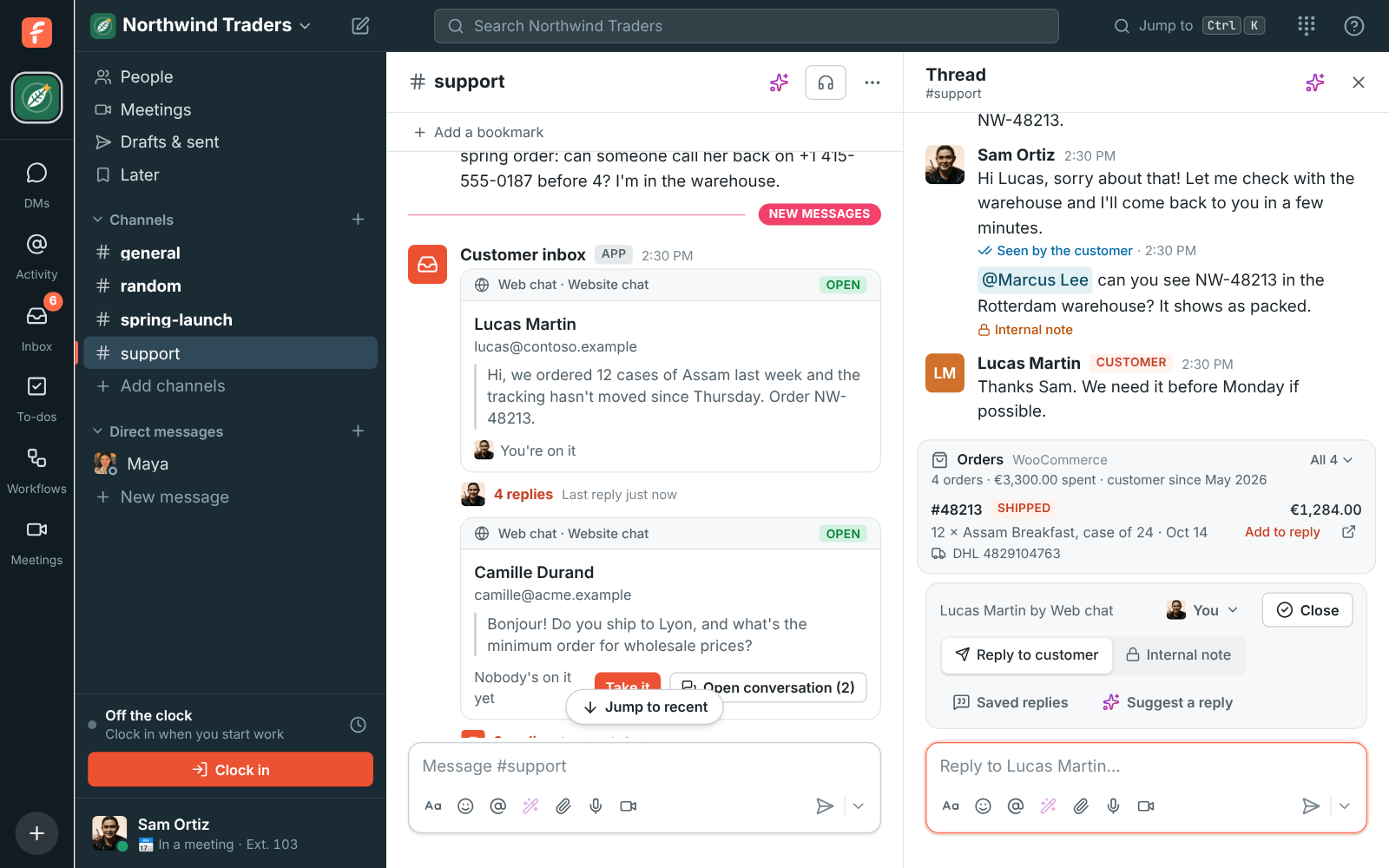
1. Pick the channel
Section titled “1. Pick the channel”Conversations go into one channel, and everyone in it can see and answer them. Use the channel your support or sales team already works in, like #support, or make a new one. Add the people who should answer to it.
2. Add the web chat
Section titled “2. Add the web chat”- Open Workspace settings → Integrations & apps → Integrations → Customer inbox and click Add web chat.
- Give it a Name, pick the channel, and set the Title in the chat, Greeting and Colour visitors see.
- Pick the Logo beside the title: your workspace logo, the chat’s own picture, or none.
- Leave Ask for a name and email first on to know who you’re talking to, and add More questions to ask visitors before they write, like their order number or what it’s about.
- Under When nobody can answer, pick the chat’s Hours, whether to Show who’s online, and what the automatic replies say when nobody answers. See When nobody can answer. To have the chat open by itself after a few pages, turn on Open the chat by itself and pick its chime (how it works). To make the button stand out, pick a Get attention movement or a teaser, and set the Chat button’s side, height and look (how it works). The chat speaks the visitor’s language unless you pick one under Chat language, and with a phone system, Call us button adds a phone to the chat’s header.
- Leave Collect visitor details on to see where visitors are and the page they’re on (what it shows), or turn it off to keep only their country.
- Under Websites it can appear on, put your site’s addresses, one per line, like
https://northwind.example. - Click Save.
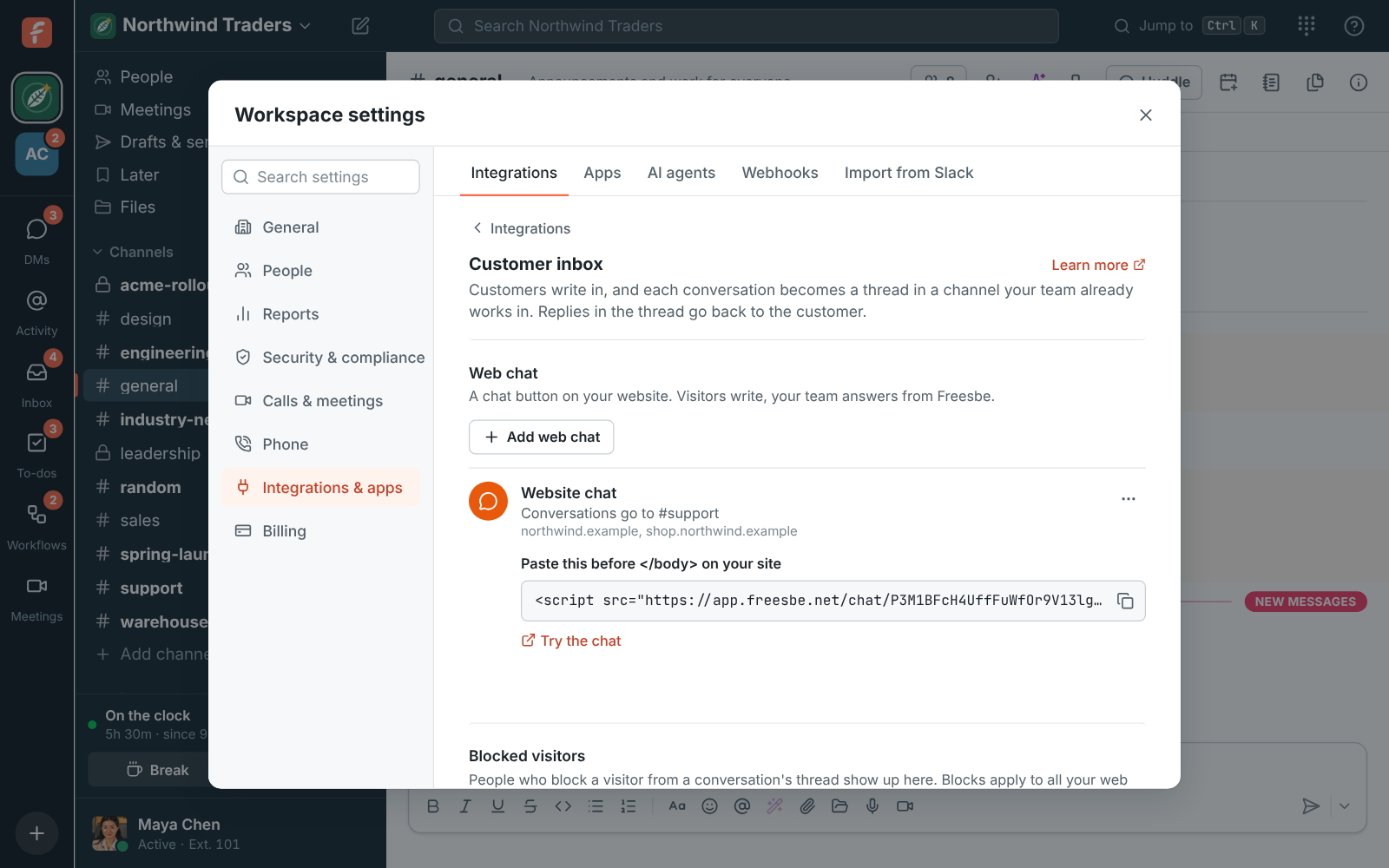
3. Add it to your site
Section titled “3. Add it to your site”Copy the line under Paste this before </body> on your site and add it to every page that
should show the chat, just before </body>. Most website builders have a place for code that goes
on every page, often called “custom code”, “footer code” or “scripts”.
Then click Try the chat and send a test message. It shows up in your channel within seconds.
4. Save your usual answers
Section titled “4. Save your usual answers”Open Saved replies on the Inbox page and add the answers your team gives most, like shipping times or how returns work. Anyone can drop them into a reply, and Suggest a reply follows them when it drafts an answer, so put your policies and facts there.
5. Tell your team how to answer
Section titled “5. Tell your team how to answer”- Reply in the conversation’s thread to answer the customer. The person who replies first becomes the one on it.
- Click Visitor details on the card to see the page the visitor is on and where they came from.
- Switch to Internal note to talk it over without the customer seeing it.
- Click the name on the bar to hand the conversation to someone else, and Close it when you’re done.
- Inbox on the left shows every conversation, with the ones waiting on a reply marked.
See Customer inbox for everything the inbox does.
Answers come from the Freesbe guides and are written by AI, so check the linked guide before relying on one. Please don't include personal details such as emails or passwords.