
Single sign-on
People can sign in to a workspace through the company’s own identity provider, such as Okta, Duo, Microsoft Entra ID or Google Workspace, and admins can require it, or require Google or Microsoft work accounts instead. Both come with the Corporate and Enterprise plans. On a plan without them, people sign in the other ways they’ve set up instead.
Use your own identity provider
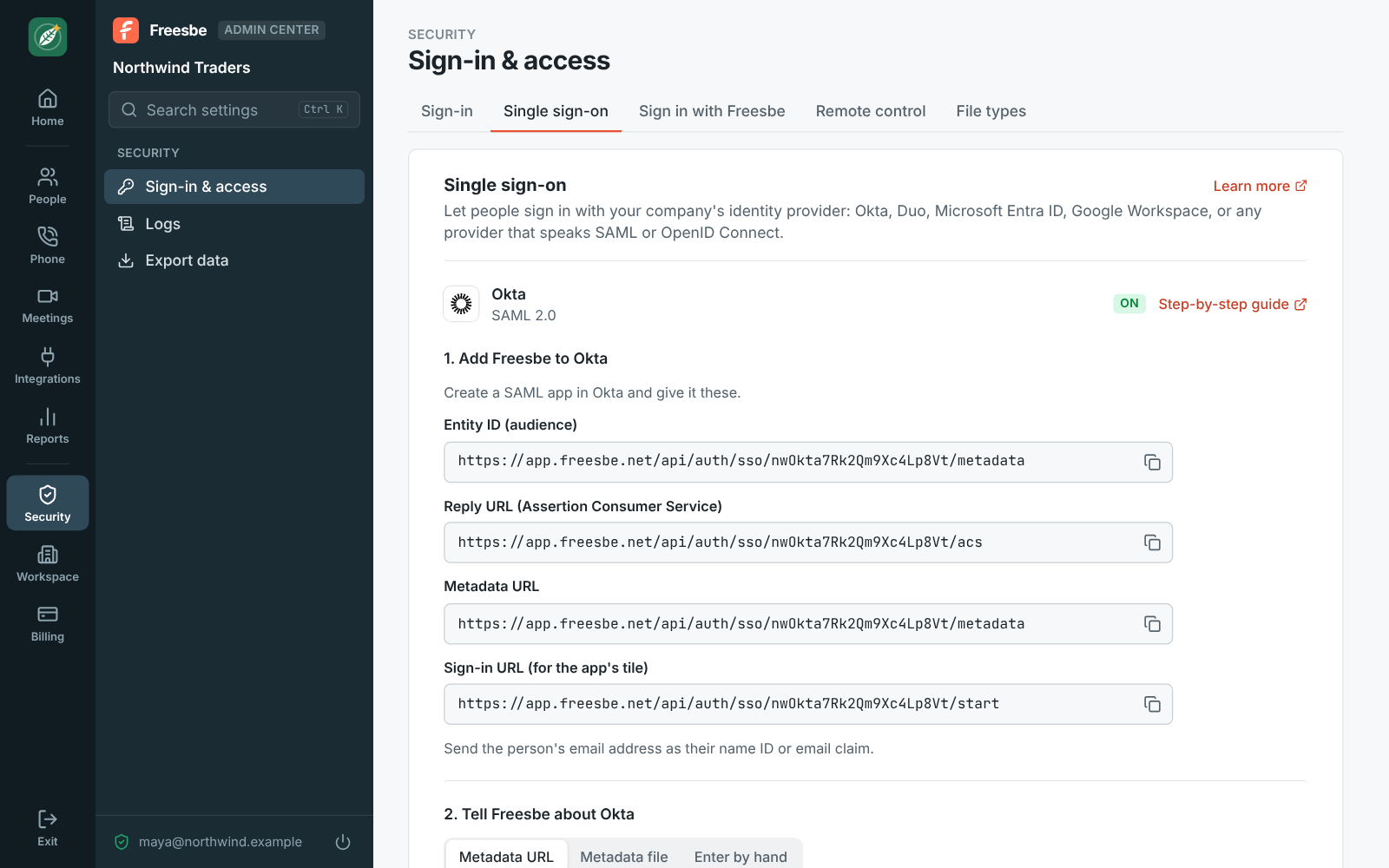
Section titled “Use your own identity provider”Freesbe works with any identity provider that speaks SAML 2.0 or OpenID Connect, with a step-by-step guide for the common ones: Okta, Microsoft Entra ID, Google Workspace, Duo, OneLogin, JumpCloud, Ping Identity and any other. An owner sets it up in the Admin Center, under Security → Sign-in & access → Single sign-on:
- Verify your email domain first, under People → Joining → Email domains. Your provider can only sign in addresses at a domain the workspace has proved, so no other workspace can claim your people.
- Choose your provider and how to connect (SAML or OpenID Connect), then Set up.
- Add Freesbe to your provider with the details the page shows: for SAML, the entity ID
(audience) and reply URL (Assertion Consumer Service), or Freesbe’s metadata URL; for OpenID
Connect, the redirect URL. Have it send the person’s email address as the name ID or
emailclaim, and give the people who use Freesbe access to the app there. - Tell Freesbe about your provider: paste its metadata URL (Freesbe reads it again every day, so a new signing certificate is picked up on its own), upload its metadata file, or enter the issuer, sign-in URL and certificate by hand. For OpenID Connect, enter the issuer URL, client ID and client secret.
- Test sign-in: Freesbe sends you through the provider as yourself and shows what came back, such as the email address, name and other attributes, or why it didn’t work. Nobody else can sign in with the provider until a test goes through.
Only owners can set up, change or remove the provider, since it can sign in anyone at your domains, owners included. Admins can see the page. Pointing it at another provider (a new issuer) needs a new test sign-in.
Signing in with it
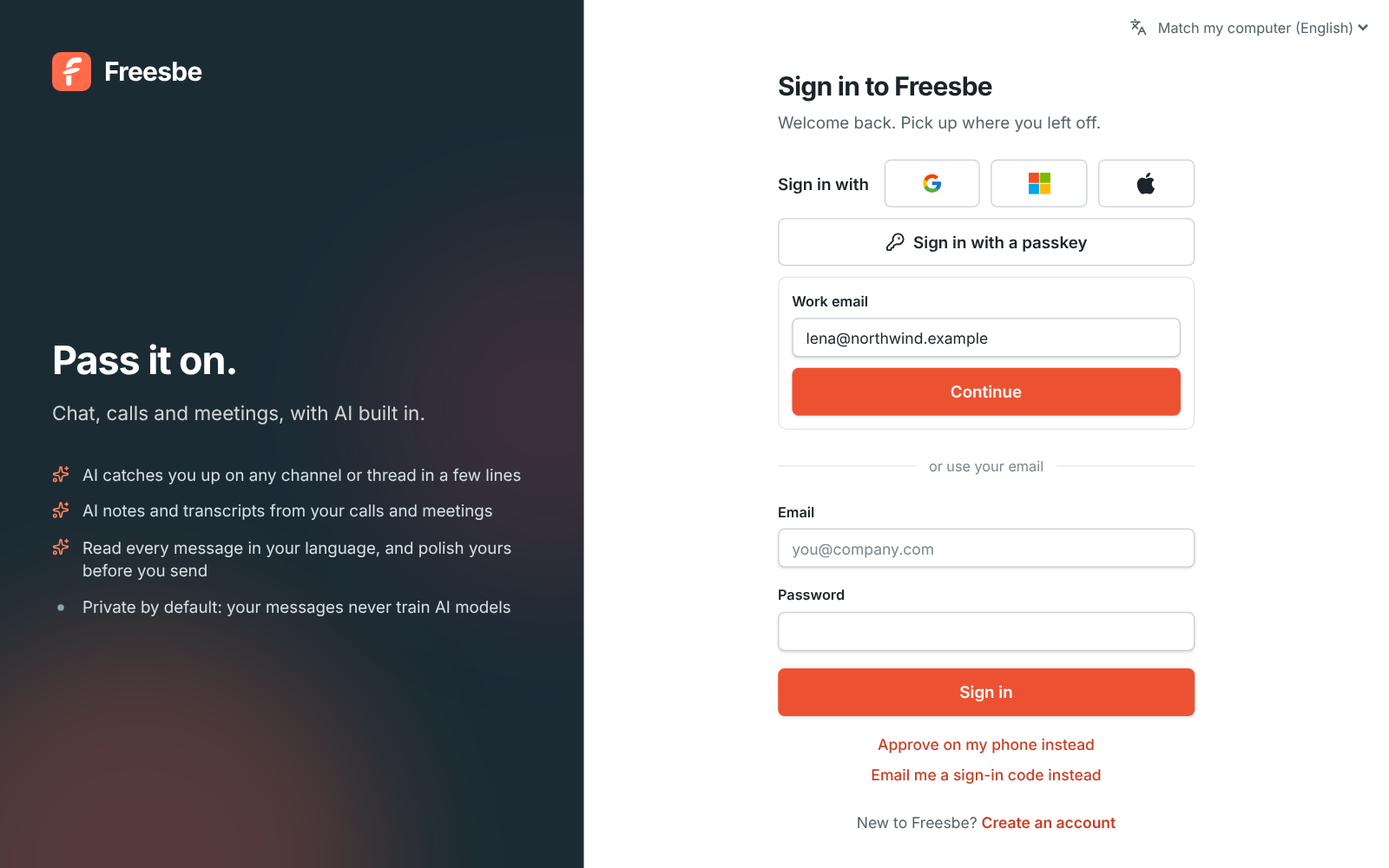
Section titled “Signing in with it”- On the sign-in page, people choose Sign in with your company’s SSO and enter their work email. Freesbe finds the workspace that signs in that domain and sends them to your provider.
- They can also start from the Freesbe tile in your provider’s app list, using the Sign-in URL the setup page shows.
- The desktop app opens the provider in the web browser and signs itself in when it’s done. The phone apps open it in a browser sheet.
- Someone at your domain who has a Freesbe account already signs in to that account. Someone new gets an account the first time, and joins the workspace the way Email domains says: as a member, or after an admin approves them. Choose Needs an invite under Sign-in options to let in only people who were invited.
Sign-in options
Section titled “Sign-in options”- Your provider checks a second factor: on by default. A sign-in through the provider counts as multi-factor authentication, so Freesbe doesn’t ask again. Turn it off if your provider signs people in with a password alone.
- Someone at your domain who isn’t in the workspace yet: joins by your email domain’s rule, or needs an invite.
When someone leaves
Section titled “When someone leaves”Once the workspace requires your provider (see below), Freesbe checks with it again every day: someone you remove or turn off in your provider loses the workspace within a day, on every device. To cut them off at once, also deactivate them in People → Members.
Certificates
Section titled “Certificates”SAML providers sign each sign-in with a certificate that runs out, usually every few years. With a metadata URL Freesbe picks up the new one by itself. Otherwise owners and admins get an email 30, 7 and 1 days before it runs out: upload the new metadata file or certificate before then, or sign-ins through the provider stop.
Remove it
Section titled “Remove it”Remove at the bottom of the page disconnects the provider. If the workspace required it, it stops requiring single sign-on, and people sign in with their Freesbe password, a passkey, Google or Microsoft instead. Their accounts and messages stay.
Require single sign-on
Section titled “Require single sign-on”- Sign in with the provider you’re about to require. Freesbe won’t let you require Google, or your own provider, while you’re signed in with a password, so you can’t lock yourself out.
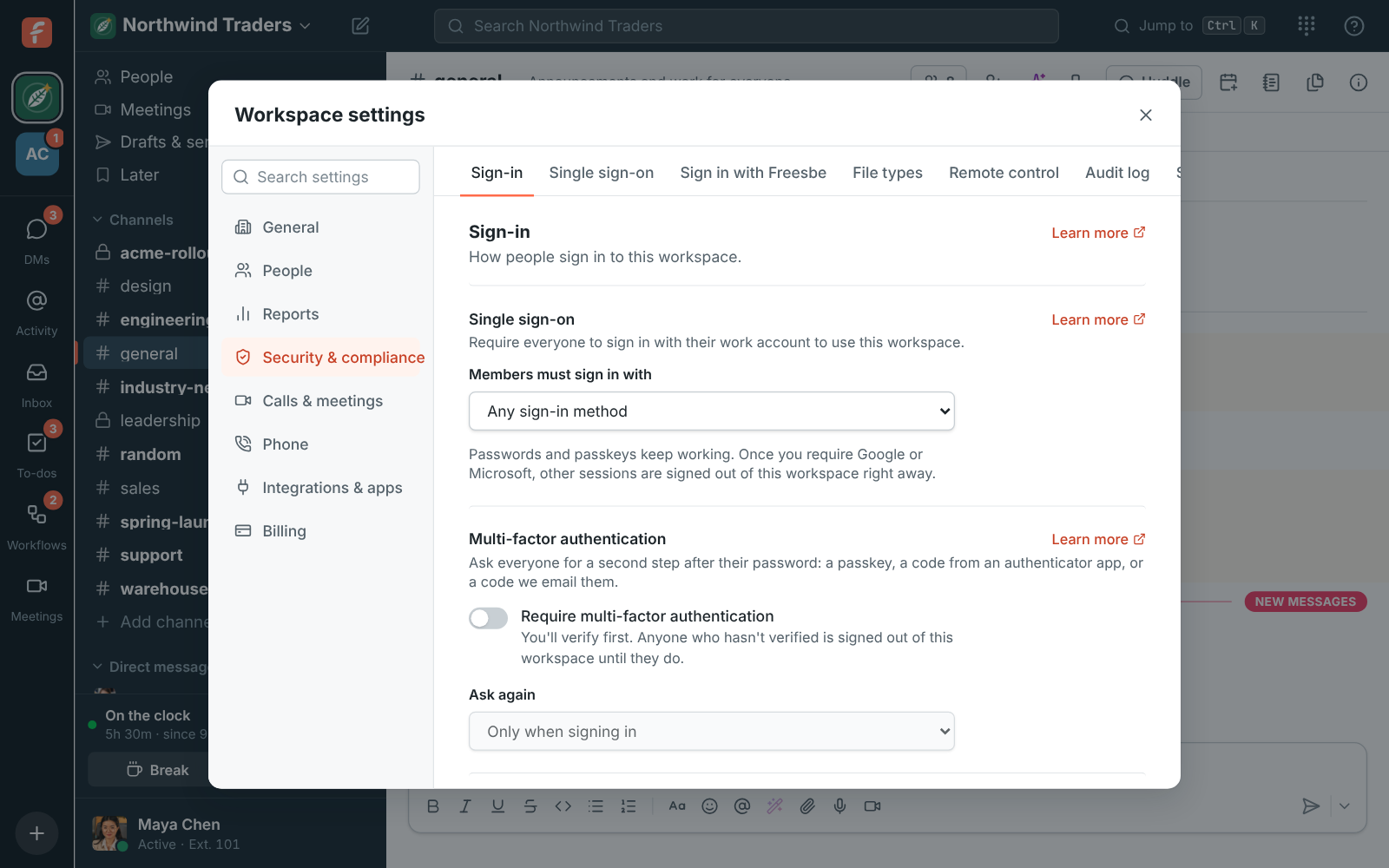
- In the Admin Center, open Security → Sign-in & access → Sign-in.
- Under Members must sign in with, choose your own provider (once its test sign-in went through), Google, Microsoft or Google or Microsoft.
Choose Any sign-in method to turn it off again.
What changes for people
Section titled “What changes for people”- Anyone using the workspace with a password, a sign-in code or a passkey is signed out of that workspace right away and asked to continue with the required provider. Their Freesbe account stays the same: signing in with the provider links it to their account.
- Linking works when the provider’s address matches their Freesbe email. If it doesn’t, they can connect the provider in Preferences → My account → Sign-in → Google, Microsoft and Apple first.
- When your own provider is required, guests keep signing in the way they did: they’re from other companies, so your provider doesn’t know them.
- When your own provider is required and it’s down, owners can still get in by verifying with a passkey, their phone or an authenticator app, so the workspace is never locked.
- Signing in with Apple doesn’t count: an Apple ID is a personal account no company manages, so people who use Apple are asked to continue with Google or Microsoft for this workspace.
- Other workspaces they belong to aren’t affected.
- Emailed sign-in codes don’t open the workspace.
- Scripts that signed in with a password lose access to the workspace too. See API and webhooks.
Which accounts can sign in
Section titled “Which accounts can sign in”For Microsoft, work, school and personal accounts can sign in, unless your Freesbe server is set up to accept only work and school accounts, or only your organization’s directory. For Google, any Google account with a confirmed address can sign in.
Requiring single sign-on decides how people sign in, not who can join: people need an invite, or an address at one of the workspace’s email domains. Together they cover a whole company: everyone at your domain can join on their own, and has to sign in with your Microsoft or Google work accounts.
Answers come from the Freesbe guides and are written by AI, so check the linked guide before relying on one. Please don't include personal details such as emails or passwords.