
Files
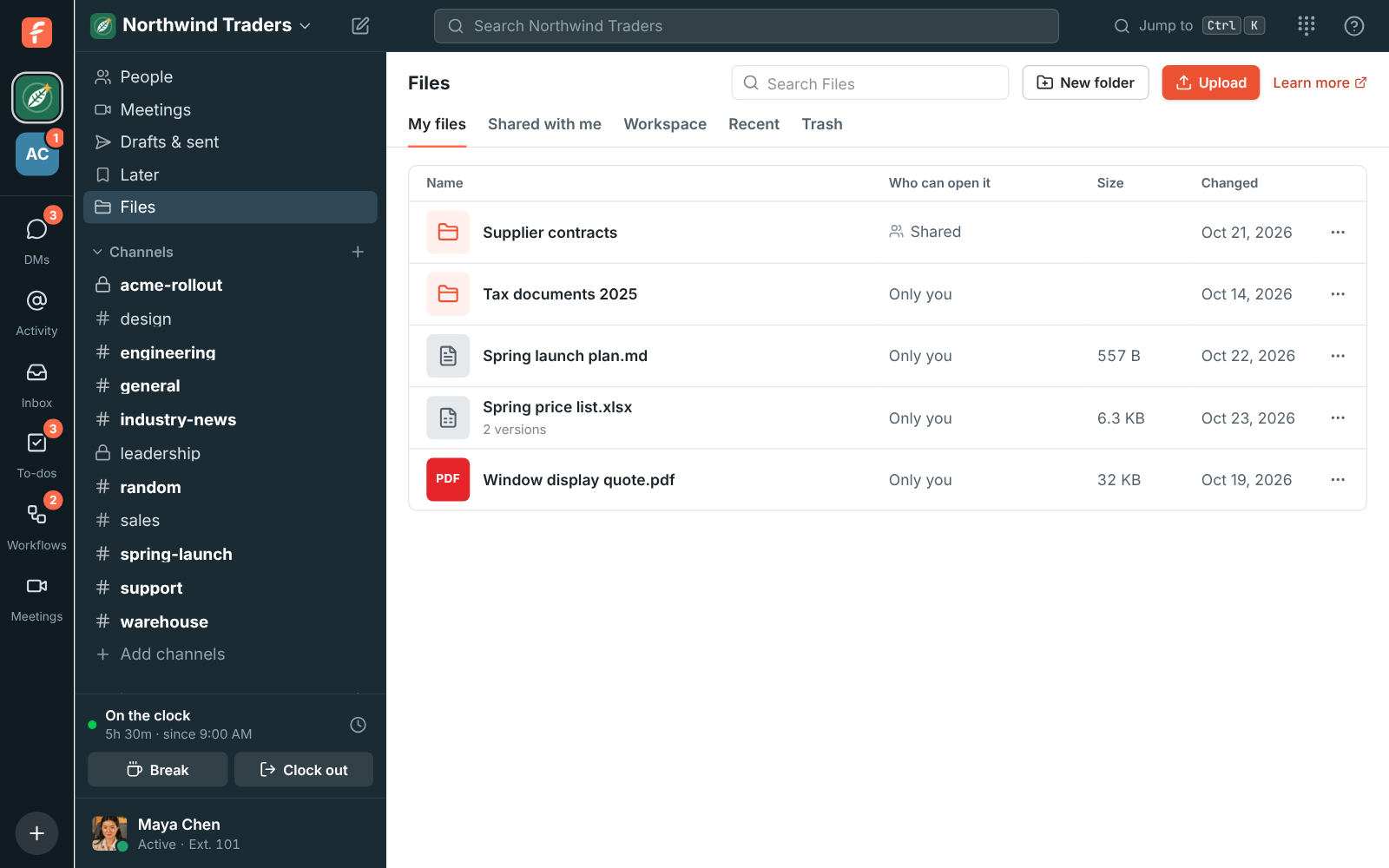
Files in the sidebar is a place for the files you keep, not just the ones you send. Put contracts, price lists and templates in folders, share a folder with a colleague or a team, and attach any of them to a message without hunting through your computer. Files is for members of the workspace; guests don’t have it.
The lists
Section titled “The lists”The tabs along the top of Files:
| Tab | What’s in it |
|---|---|
| My files | Your own folders and files. Nobody else sees them until you share them. |
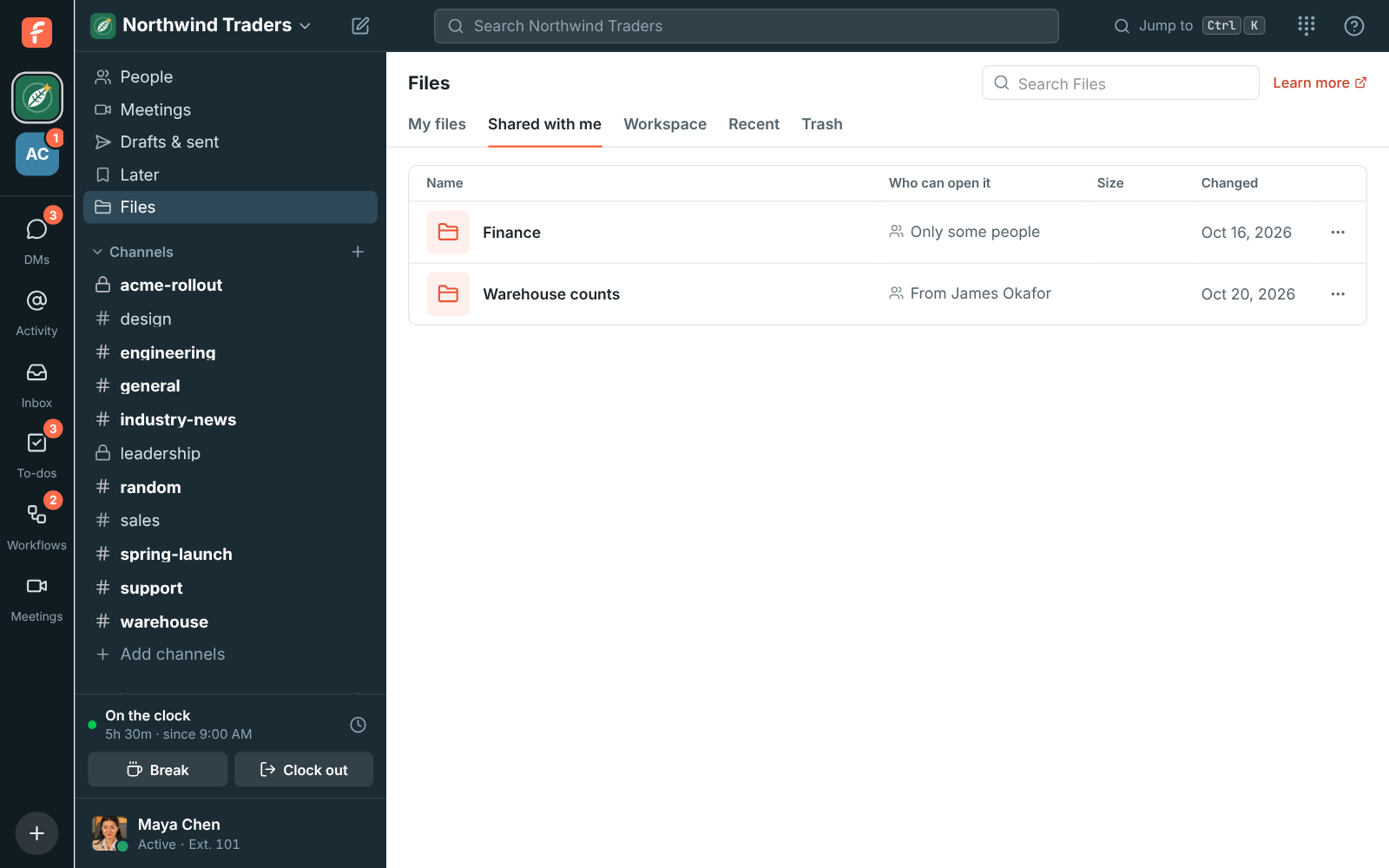
| Shared with me | Folders and files colleagues shared with you, or with a team you’re on. |
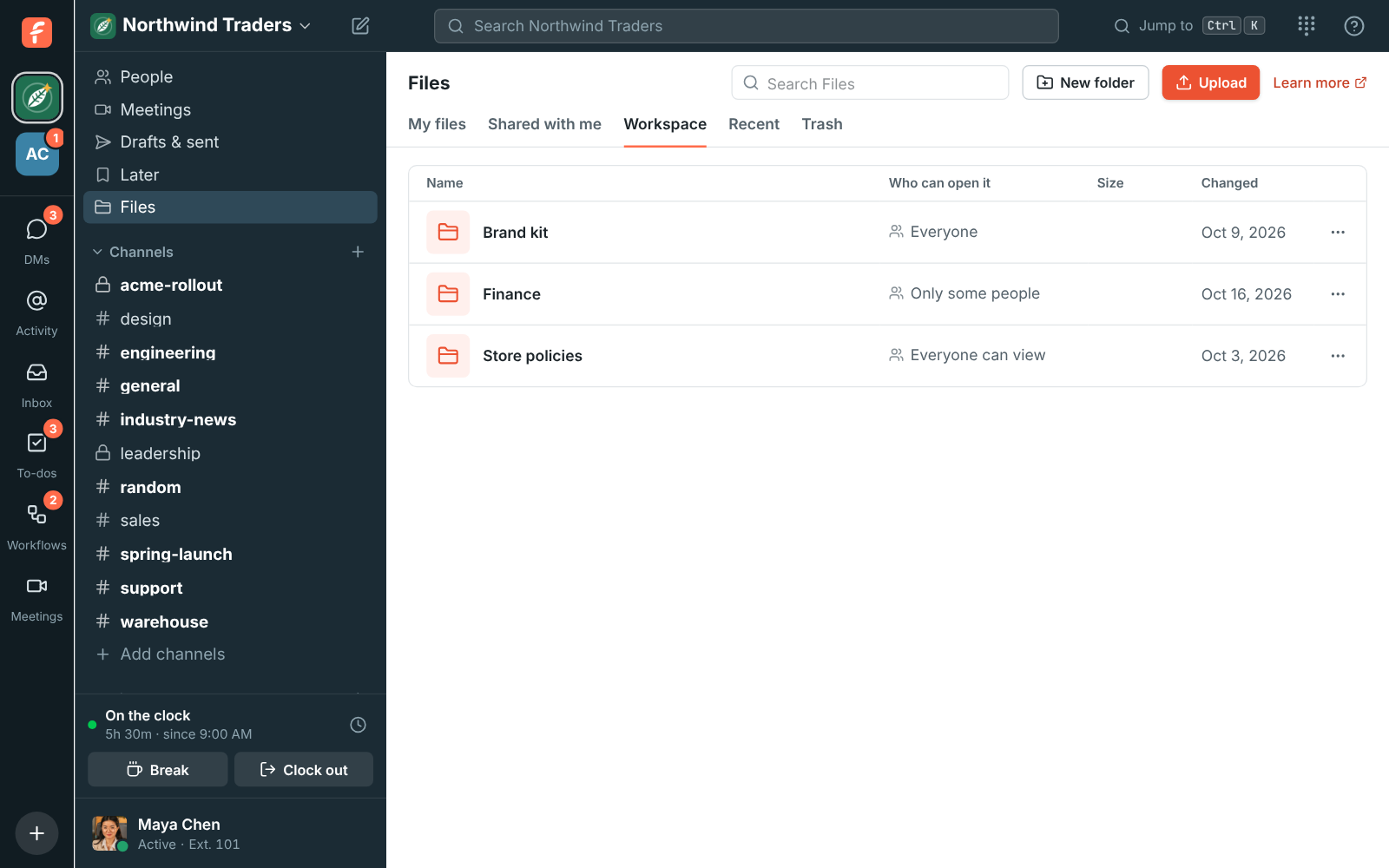
| Workspace | The workspace’s own folders, for everyone or the teams given access. |
| Recent | Files you added or changed lately, wherever they are. |
| Sent links | What you sent outside the workspace with Secure send, and who opened it. |
| Trash | What you deleted, for 30 days. After that it’s deleted for good. |
Search Files at the top finds folders and files by name in every list you can open.
Add files and folders
Section titled “Add files and folders”- Upload adds files from your computer to the folder you’re in. You can also drag files from your computer straight onto the list.
- New folder makes a folder where you are. Folders go inside folders, up to 12 deep.
- Save to Files keeps a copy of a file someone sent in a conversation: right-click the file (or open its ⋯ menu) and choose it. The copy goes to the top of My files, and stays there even if the message is deleted.
A file can be up to 50 MB, and Files counts toward the workspace’s storage like files sent in conversations (see plan limits). The workspace’s file type rules for members apply to uploads here too.
To move something, drag it onto a folder in the list, or choose Move up a folder from its ⋯ menu. Things move within the same place: inside My files, or inside the workspace’s folders. Moving something to another of the workspace’s top-level folders changes who can open it, so it takes Full access.
Share a folder or file
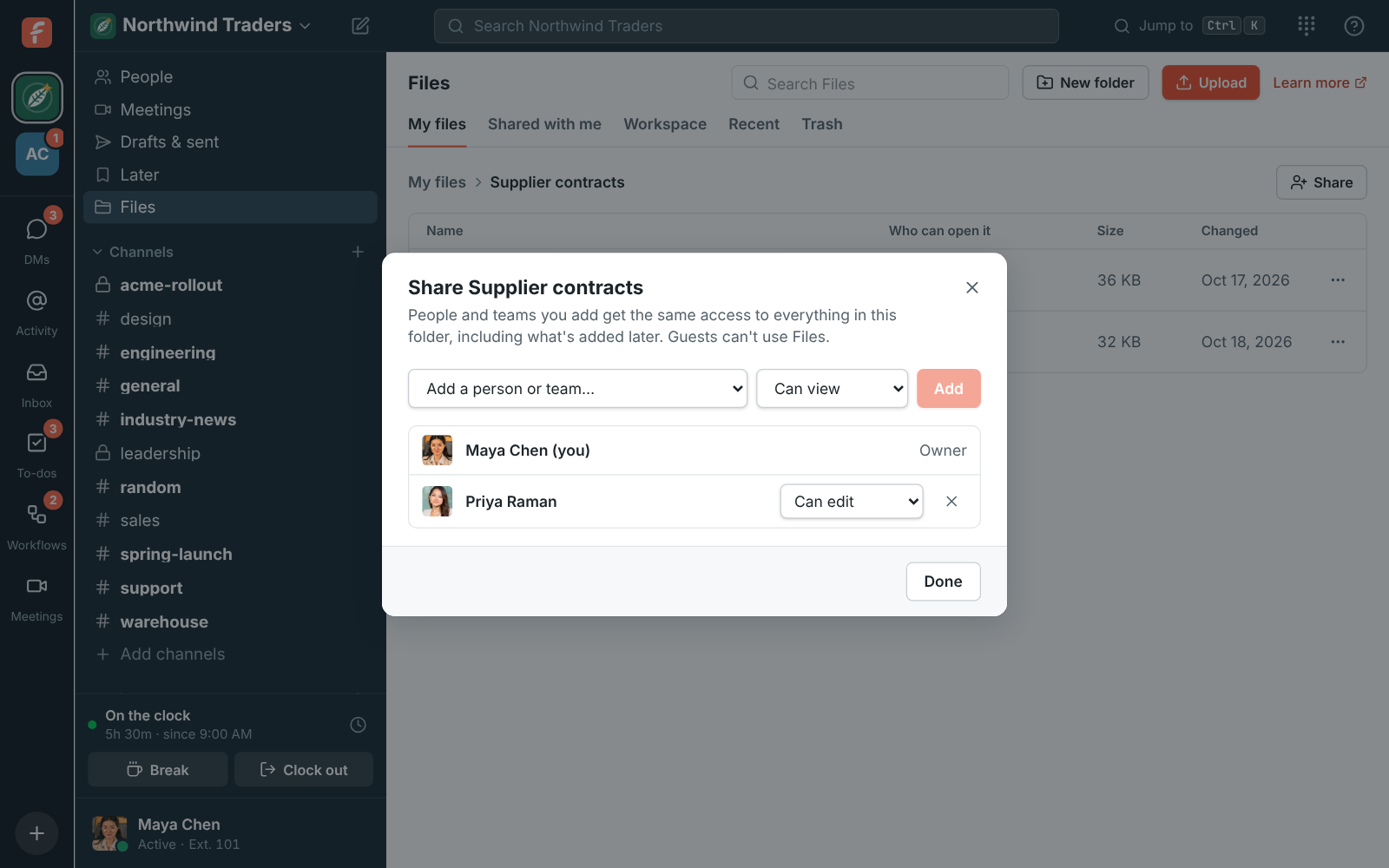
Section titled “Share a folder or file”Open a folder and click Share, or choose Share from a file’s ⋯ menu. Pick a person or a team, and what they can do:
| Access | What they can do |
|---|---|
| Can view | Open and download. |
| Can edit | Also add files and folders, upload new versions, rename and move. |
| Full access | Also move things to the trash, share them and change who has access, like you do. |
Sharing a folder shares everything in it, including what’s added later. A share on a folder above shows as From the folder… and is changed on that folder. A folder or file inside can give someone more access than the folder above, never less. Remove someone with × and they lose access straight away.
You always have full access to your own files, and to a file you upload anywhere for as long as you can open the folder it’s in. Without full access, the menu says Who has access and shows the list without changing it. Nobody can change their own access.
What colleagues share with you shows under Shared with me:
The workspace’s folders
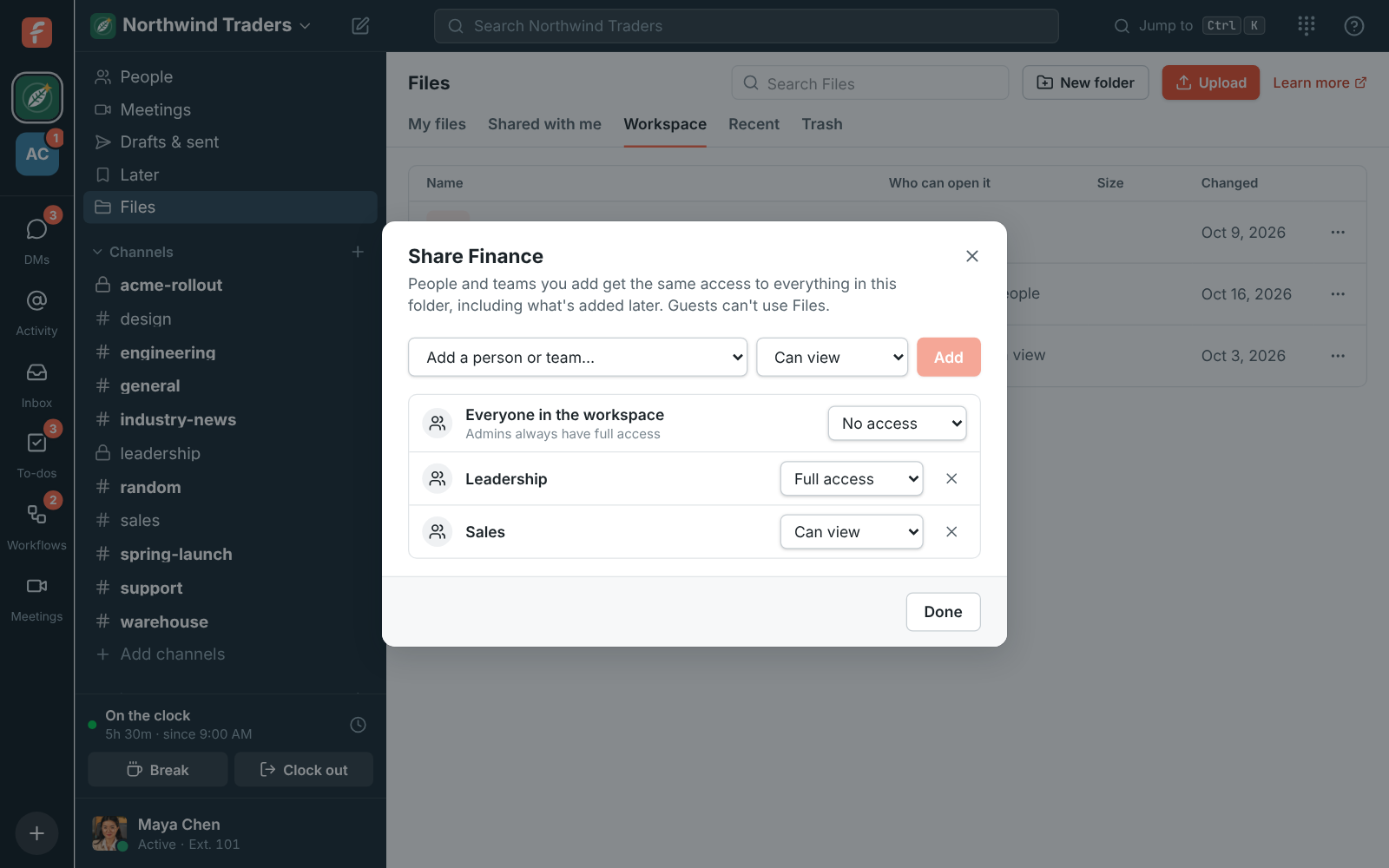
Section titled “The workspace’s folders”Folders under Workspace are for things the team shares: a brand kit, store policies, templates, or a Finance folder only some people open. Each top-level folder there says what Everyone in the workspace gets in it and everything inside:
- Can edit (a new folder starts here): everyone can open it and add to it.
- Can view: everyone can open it; only the people and teams you add can change it.
- No access: only the people and teams you add can open it. It doesn’t show for anyone else.
Open the folder’s Share to set it, and add people or teams with the access they need. Admins always have full access to the workspace’s folders. Whoever makes a top-level workspace folder is added to it with Full access, which admins can change; a folder made inside another gets the same access as the folder it’s in.
Versions
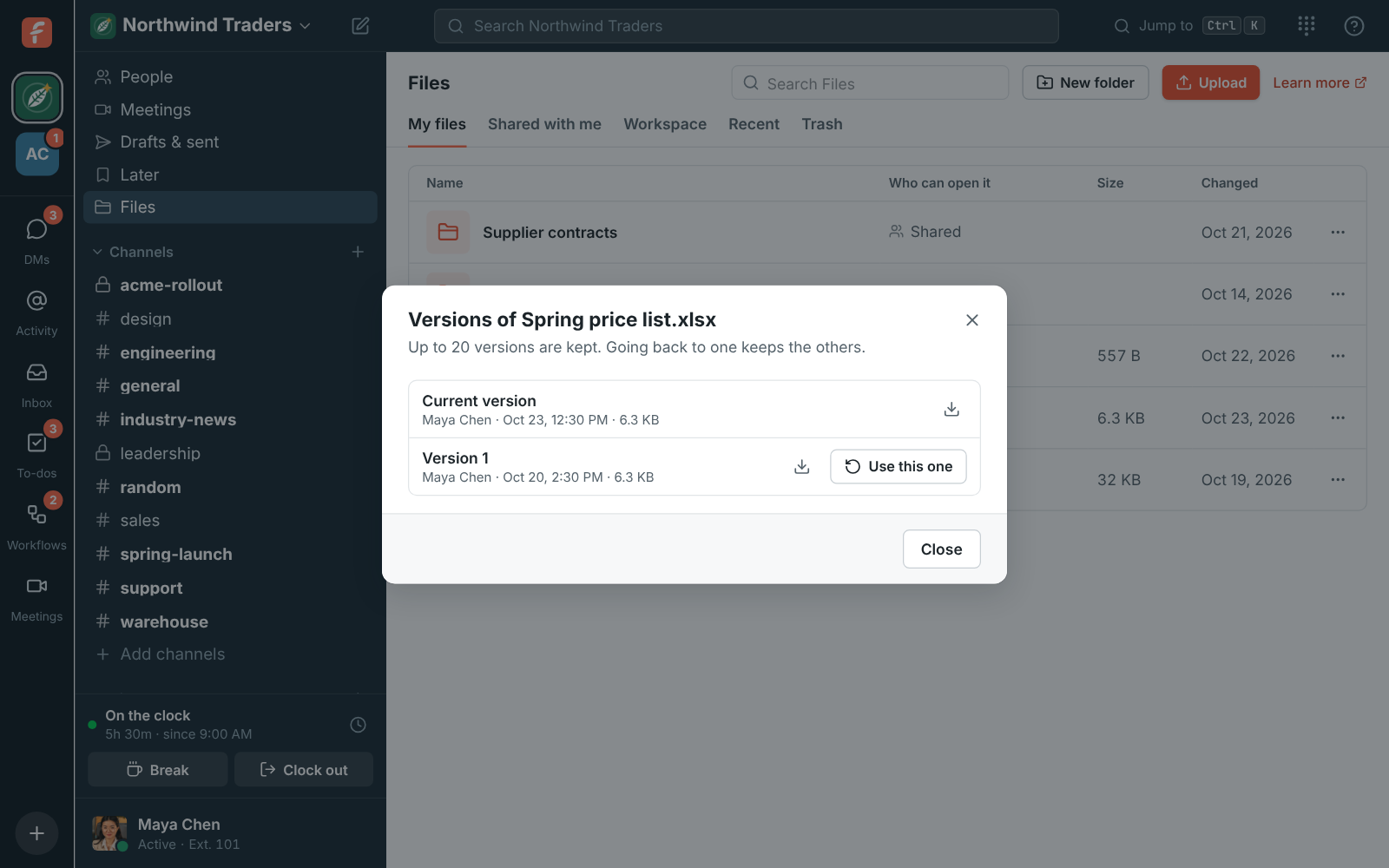
Section titled “Versions”Uploading a new version keeps the old one. Choose Upload a new version from a file’s ⋯ menu and pick the file from your computer: the name in Files stays the same, and links and shares keep working. Versions lists them, newest first, with who uploaded each. Download any of them, or click Use this one to make an earlier version the current one again. Up to 20 versions are kept; the oldest goes when there are more.
Send a file from Files
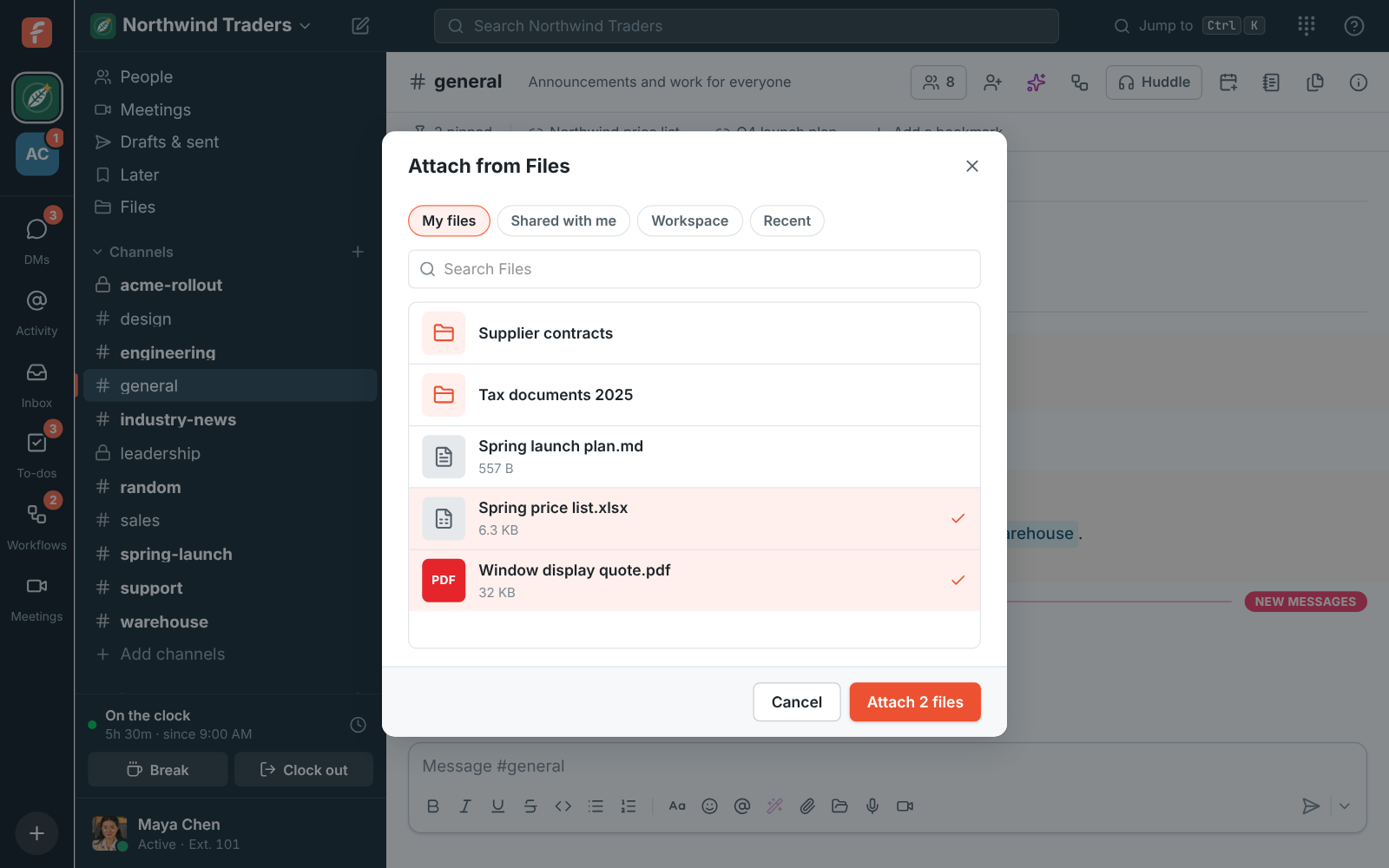
Section titled “Send a file from Files”In any conversation, click the folder button next to the paperclip in the message box (Attach from Files), pick one or more files and click Attach. They’re added to your message like files from your computer. The message gets its own copy, so changing or deleting the file in Files later doesn’t change what you sent.
Send files outside
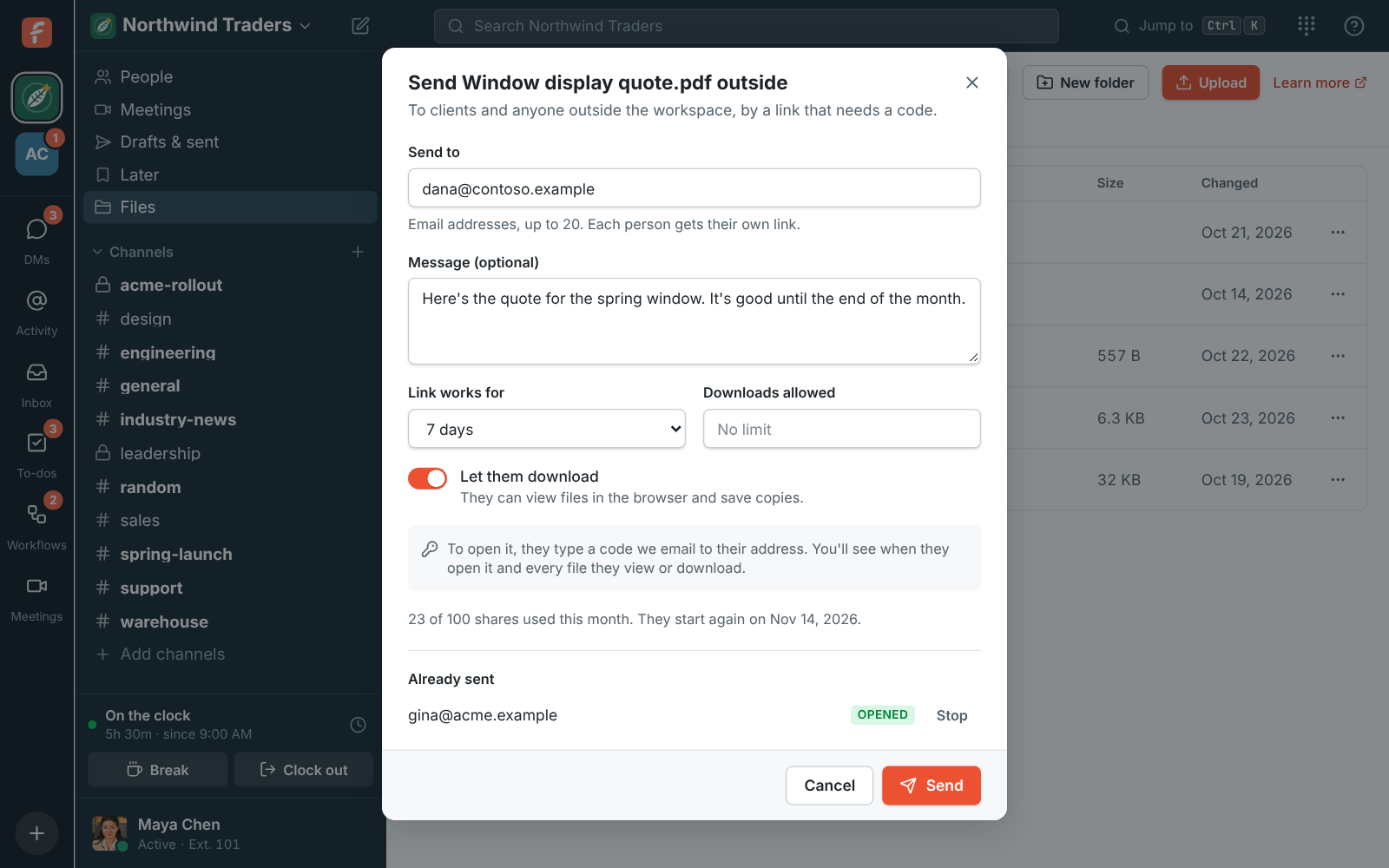
Section titled “Send files outside”Secure send sends a folder or file to clients, accountants, suppliers and anyone else outside the workspace, instead of attaching it to an email. Each person gets their own link, and the link opens only with a code we email to their address, so it’s no use to anyone they forward it to. You see when they open it and every file they view or download, and you can stop it at any time. Secure send is an add-on: an admin adds it under Billing → Add-ons in the Admin Center.
- Open the menu of a folder or file you have full access to (⋯) and choose Send outside. In a folder, there’s also a Send outside button next to Share.
- Enter the email addresses to send it to (up to 20 at a time) and, if you like, a message.
- Pick how long the link works, whether they can download files or only view them in the browser, and how many downloads they get in all.
- Click Send. We email each person their link. You can also copy the links from the dialog, which is the only time they’re shown.
A folder’s link opens everything in it, the folders inside it too, as it is when they open it: a file you add later shows up, and one you move out or to the trash doesn’t.
What the person outside sees
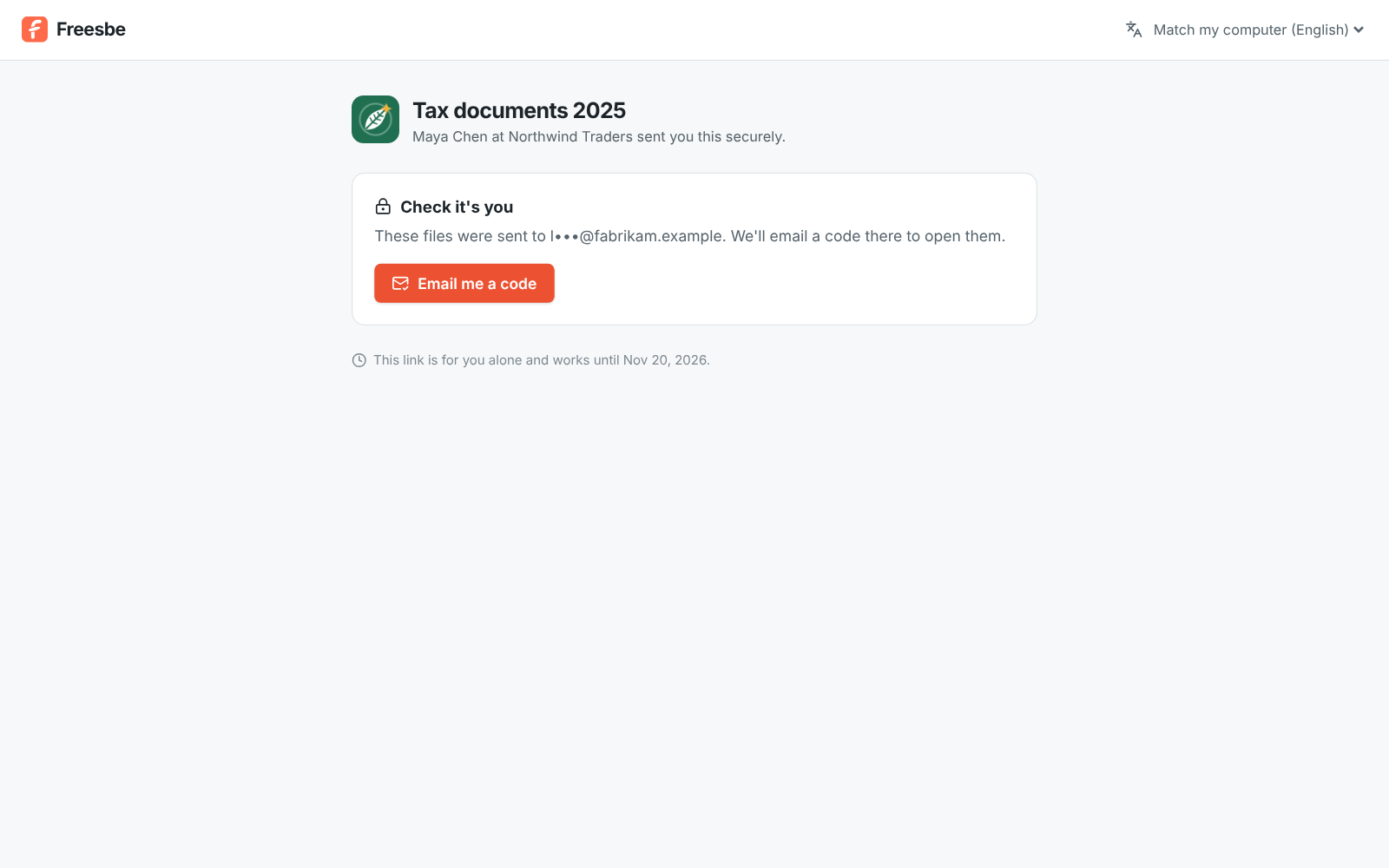
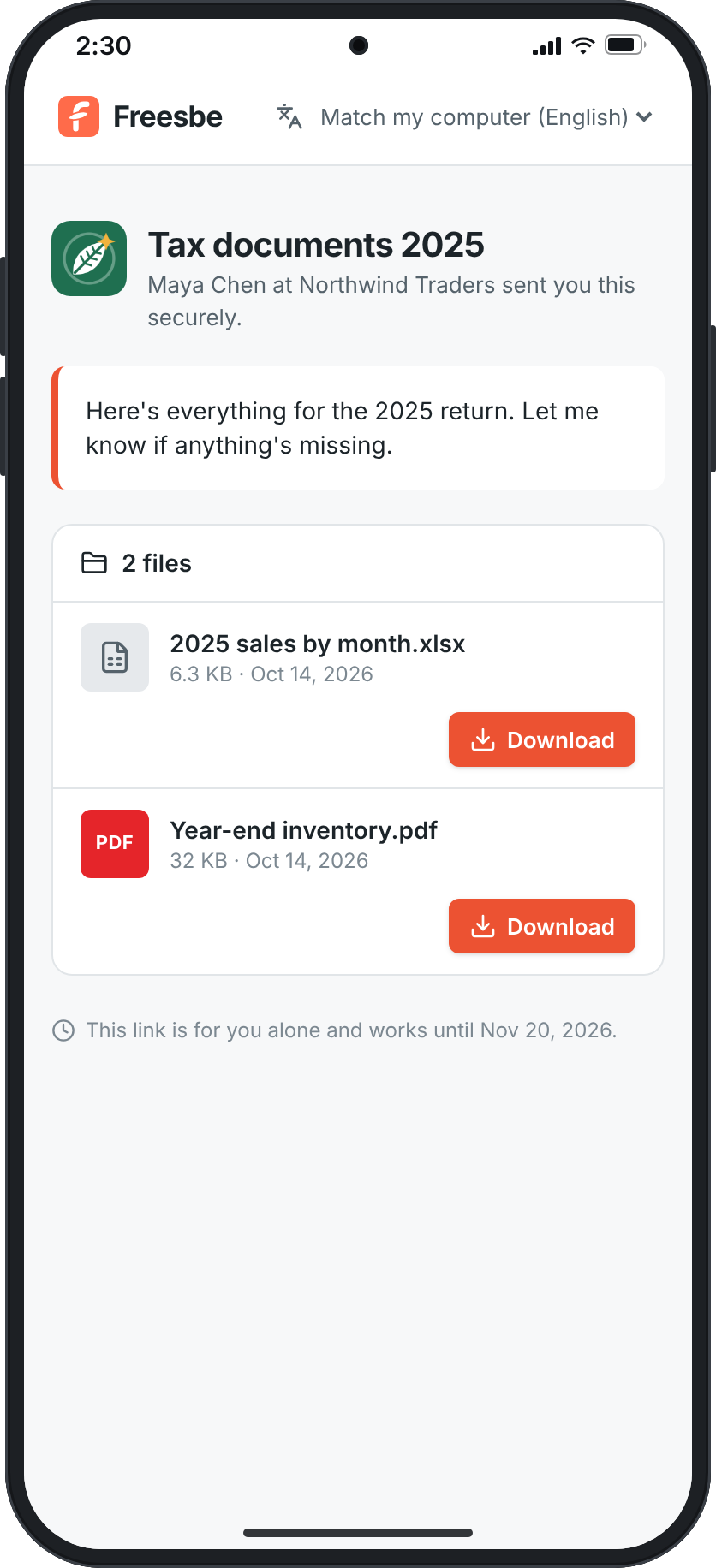
Section titled “What the person outside sees”The link opens a page with your workspace’s name and logo. They click Email me a code, type the six-digit code we email them, and see the files, with View and Download for each. The code works once, for 10 minutes; after five wrong tries they ask for a new one. Their browser stays in for 12 hours, then asks for a new code. They don’t need a Freesbe account.
View only keeps the files in the browser, with no Download button. Files a browser can’t show itself (a spreadsheet, for example) stay closed; a PDF shows a picture of its first page. Anyone who can see a file can still take a picture of their screen, so don’t rely on view only for anything you couldn’t let them keep.
Sent links and activity
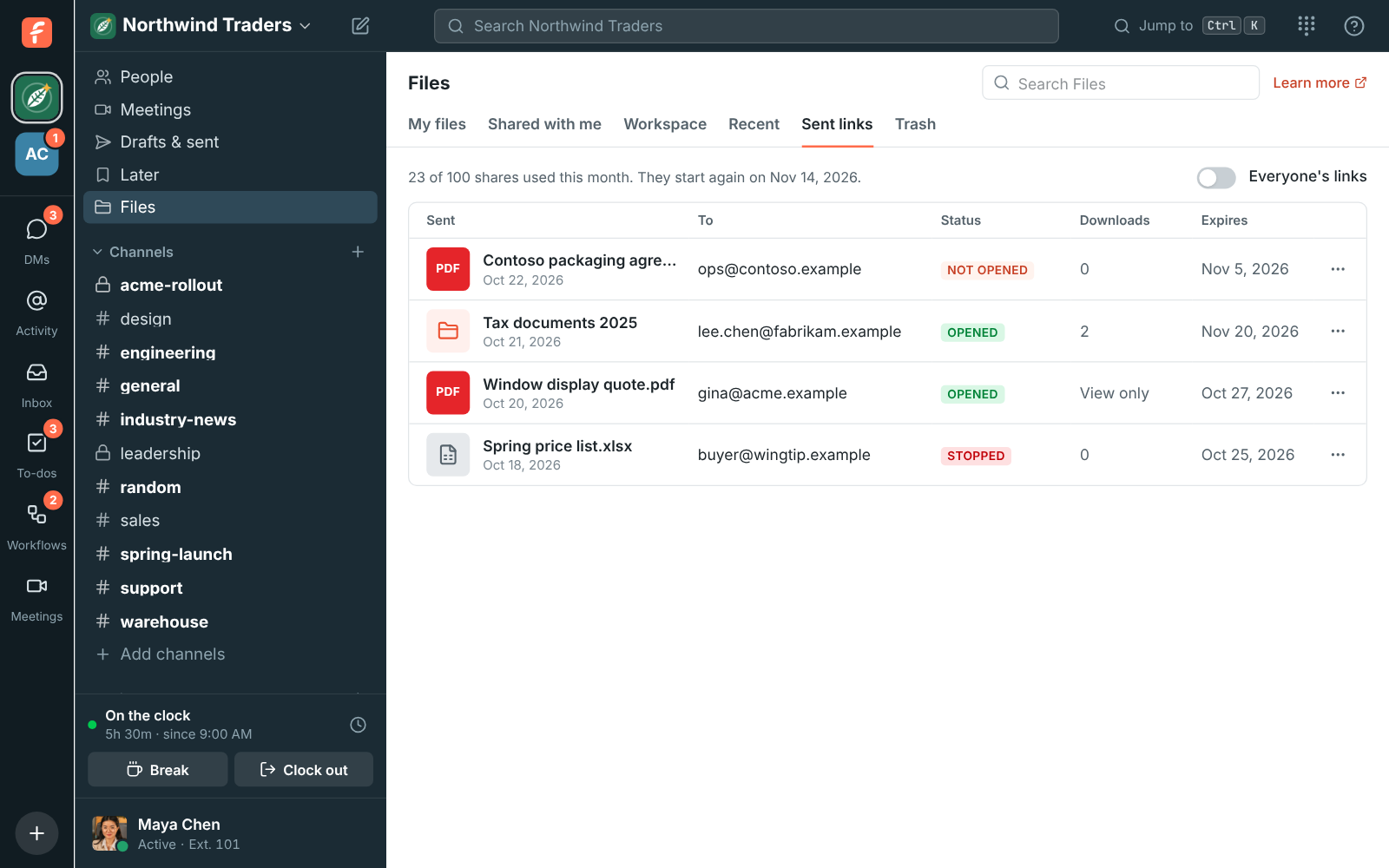
Section titled “Sent links and activity”Sent links lists what you sent: what, to whom, whether it was opened, the downloads and when the link runs out. Admins can turn on Everyone’s links to see the whole workspace’s. Click a link to see its activity: when it was sent, codes emailed, wrong codes, each time it was opened, and every file viewed or downloaded, with the country and the browser. The first time someone opens what you sent, we email you.
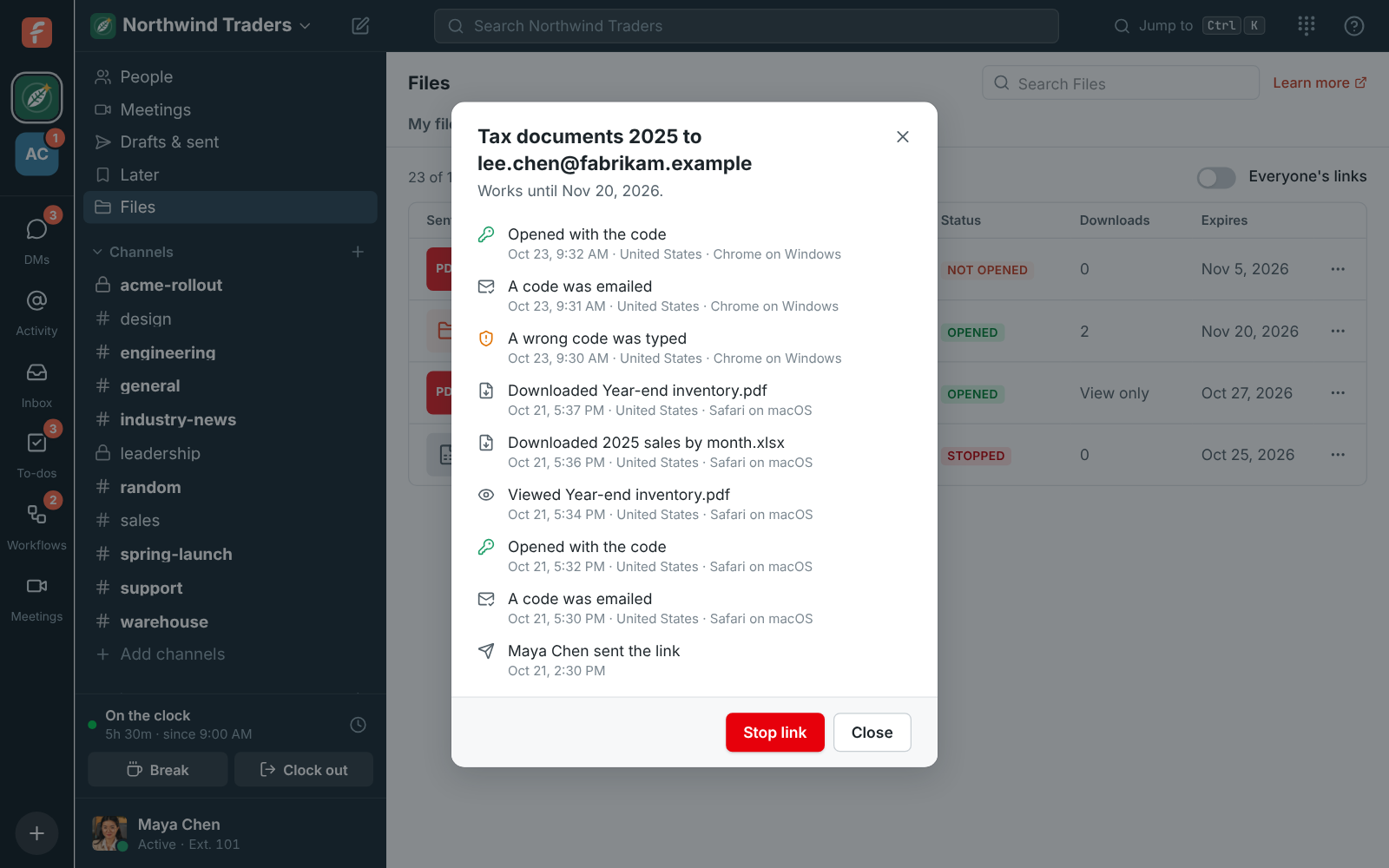
Stop link (in the link’s menu or its activity) stops it at once, even in a browser that has it open. A link also stops working when it runs out, when the file or folder goes to the trash, when the person who sent it leaves the workspace, when the add-on ends, or when an admin turns off sending outside.
Shares each month
Section titled “Shares each month”Each address you send to counts as one share. The add-on includes 100 shares a month for the workspace, and the count starts again on your billing day. Send outside shows how many are left. When they run out, a workspace with usage billing pays for each extra share on its next invoice (see Plan limits); otherwise sending waits until the count starts again.
What admins decide
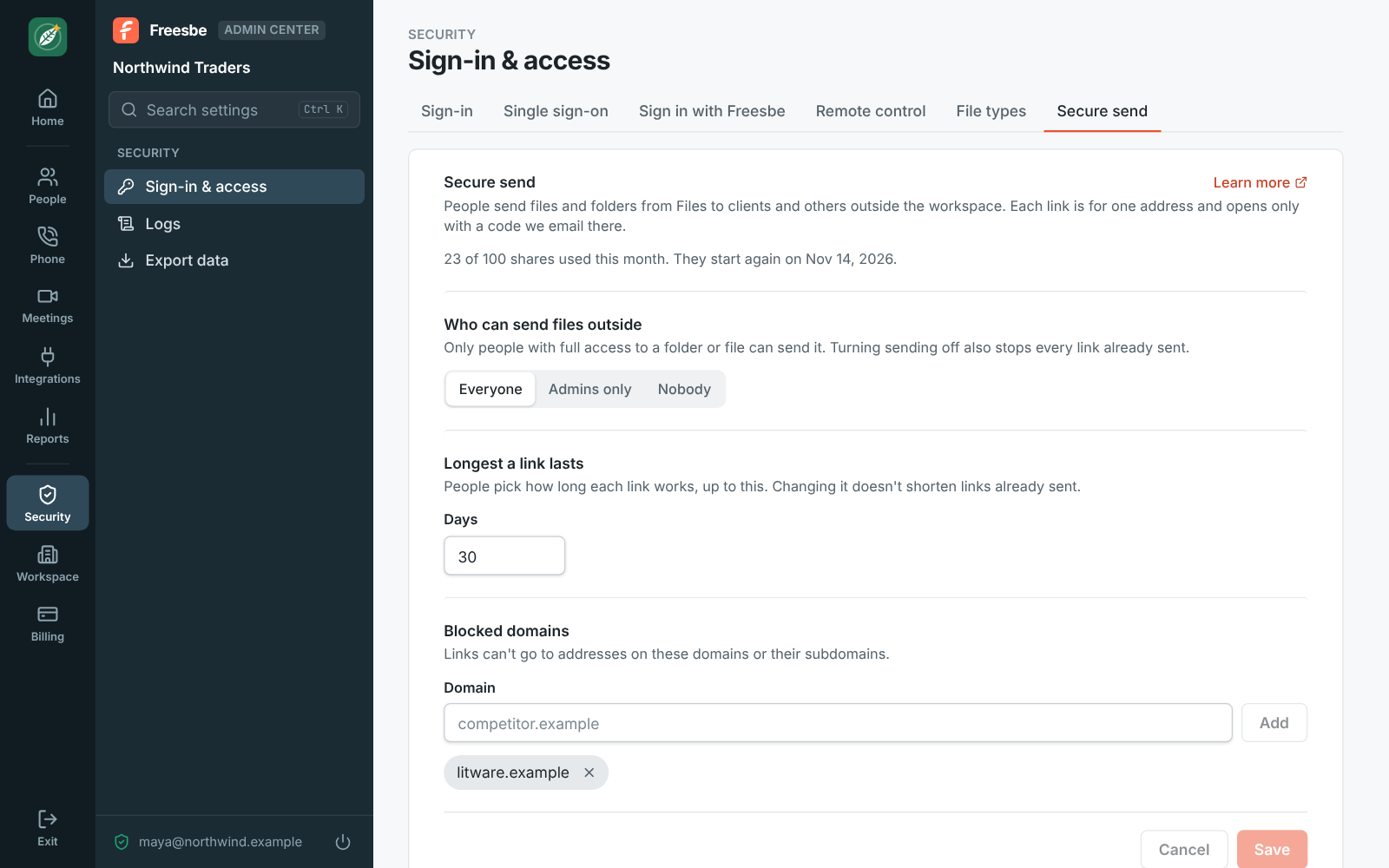
Section titled “What admins decide”In the Admin Center, Security → Sign-in & access → Secure send sets who can send files outside (everyone, admins only, or nobody), the longest a link can last, and email domains links can’t go to. Turning sending off also stops every link already sent.
Everything sent, stopped and changed here is in the workspace’s Audit log.
The trash
Section titled “The trash”Move to trash puts a file or folder (with everything in it) in Trash for 30 days. Restore puts it back where it was, or at the top when that folder is gone too. Delete forever deletes it, and every version of a file, straight away. You see what you deleted and what was deleted from your own files; admins also see what was deleted from the workspace’s folders. Moving something to the trash, restoring it and deleting it forever take full access.
On your phone
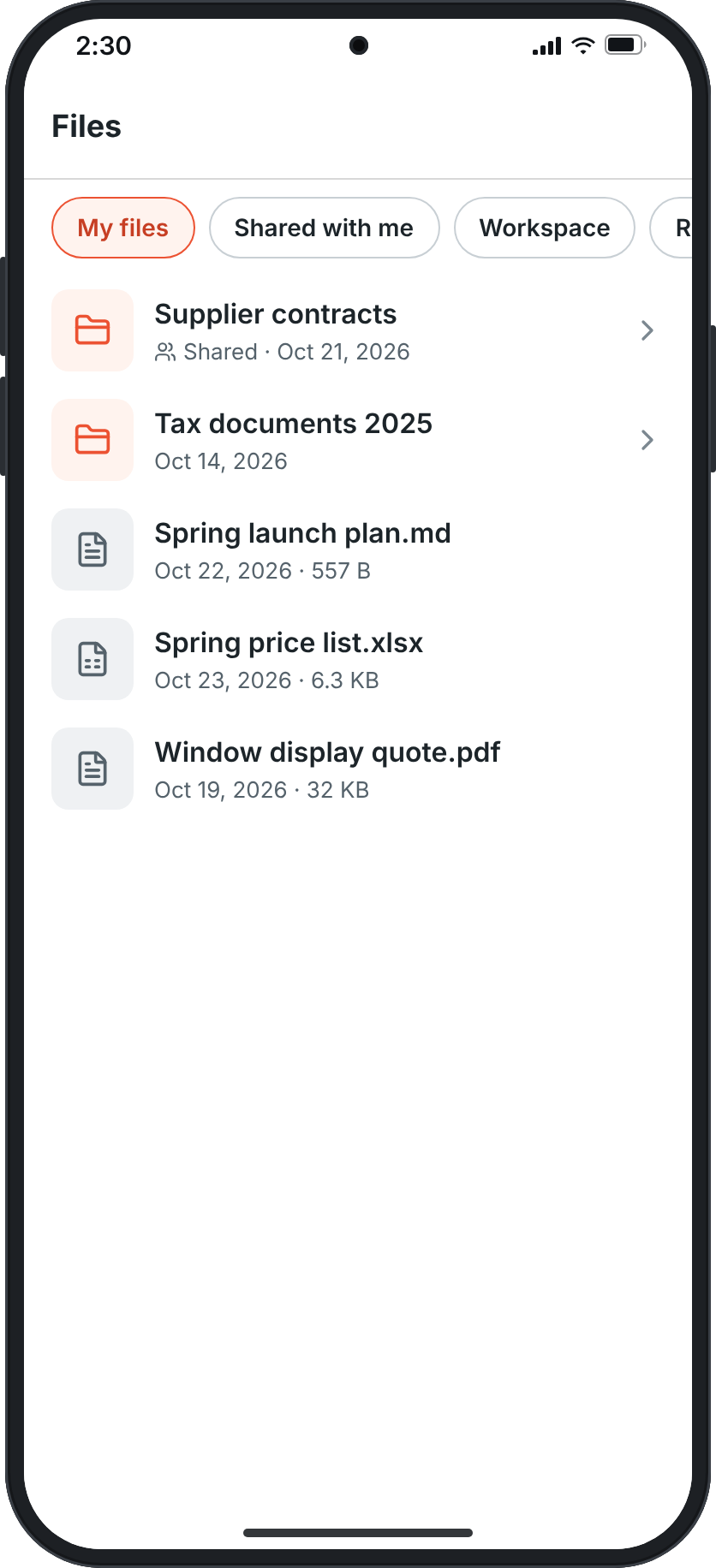
Section titled “On your phone”In the mobile app, You → Files shows My files, Shared with me, the workspace’s folders and Recent. Tap a folder to go in and a file to open it. Press and hold files to select them, then Share sends them to another app.
When someone leaves
Section titled “When someone leaves”When someone leaves the workspace or an admin removes them, their My files don’t disappear: they move to the workspace’s owner, in a folder named Files from and their name, with the same shares as before. What others had shared with them stops being shared, and the Secure send links they sent stop working.
Answers come from the Freesbe guides and are written by AI, so check the linked guide before relying on one. Please don't include personal details such as emails or passwords.